


Setting up Photo Albums
Wix Photo Albums: Updating Your Old Albums to the New Templates
The new Photo Albums templates allow for more design and customization options. If you have any albums built with the old templates (prior to December 2019) you can update to the newest version in order to edit and manage them.
When you update your old album, a duplicate version that uses the new templates is created automatically. You can then edit and customize the new version to use all the new template features.
Note:
Any albums created before December 2019 will still work as expected but they cannot be edited or updated.
In this article, learn more about:
Updating Photo Albums to the new templates
When you update your album, a new duplicate version is created automatically. You can then edit and publish this new version using the the new template features.
Please note, your old album will still be visible on your site. After updating, make sure to go to your Editor to hide the old version and show the new version.
To update your Photo Albums:
Go to Photo Albums in your site's dashboard.
Click Manage Album next to the relevant album created before December 2019.
A pop-up asks you to update this album before you can manage it. Click Let's Go to duplicate the album into the new template.
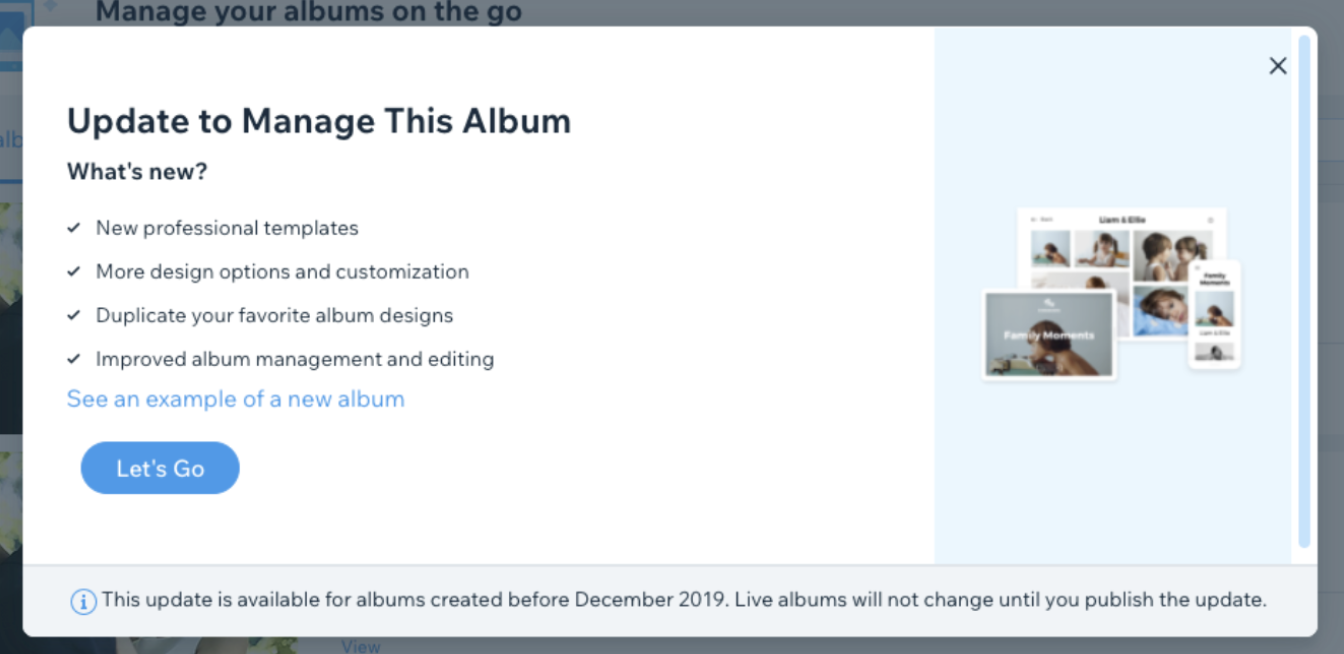
Once your album is duplicated, customize it using the new template features.
Click Update in the top right corner once you have finished customizing your album to save changes.
Click Publish Now to make the album live on your site.
Note:
Make sure to go to your Editor to hide the old version and show the new one on your live site.
Frequently asked questions (FAQs)
Click a question about updating old albums below to see the answer.
Can I update my older albums that allow visitors to buy photos?
Currently, Photo Albums that allow visitors to buy photos (active or not active) cannot be updated to the newest version. You will need to create a new album.
Will updating my album allow visitors to favorite?
No. If you want to use the favorites feature, you need to create a new album from scratch. The duplicated album will not include this feature.
Will my old template style still be available?
Yes, however, we recommend you switch to the new templates for a smoother experience.