top of page

Setting up Photo Albums

Wix Photo Albums: Creating a Favorites List for Clients (Proofing)

You can use Wix Photo Album's proofing feature to let your clients and album visitors create lists of their favorite photos.

It also allows your clients to comment and specify any special instructions they have for the photos. For example, they can let you know how many copies they'd like, or if they'd like a particular photo in black and white.

Important:

Favorites lists are only available for new albums. They are not available for albums that you created in the past.

To create and share a list:

You can create a new favorites list and share it with your clients from Photo Albums in your site's dashboard.

  1. Go to Photo Albums in your site's dashboard.

  2. Create a new album. Learn how to create an album

  3. Click Publish Now.

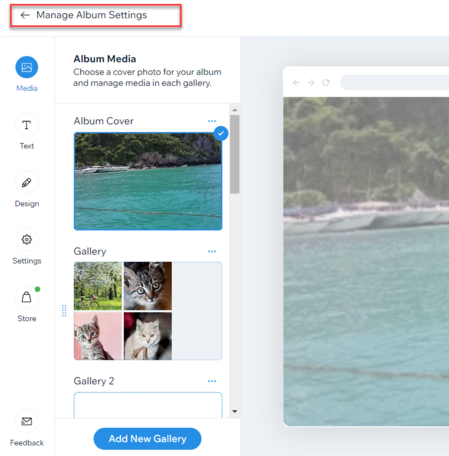
  4. Click Manage Album Settings.

A screenshot of a photo album in edit mode, with the Manage Album setting button highlighted.

  1. Click Get Started under Favorites lists on the right.

  2. Click +Create List.

  3. Add a name for your list.

  4. (Optional) Add instructions or additional information for your clients under Add a note.

  5. Select who can access your list under Privacy settings.Public: Anyone that can view your album can view this list.
    Secret: Only people with the link can access the list.

A screenshot of the edit favorite lists setting panel showing how to edit the list name and change privacy settings.

  1. Click Save.

  2. Choose how you want to share the link, or tap View List to see what it looks like.Copy link: Copy the link and send it to your client.
    Email: Send the link via email.
    WhatsApp: Send the link via WhatsApp.

Tip:

After you've created your list, you can view it on your live site, download the photos that your clients select, update your list's information, and manage your list's members. Learn more about managing your favorites list.

Need A Professional Website?
Contact Us 
Today!

Connecting PayU India as a Payment Provider

Connecting Paystack as a Payment Provider

Connecting Oceanpayment as a Payment Provider

Connecting DPO Group as a Payment Provider

Connecting Peach Payments as a Payment Provider

Connecting Portmone as a Payment Method

Connecting PayU as a Payment Provider

Connecting Bancontact as a Payment Method (Through Stripe)

Connecting KOMOJU as a Payment Provider

Connecting iyzico as a Payment Method

Connecting GMO-Epsilon as a Payment Provider

Connecting Privat24 as a Payment Method (Through Interkassa)

Connecting UniPAY Georgia as a Payment Provider

Connecting SumUp as a Payment Provider

Connecting YooKassa (YooMoney) as a Payment Provider

Connecting Square as a Payment Provider

Connecting Stripe as a Payment Provider

Connecting Online Bank Transfer by Klarna as a Payment Method (Through Stripe)

Connecting PayPal as a Payment Provider

Connecting Pay-Easy or Convenience Stores as a Payment Method (Through GMO)

Connecting PagueloFacil as a Payment Provider

Connecting PagSeguro as a Payment Provider

Connecting Mercado Pago as a Payment Provider

Connecting Max as a Payment Provider

Connecting Isracard Powered by PayMe as a Payment Provider

Connecting iDeal as a Payment Method (Through Stripe)

Connecting Fat Zebra as a Payment Provider

Connecting Eway as a Payment Provider

Connecting Braintree as a Payment Provider

Connecting AliPay as a Payment Method (Through Stripe)

wix experts
Graphic2Traffic web design
©
bottom of page