top of page

Selling and promoting your music

Wix Music: Viewing Your Transactions

Wix Music lets you sell the music you make directly on your site. You can view all of your sales in one place, making it easy to track your earnings and stay up to date on your fans' activity.

In this article, learn about:

Viewing your transactions

The Payments page in your site's dashboard shows a list of any transaction your visitors made. Click a transaction to see information like the amount, who made the payment, and its current status.

To view transactions:

  1. Go to Payments in your site's dashboard.

  2. Click the relevant payment to see more information.
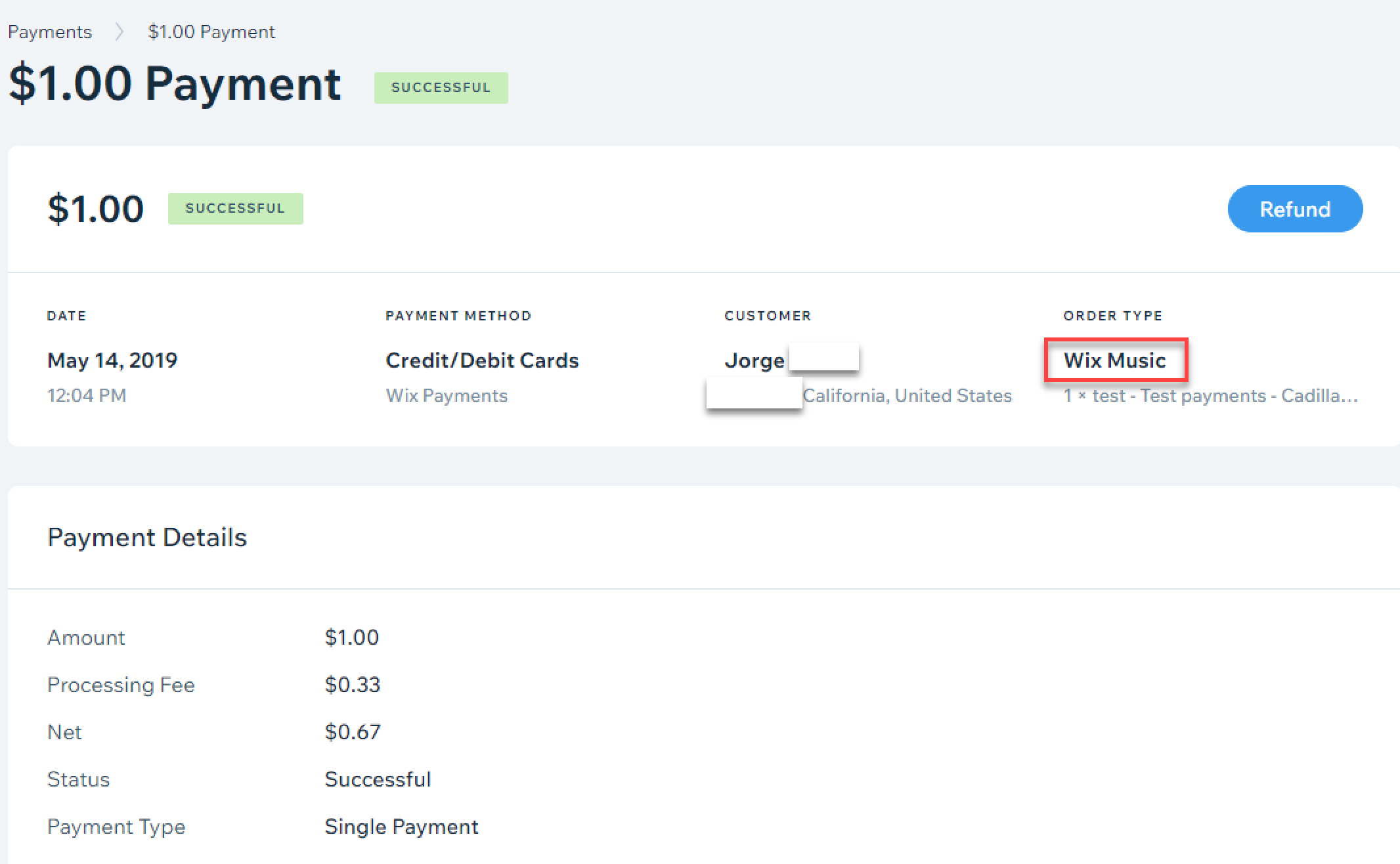
A screenshot of the payment menu with Wix Music highlighted as the order type.

Need to refund a customer?

If you're using Wix Payments, you can click Refund at the top right, when viewing a transaction, to issue a refund. For other providers, see this article about issuing refunds with third-party payment providers.

Filtering your transactions

You can filter the list on the Payments page by date, status, payment provider/method, and order type. This is a great way to find a specific transaction quickly, without having to go through each one.

To filter your transactions:

  1. Go to Payments in your site's dashboard.

  2. Click Filter.

  3. Select the checkbox next to the filter(s) you want to apply.

Tip:

Selling other products or services on your site? You can filter the list to only show Wix Music transactions. Select Wix Music as the Order Type.
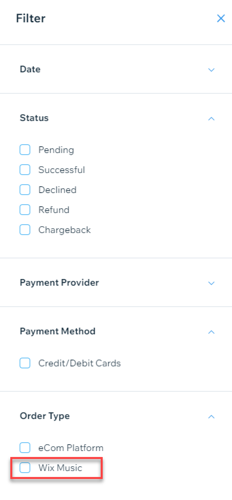
A screenshot of the available filters for transactions, with Wix Music highlighted as the order type.

Need A Professional Website?
Contact Us 
Today!

Receiving Your Payouts from Wix Payments

Wix Payments: Receiving Your First Payout

Wix Payments: Viewing Your Payouts

Managing Business Owners in Wix Payments

Wix Payments: Updating Your Account Settings

Wix Payments: Understanding the Status of Your Account

Wix Payments: Accessing Your Account Dashboard

Wix Payments: Troubleshooting Site Access Issues

Wix Payments: Adding Klarna as a Payment Method

Wix Payments: Adding Affirm as a Payment Method

Wix Payments: Adding Afterpay as a Payment Method

Wix Payments: Assigning Payments Roles

Wix Payments: Adding Tap to Pay on Mobile as a Payment Method

Wix Payments: Adding Google Pay as a Payment Method

Wix Payments: Enabling Point of Sale (POS)

Wix Payments: Adding Apple Pay as a Payment Method

Wix Payments Terms of Service

Wix Payments: Service Fees

Customizing Your Wix Payments Statement Descriptor

Wix Payments: Ensuring Your Business is Ready for Sales

Best Practices for Merchants Using Wix Payments

Wix Payments: Prohibited Products and Services

Wix Payments: Guidelines for Uploading Documentation

Wix Payments: Verifying Your Employer Identification Number (EIN)

Adding Business Owners to Your Wix Payments Account

Wix Payments: The Difference Between Account Types

Wix Payments Verification Process

Completing Your Wix Payments Account Setup

Switching to Wix Payments

Wix Payments: Creating an Account

wix experts
Graphic2Traffic web design
©
bottom of page