top of page

3rd-Party POS Solutions

Wix Mobile POS: Setting Up a Point of Sale with SumUp

Important:

This article is about mobile POS with SumUp as your payment provider.

  • For information on Wix's own Wix Mobile POS, click here.

  • For info on the Wix Retail POS tablet solution for brick & mortar stores, click here.

Connect to the SumUp payment provider to turn your phone into a point of sale (POS). After setup, you can collect cash or credit card payments wherever you go.

POS with SumUp is available in Austria, Belgium, Bulgaria, Cyprus, France, Germany, Ireland, Italy, Latvia, Luxembourg, Malta, Netherlands, Norway, Poland, Slovakia, Slovenia, Spain, Switzerland, and the UK.

Tell me about other POS solutions

You can accept payment through the following methods:

  • Wix Mobile POS: Wix offers an integrated POS solution. Learn more

  • Square: Sell at a point of sale with the Square payment provider. Square is available in the US, Canada, UK, Australia, and Japan. Learn more

  • Cash: You can accept cash payment at a POS after downloading the Wix mobile app. No further setup is needed.

Step 1 | Download the Wix app

  1. Go to the Apple App Store (on iPhone) or Google Play (on Android).

  2. Type 'Wix' in the Search field.

  3. Click Get or Install to download the app.

Tip:

If you are accessing this article on your phone, you can click to download:

You are now ready to accept cash payments on your mobile device. Learn how

Step 2 | Set up SumUp as your payment provider

Go to Accept Payments in your site's dashboard and connect SumUp as your payment provider.

Note:

You can set up SumUp without an upgrade, but to start collecting payments, you'll need a Premium plan or Studio plan that supports payments.

Step 3 | Order a SumUp card reader

To accept credit card payments, you need one of SumUp's credit card readers.

SumUp card readers connect to your smartphone or tablet via Bluetooth. They can be used to swipe, tap or insert debit/credit cards.
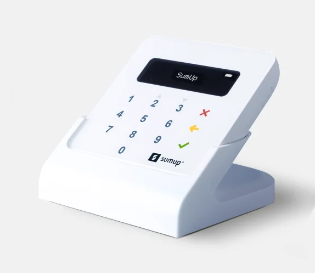
The SumUp card reader

Need A Professional Website?
Contact Us 
Today!

Online Programs: Managing Your Sections and Steps

Online Programs: Adding Sections and Steps to Your Program

Online Programs: Editing Your Program Settings

Online Programs: Creating a New Program

Online Programs: Adding and Setting Up Online Programs

Online Programs: An Overview

Wix Art Store: Available Print Sizes

Wix Art Store: Order A Print Product Availability

Wix Art Store: Printing and Shipping Issues in the Wix Art Store

Wix Art Store: Image Quality Web Ready vs. Original File

Wix Art Store: Test Ordering Your Printed Merchandise in Wix Art Store

Wix Art Store: Creating Special Offers in Your Art Store

Wix Art Store: Setting Up Wix Art Store to Sell Digital Images

Wix Art Store: Setting Up Wix Art Store to Sell Digital Images and Prints

Wix Art Store: Withdrawing Your Earnings in the Wix Art Store

Wix Art Store: Changing Your Currency in Wix Art Store

Wix Art Store: Setting Prices in Your Wix Art Store

Wix Art Store: Choosing What Types of Files to Sell

Wix Art Store: No Longer Available in the App Market

Wix Art Store: About the Wix Art Store

Wix Photo Albums: Reordering the Products in Your Photo Album Store

Wix Photo Albums: Editing the 'Buy Now' Button

Wix Photo Albums: Viewing Available Print Sizes

Wix Photo Albums: Adding Watermarks to Your Photos

Wix Photo Albums: Setting Prices in the Wix Photo Albums Store

Wix Photo Albums: Withdrawing Your Earnings in the Wix Photo Albums Store

Wix Photo Albums: Test Ordering Your Printed Merchandise in the Wix Photo Album Store

Wix Photo Albums: Store Image Quality Web Ready vs. Original File

Wix Photo Albums: Selecting a Payment Method in Wix Photo Albums Store

Wix Photo Albums: Changing Your Currency in the Wix Photo Albums Store

wix experts
Graphic2Traffic web design
©
bottom of page