top of page

Wix Mobile POS

Wix Mobile POS: Collecting Tips

Important:

  • This article is about Wix Mobile POS for mobile phones.

  • For info on Wix Retail POS for brick and mortar stores, click here.

Let clients who want to leave a tip do so right in your Mobile POS. You can display preset tip percentages or allow customers to decide on the tip.
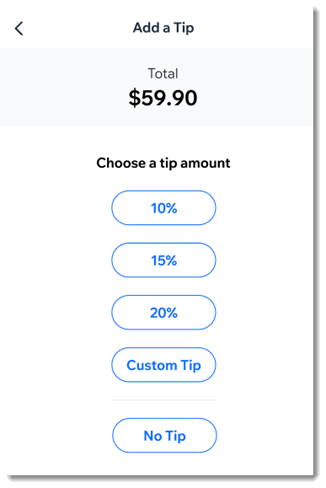
An example of the tip screen customers see on the mobile POS

After you enable tipping, you'll see the option to add a tip as part of the checkout.

Notes:

  • To collect tips, Wix Payments must be your payment provider.

  • It's not possible to collect tips for cash payment or when processing split payments.

  • Tips are available with Wix Stores, Wix Booking, and  Wix Restaurants Orders (New) .

To enable tipping:

  1. Go to your site in the Wix app.

  2. Tap Manage  at the bottom.

  3. Scroll down to the Get Paid section and tap Point of Sale.

  4. Tap the More Actions icon   at the top right.

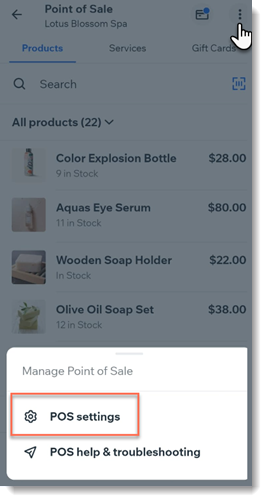
  5. Tap POS settings.
    Note: If you don't have the POS settings option, see the note below.

  6. Select Tips.

  7. Tap the Collect tips toggle to enable it.

  8. (Optional) Change the preset tip percentages:Tap the tip option you want to update.
    Enter a new percentage.

  9. (Optional) Tap the Allow a custom tip amount toggle to enable it.

  10. Tap Save.

Adding POS settings:

Normally, you should be able to access the POS Settings by clicking the More Actions icon  at the top right.
Screenshot of a Wix App point of sale page after clicking the More Actions button with POS settings outlined
If the settings aren't displayed, you can access them by adding Wix Stores to your site.
Note: Make sure you hide store pages from your live site.

Need A Professional Website?
Contact Us 
Today!

Online Programs: Managing Your Sections and Steps

Online Programs: Adding Sections and Steps to Your Program

Online Programs: Editing Your Program Settings

Online Programs: Creating a New Program

Online Programs: Adding and Setting Up Online Programs

Online Programs: An Overview

Wix Art Store: Available Print Sizes

Wix Art Store: Order A Print Product Availability

Wix Art Store: Printing and Shipping Issues in the Wix Art Store

Wix Art Store: Image Quality Web Ready vs. Original File

Wix Art Store: Test Ordering Your Printed Merchandise in Wix Art Store

Wix Art Store: Creating Special Offers in Your Art Store

Wix Art Store: Setting Up Wix Art Store to Sell Digital Images

Wix Art Store: Setting Up Wix Art Store to Sell Digital Images and Prints

Wix Art Store: Withdrawing Your Earnings in the Wix Art Store

Wix Art Store: Changing Your Currency in Wix Art Store

Wix Art Store: Setting Prices in Your Wix Art Store

Wix Art Store: Choosing What Types of Files to Sell

Wix Art Store: No Longer Available in the App Market

Wix Art Store: About the Wix Art Store

Wix Photo Albums: Reordering the Products in Your Photo Album Store

Wix Photo Albums: Editing the 'Buy Now' Button

Wix Photo Albums: Viewing Available Print Sizes

Wix Photo Albums: Adding Watermarks to Your Photos

Wix Photo Albums: Setting Prices in the Wix Photo Albums Store

Wix Photo Albums: Withdrawing Your Earnings in the Wix Photo Albums Store

Wix Photo Albums: Test Ordering Your Printed Merchandise in the Wix Photo Album Store

Wix Photo Albums: Store Image Quality Web Ready vs. Original File

Wix Photo Albums: Selecting a Payment Method in Wix Photo Albums Store

Wix Photo Albums: Changing Your Currency in the Wix Photo Albums Store

wix experts
Graphic2Traffic web design
©
bottom of page