


Wix Inbox FAQ
Wix Inbox: Managing Your Notification Settings
Choose how you're notified of new Wix Chat and Wix Inbox messages. You have the option to turn on email, desktop and mobile notifications to make sure you never miss a new message.
Managing your email notifications
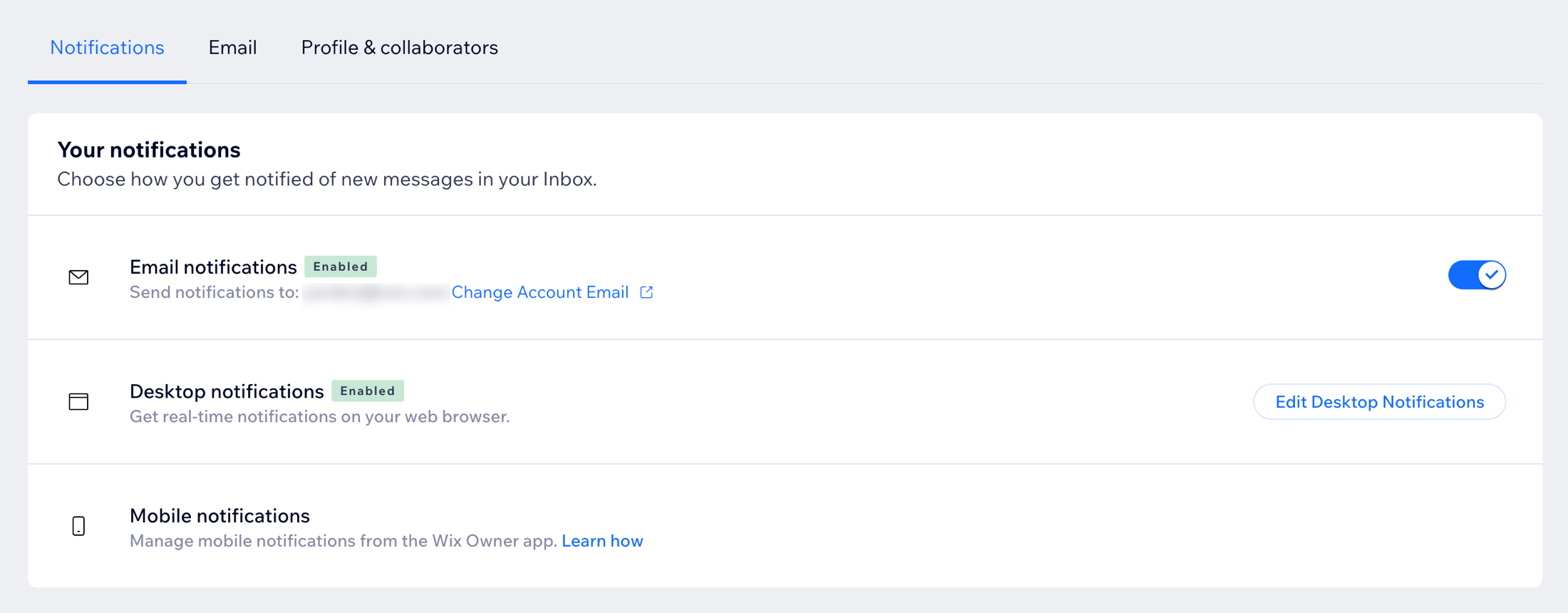
Turn on email notifications so you're notified by email every time someone messages you or initiates a chat on your site. Email notifications are automatically sent to the email address associated with your Wix account.
Important:
Changing your account email in Inbox Settings changes it across your entire site. If you want to send notifications to another email address that isn't your account email (e.g. a separate business email), you need to add the business email as a site collaborator.
To manage email notifications:
Go to Inbox in your site's dashboard.
Click the Settings drop-down at the top right.
Click Notifications.
Click the Email notifications toggle to set whether you want to receive email notifications:Enabled: The email address associated with your Wix account receives a notification every time you get a new inbox or chat message.
Disabled: You won't receive email notifications from Wix Chat or Wix Inbox.
Want other people to respond to messages?
You also have the option to send email notifications to site collaborators so they are alerted each time an inbox or chat message is received.
Enabling desktop notifications
Get real-time notifications on your web browser even when you're not on Wix.com. Remain aware of all incoming inbox and chat messages so you can quickly review and respond.
To enable desktop notifications:
Go to Inbox in your site's dashboard.
Click the Settings drop-down at the top right.
Click Notifications.
Click Edit Desktop Notifications next to Desktop notifications.
Click the Enable desktop notifications toggle to activate desktop notifications.

Managing mobile app notifications
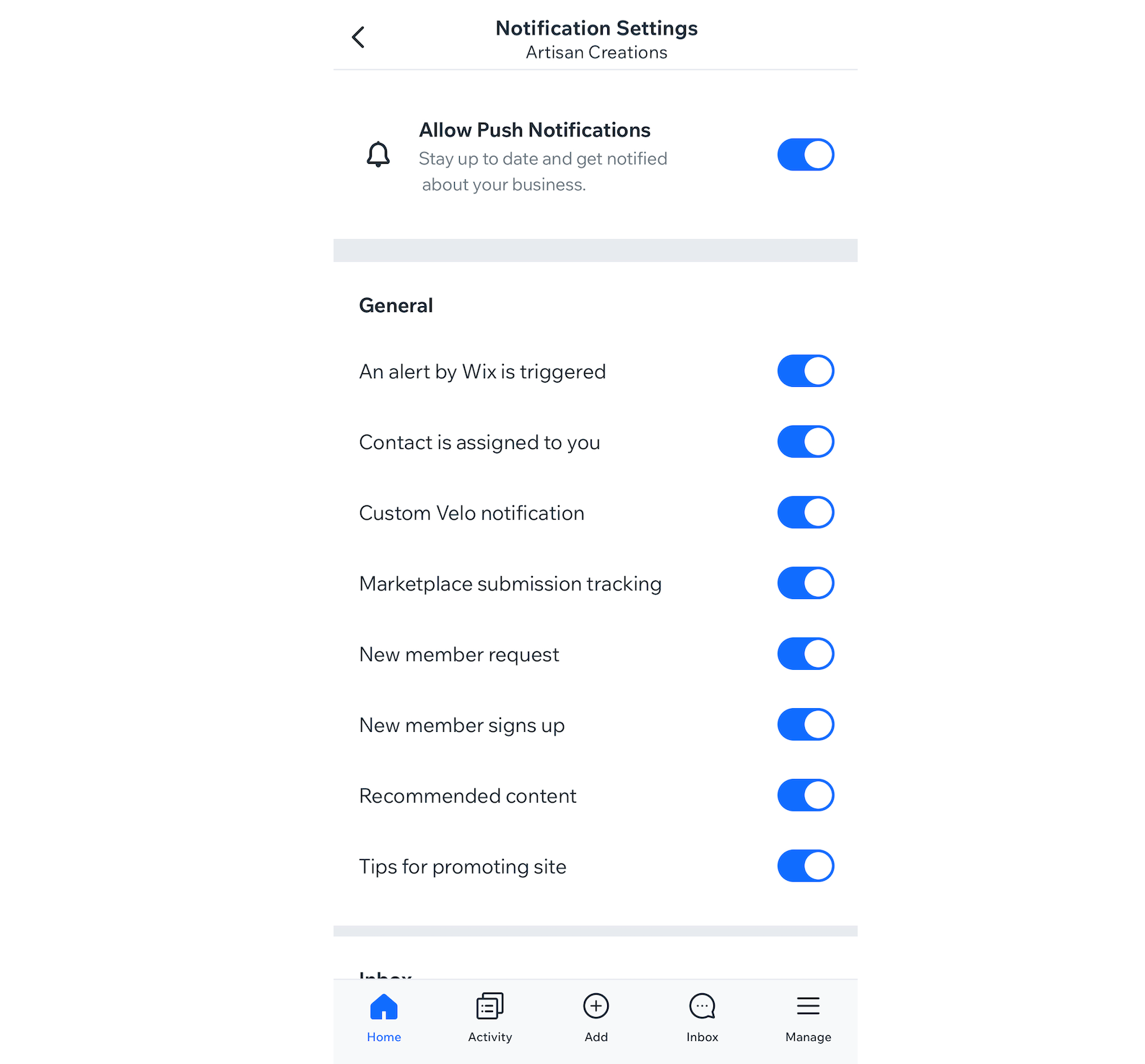
Using the Wix app, you can get a notification to your mobile device for every new inbox or chat message, allowing you to respond on the go. By default, app notifications are enabled but you can temporarily or permanently disable the ones you don't need.
To manage your mobile app notifications:
Go to your site in the Wix app.
Tap Inbox
 at the bottom.
Tap the More Actions icon
 at the top right.
Tap Settings.
Tap Notification settings.
Tap the toggle for Allow Push Notifications enable or disable them.
(For disabling notifications) Select for how long you want to disable notifications for: 8 hours, 1 week, 1 month, 1 year, or permanently.
Scroll down to Inbox and tap the toggle next to each notification type to enable or disable it.
FAQs
Here are some common questions about managing your notification settings:
How can I change the email address my notifications go to?
Email notifications are automatically sent to the email address you used when signing up for your Wix account. If you want email notifications to go to a different email address, such as your business email address, you can add it as a site collaborator.
Note: Any new email address you'd like to add as a site collaborator must have a separate Wix account.
To add your business email as a site collaborator:
Go to Inbox in your site's dashboard.
Click the Settings drop-down at the top right.
Click Notifications.
(Optional) Click the Email notifications toggle to disable email notifications if you no longer want to receive email notifications to your main account email.
Click the Profile & team tab.
Click + Invite People next to Your team.
Enter a business email or an alternative email where you want to receive chat and inbox notifications.
Click Send Invite.
Go to the new email's inbox and click Accept Now in the email.
Log in to the Wix account that's associated with the new email address and click Accept.
The new email address is automatically assigned a Back Office Manager role and appears in the Your team list. Click the toggle under Email notifications to turn on email notifications for this email.
Why am I not receiving desktop notifications?
Your browser may be blocking desktop notifications. You may need to update your browser settings to "allow" notifications from Wix.
Please refer to notification settings for your browser or device (for example, Chrome or Microsoft Edge).
How do I manage my form submission notifications?
The email notifications you set for Inbox and Chat are different from your form submission notifications. Choose who is notified of form submissions.