top of page

Wix Forms FAQ

Wix Forms: Creating a Coupon

Coupons are a great way to give people an incentive to purchase a product or service through your form. You can offer a discount either as a percentage off the total price or as a fixed monetary amount.

You can also choose whether a coupon applies for all your forms or specific ones, such as seasonal products or services.
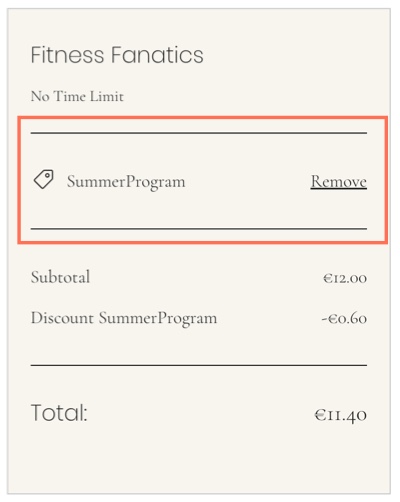
A screenshot of the applying a coupon code.

Before you begin:

Make sure to add a payment form to your site.

To create a coupon:

  1. Go to Coupons in your site's dashboard.

  2. Click New Coupon.

  3. Select the type of coupon you want to offer:$ Discount: Offer a fixed monetary discount amount.
    % Discount: Offer a percentage discount.

  4. Enter the Coupon code participants need to use the coupon.

  5. Enter the Coupon name for your own records.

  6. Enter the Discount you want to offer.

  7. Select the relevant form from the Apply to drop-down:All Forms: Participants can use the discount on all forms.
    Specific Forms: The discount is available on the forms you choose. Select the relevant form from the Form drop-down.

  8. Select the dates the coupon is valid between.

  9. (Optional) Select the Limit uses checkbox(s) to:Limit the total number of uses for this coupon: Set the number of times the coupon can be used.
    Limit to one use per customer: The same participant can't use the coupon more than once.

  10. Click Create Coupon.

Need A Professional Website?
Contact Us 
Today!

Receiving Your Payouts from Wix Payments

Wix Payments: Receiving Your First Payout

Wix Payments: Viewing Your Payouts

Managing Business Owners in Wix Payments

Wix Payments: Updating Your Account Settings

Wix Payments: Understanding the Status of Your Account

Wix Payments: Accessing Your Account Dashboard

Wix Payments: Troubleshooting Site Access Issues

Wix Payments: Adding Klarna as a Payment Method

Wix Payments: Adding Affirm as a Payment Method

Wix Payments: Adding Afterpay as a Payment Method

Wix Payments: Assigning Payments Roles

Wix Payments: Adding Tap to Pay on Mobile as a Payment Method

Wix Payments: Adding Google Pay as a Payment Method

Wix Payments: Enabling Point of Sale (POS)

Wix Payments: Adding Apple Pay as a Payment Method

Wix Payments Terms of Service

Wix Payments: Service Fees

Customizing Your Wix Payments Statement Descriptor

Wix Payments: Ensuring Your Business is Ready for Sales

Best Practices for Merchants Using Wix Payments

Wix Payments: Prohibited Products and Services

Wix Payments: Guidelines for Uploading Documentation

Wix Payments: Verifying Your Employer Identification Number (EIN)

Adding Business Owners to Your Wix Payments Account

Wix Payments: The Difference Between Account Types

Wix Payments Verification Process

Completing Your Wix Payments Account Setup

Switching to Wix Payments

Wix Payments: Creating an Account

wix experts
Graphic2Traffic web design
©
bottom of page