top of page

Using the Wix app for Wix Events

Wix Events: Checking-In Guests Using the Wix App

Use the Wix app to check guests in as they arrive at your event. For ticketed events, you can use the app to scan the QR code found on event tickets.
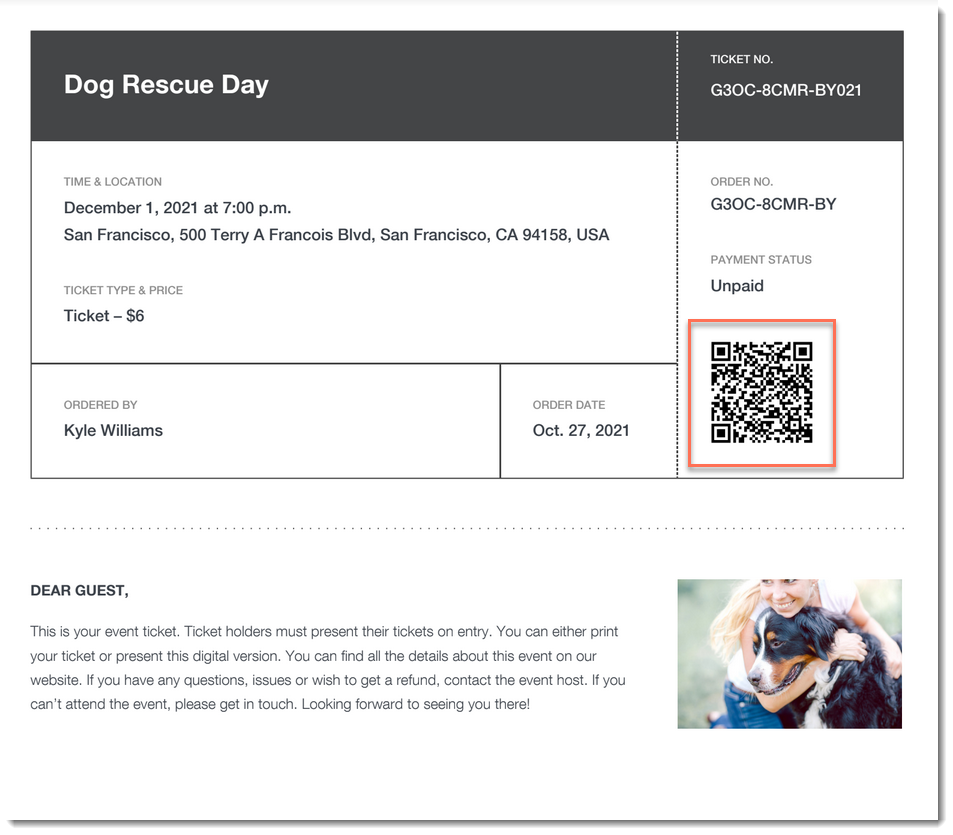
A screenshot of an event ticket PDF highlighting a QR code.

Important:

Go to your guest list in the Wix app shortly before you leave for the event, while you’re connected to the Internet. This ensures that you’ll be able to access the list and check guests in - even if you're offline during the event itself.

To check a guest in to an event:

  1. Go to your site in the Wix app.

  2. Tap Manage  at the bottom.

  3. Tap Events.

  4. Tap Published Events.

  5. Tap the event you want to view.

  6. Choose what you want to do:

Change a guest's status to "Checked In"

  1. Tap Guest List.

  2. (Optional) Filter your guest list:Tap the Filter  icon.

    Do any of the following:Select a status (e.g. Not checked in)
    Select one a payment status (ticketed events only).
    Select one or more a ticket types (ticketed events only).
    Select a sort option.
    Tap Save.

  3. Tap the checkmark next to a guest's name.
    A screenshot of a tapping a checkmark icon next to a guest's name in the Wix Owner app.

Scan a guest's ticket

  1. Tap Guest List.

  2. (Optional) Filter your guest list:Tap the Filter icon.

    Do any of the following:Select a status (e.g. Not checked in)
    Select one a payment status (ticketed events only).
    Select one or more a ticket types (ticketed events only).
    Select a sort option.
    Tap Save.

  3. Tap the QR icon at the top right.
    A screenshot of the QR icon in the Wix Owner app.

  4. Use your mobile device to scan the QR code that appears on the guest's ticket.
    A screenshot of an event ticket highlighting a QR code.

Tip:

You can also check in guests on desktop and on the Check-in by Wix app.

Need A Professional Website?
Contact Us 
Today!

Accepting Payments: An Overview

Third-Party App: Adobe Express for Wix by Adobe

Third-Party App: Image Zoom by Widgetic

Third-Party App: Calculator Builder by Lumifish LABS

Third-Party App: Blocky IP & Country Blocker by Effective Apps

Third-Party Apps: Design Elements Apps

Third-Party App: Google Reviews by Elfsight

Third-Party App: Customer Reviews by Write a Customer Review

Third-Party App: Contact Management/CRM by vcita Inc.

Third-Party App: 123 Form Builder & Payments by 123FormBuilder

Third-Party Apps: Communications Apps

Third-Party App: Cookiebot™ for Wix by Usercentrics

Recommended Apps for Musicians

Third-Party App: Weglot Translate by Weglot

Third-Party Apps: Media and Content Apps

Third-Party App: Boom Event Calendar by BoomTech

Third-Party App: Cap Rate Calculator by Allioo.com

Third-Party App: Nash: All-in-1 Local Delivery by Nash Technologies Inc

Third-Party Apps: Hotel & Airbnbs Map

Third-Party App: Events Calendar by inlight Labs

Third-Party Apps: Services and Events Apps

Third-Party App: Mailchimp by Intuit Mailchimp

Third-Party App: ReConvert Upsell and Cross Sell by ReConvert

Third-Party App: Visitor Analytics by Visitor Analytics

Third-Party App: Site Booster by AppSharp

Third-Party App: rankingCoach SEO by rankingCoach

Third-Party App: Rabbit SEO by SEO Tools

Third-Party App: Mailchimp Integration by PoCo

Third-Party App: Mailchimp Forms by MailMunch

Third-Party App: GetTraffic by Infolinks Media

wix experts
Graphic2Traffic web design
©
bottom of page