top of page

Using the Wix app for Wix Events

Wix Events: Checking-In Guests Using the Wix App

Use the Wix app to check guests in as they arrive at your event. For ticketed events, you can use the app to scan the QR code found on event tickets.
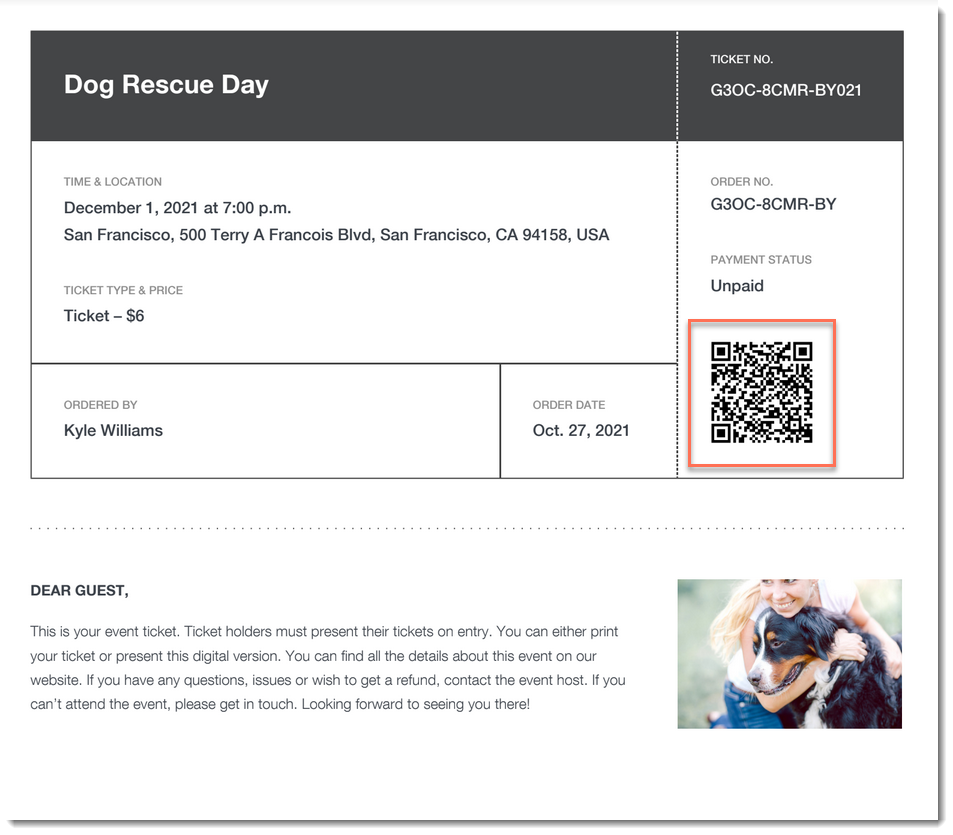
A screenshot of an event ticket PDF highlighting a QR code.

Important:

Go to your guest list in the Wix app shortly before you leave for the event, while you’re connected to the Internet. This ensures that you’ll be able to access the list and check guests in - even if you're offline during the event itself.

To check a guest in to an event:

  1. Go to your site in the Wix app.

  2. Tap Manage  at the bottom.

  3. Tap Events.

  4. Tap Published Events.

  5. Tap the event you want to view.

  6. Choose what you want to do:

Change a guest's status to "Checked In"

  1. Tap Guest List.

  2. (Optional) Filter your guest list:Tap the Filter  icon.

    Do any of the following:Select a status (e.g. Not checked in)
    Select one a payment status (ticketed events only).
    Select one or more a ticket types (ticketed events only).
    Select a sort option.
    Tap Save.

  3. Tap the checkmark next to a guest's name.
    A screenshot of a tapping a checkmark icon next to a guest's name in the Wix Owner app.

Scan a guest's ticket

  1. Tap Guest List.

  2. (Optional) Filter your guest list:Tap the Filter icon.

    Do any of the following:Select a status (e.g. Not checked in)
    Select one a payment status (ticketed events only).
    Select one or more a ticket types (ticketed events only).
    Select a sort option.
    Tap Save.

  3. Tap the QR icon at the top right.
    A screenshot of the QR icon in the Wix Owner app.

  4. Use your mobile device to scan the QR code that appears on the guest's ticket.
    A screenshot of an event ticket highlighting a QR code.

Tip:

You can also check in guests on desktop and on the Check-in by Wix app.

Need A Professional Website?
Contact Us 
Today!

About Wix Payments

Enabling or Disabling a Payment Method on Your Checkout

Accepting Donation Payments

Accepting Payments by Manual Card Entry

Best Practices for Accepting Card Payments

Troubleshooting Issues for Accepting Payments

Setting Up a Grace Period for Subscriptions (e.g. Stores, Pricing Plans, Recurring Invoices)

Understanding Double Charges on Your Customers' Bank Statements

Setting Your Location for Accepting Payments

Email from Wix Regarding Changes to Your Payment Method Settings

Accepting Payments from Your Customers with SCA (PSD2)

Selling CBD on Your Wix Site

Compliance with Local Payment Laws

Accepting Payments in Installments (BNPL)

Accepting Recurring Payments

Adding and Setting Up a Pay Button

Handling Chargebacks from Your Customers

Getting an Overview of Your Payments on Mobile

Getting an Overview of Your Payments

Setting Your Currency for Accepting Payments

Disconnecting a Payment Provider

Changing Your Payment Provider for Accepting Credit Card Payments

Connecting a Payment Provider

Available Payment Providers for Selling CBD on Wix

Setting Up Manual (Offline) Payments

Available Payment Providers in Your Country

Adding Goods / Services that may be Prohibited by Your Payment Provider

Accepting Payments by Credit Card

Using the Accept Payments Tab

Checking for Restricted Products & Services when Setting Up Your Payments

wix experts
Graphic2Traffic web design
©
bottom of page