top of page

Using the Wix app for Wix Events

Wix Events: Checking-In Guests Using the Wix App

Use the Wix app to check guests in as they arrive at your event. For ticketed events, you can use the app to scan the QR code found on event tickets.
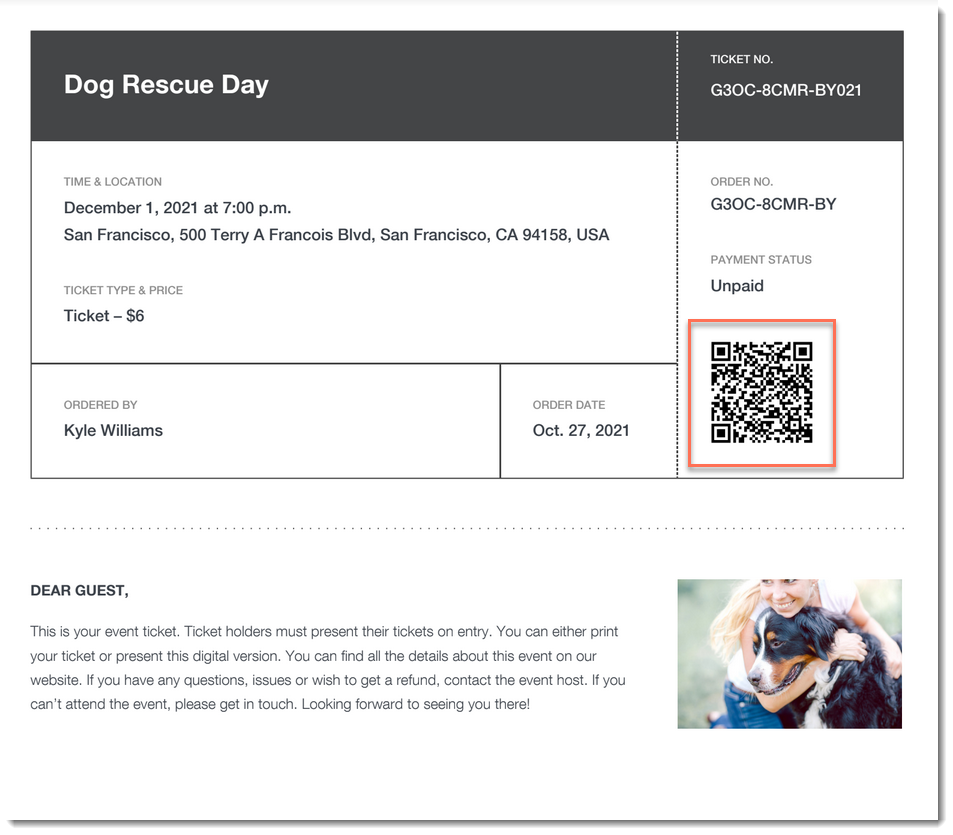
A screenshot of an event ticket PDF highlighting a QR code.

Important:

Go to your guest list in the Wix app shortly before you leave for the event, while you’re connected to the Internet. This ensures that you’ll be able to access the list and check guests in - even if you're offline during the event itself.

To check a guest in to an event:

  1. Go to your site in the Wix app.

  2. Tap Manage  at the bottom.

  3. Tap Events.

  4. Tap Published Events.

  5. Tap the event you want to view.

  6. Choose what you want to do:

Change a guest's status to "Checked In"

  1. Tap Guest List.

  2. (Optional) Filter your guest list:Tap the Filter  icon.

    Do any of the following:Select a status (e.g. Not checked in)
    Select one a payment status (ticketed events only).
    Select one or more a ticket types (ticketed events only).
    Select a sort option.
    Tap Save.

  3. Tap the checkmark next to a guest's name.
    A screenshot of a tapping a checkmark icon next to a guest's name in the Wix Owner app.

Scan a guest's ticket

  1. Tap Guest List.

  2. (Optional) Filter your guest list:Tap the Filter icon.

    Do any of the following:Select a status (e.g. Not checked in)
    Select one a payment status (ticketed events only).
    Select one or more a ticket types (ticketed events only).
    Select a sort option.
    Tap Save.

  3. Tap the QR icon at the top right.
    A screenshot of the QR icon in the Wix Owner app.

  4. Use your mobile device to scan the QR code that appears on the guest's ticket.
    A screenshot of an event ticket highlighting a QR code.

Tip:

You can also check in guests on desktop and on the Check-in by Wix app.

Need A Professional Website?
Contact Us 
Today!

Connecting 2Checkout as a Payment Provider

Requesting Additional Payment Providers & Methods

Using a Different Account with the Same Payment Provider

Wix Payments: About Chargeback Fees

Wix Payments: About Suspicious Payments

Wix Payments: About the 'Liability Shift'

About Reserve Funds in Your Wix Payments Account

Wix Payments: Covering a Negative Balance

Adding Funds to Cover Refunds in Your Wix Payments Account

Wix Payments: Failed Payout

Working with Grouped Payment Methods in Wix Payments

Webinar: Chargebacks - Best Practices, Expert Tips & Tools

Wix Payments: Getting a 1099-K Form

Wix Payments: PCI Compliance

Wix Payments: Account Has Been Closed

Wix Payments: Pandemic Driven Sales Rules

Accessing the Wix Payments Dashboard After Disconnecting Your Account

Connecting Giropay as a Payment Method (Through Wix Payments)

Wix Payments: Adding iDeal as a Payment Method

Connecting Pay Now by Klarna as a Payment Method (Through Wix Payments)

Understanding Your Chargeback Ratio

Chargebacks in Wix Payments

Wix Payments: Declined Payment Due to Suspected Fraud

Wix Payments: Declined Payment Due to Suspected Fraud

Wix Payments: Transaction Declined Reasons

Wix Payments: Understanding Your Payments Table

Wix Payments: Refunding Customers

Wix Payments: Understanding Your Monthly Fees Invoice

Wix Payments: Viewing Your Settlement Report

Wix Payments: Changing Your Payout Schedule

wix experts
Graphic2Traffic web design
©
bottom of page