top of page

Wix Contacts FAQ

Wix Contacts: Adding and Managing Custom Contact Fields

Add custom fields to store additional information about your contacts. Custom fields can be either text, number, date or URL, and can have any name you choose.
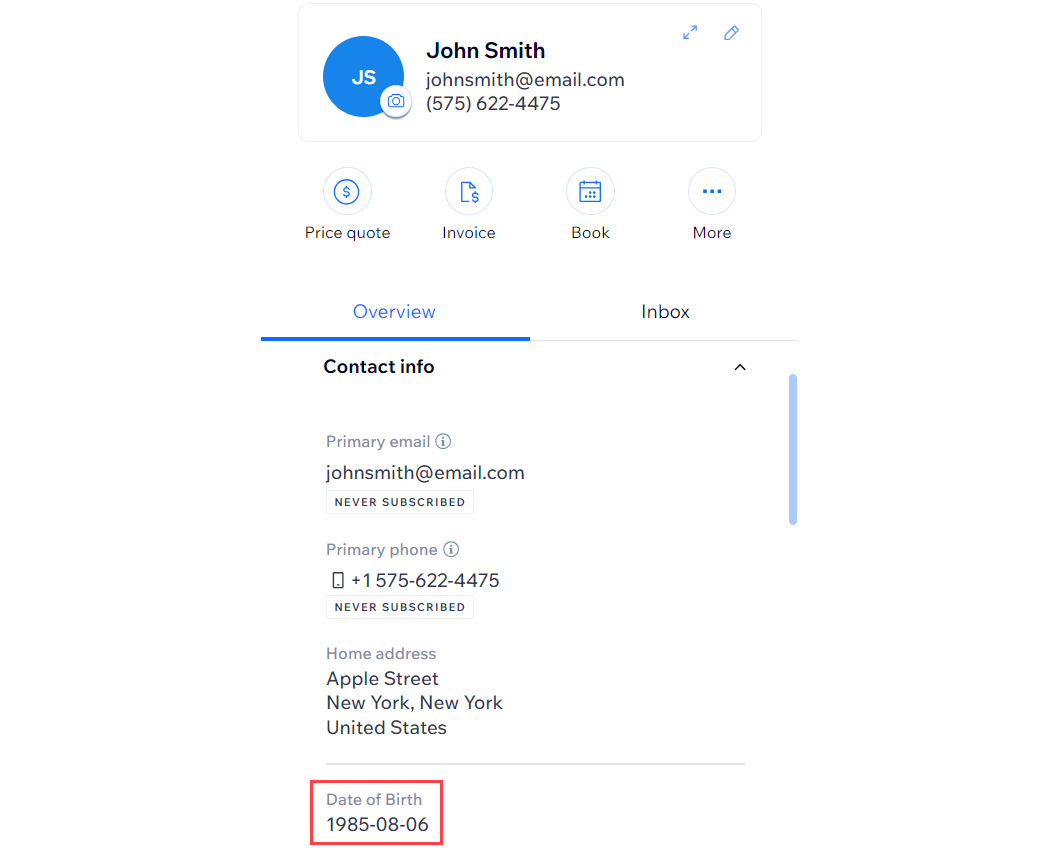
A screenshot of the contact panel with the date of birth custom field highlighted.

Adding custom fields to contacts

Any custom field that you add is automatically added to all contacts in your Contact List. This way, you do not have to fill in this field for every contact.

Tip:

Sync custom fields from your contacts to Wix Forms to collect this information from your visitors from a form on your site.

To add a custom field:

  1. Go to Contacts in your site's dashboard.

  2. Click the More Actions icon at the top and select Custom fields.

  3. Click + Add New Field.

  4. Click the Field Type drop-down and select the type of content: Text, Number, Date, or URL

  5. Enter the name of the new field (e.g. "Date of Birth") in the Field Name field.

  6. Click Add.

A screenshot of the custom field menu with the text field type selected, and Date of Birth entered as the custom field.

  1. Click Done.

Renaming custom contact fields

You can change the name of a custom field without affecting any of the information stored in the field.

To rename a custom contact field:

  1. Go to Contacts in your site's dashboard.

  2. Click the More Actions icon at the top and select Custom fields.

  3. Hover over the field you want to rename and click the Rename icon .

  4. Edit the name of the field and click the checkmark to save.

  5. Click Done.

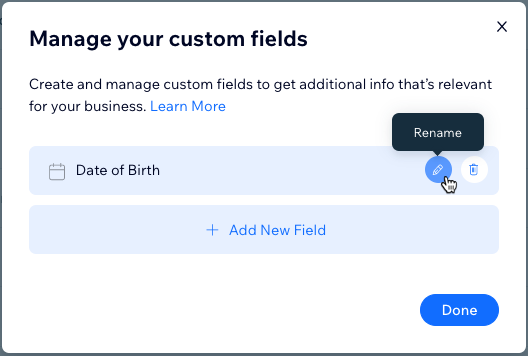
A screenshot of the Manage your custom fields menu, with the mouse hovering over the Rename option on a custom field.

Deleting custom contact fields

Clean up your contacts by deleting custom fields that you no longer need. Deleting the custom field removes it, and the information it contains, from all your contacts.

To delete a custom field:

  1. Go to Contacts in your site's dashboard.

  2. Click the More Actions icon at the top and select Custom fields.

  3. Hover over the field you want to delete and click the Delete icon .

  4. Click Delete to confirm.

  5. Click Done.

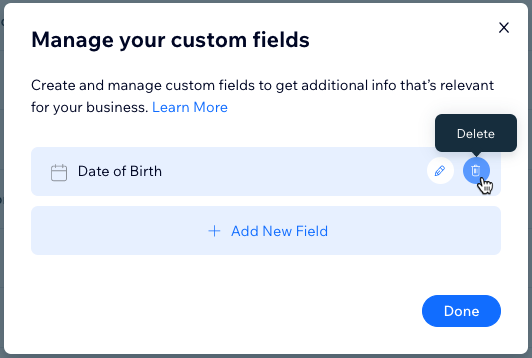
A screenshot of the Manage your custom fields menu, with the mouse hovering over the Delete option on a custom field.

Need A Professional Website?
Contact Us 
Today!

Wix Hotels by HotelRunner: Connecting Booking.com to Your Site

Wix Hotels by Hotelrunner: Changing the ‘Room’ Text on Your Site

Wix Hotels by HotelRunner: Adding Room Types

Wix Hotels by HotelRunner: Creating and Managing Your Tax Categories

Wix Hotels by HotelRunner: Troubleshooting "There Are No Available Rooms" Error

Wix Hotels by HotelRunner: Switching to the New Wix Hotels

Wix Hotels by HotelRunner: Customizing Your Email Templates

Wix Hotels by HotelRunner: Managing Your Reservation Settings

Wix Hotels by HotelRunner: Managing Your Reservations

Wix Hotels by HotelRunner: Managing Your Site Languages

Wix Hotels by HotelRunner: Making Bulk Updates

Wix Hotels by HotelRunner: Setting Your Open Seasons, Pricing and General Info

Wix Hotels by HotelRunner: Managing Prices and Availability with the Inventory Calendar

Wix Hotels by HotelRunner: Creating and Managing Your Cancellation and Deposit Policies

Wix Hotels by HotelRunner: Creating and Managing Your Rate Plans

Wix Hotels by HotelRunner: Adding and Setting up Your Hotel

Wix Hotels by HotelRunner: An Overview

Removing Imported Reservations from Your Wix Hotels Reservation Calendar

Troubleshooting the Wix Hotels Channel Manager

Disconnecting a Channel in the Channel Manager (HotelRunner)

Importing Reservations from an External Calendar (iCal) to Wix Hotels

Exporting Your Reservations from Wix Hotels

Wix Hotels Channel Manager Fees

Checklist for Connecting Wix Hotels to the Channel Manager (HotelRunner)

Connecting Your Hotel to Booking Channels Using the Channel Manager

Connecting Wix Hotels with External Services

Wix Hotels: About the Channel Manager

About the Wix Hotels Checkout Process

Managing Wix Hotels Reservations from the Wix App

Changing the Status of a Hotel Reservation in Wix Hotels

wix experts
Graphic2Traffic web design
©
bottom of page