


Wix Chat FAQ
Wix Chat: Adding Wix Chat to Your Site
Wix Chat allows you to communicate with site visitors in real-time so you can welcome them and answer questions immediately. You can correspond with visitors on-the-go from your mobile device or chat directly from your site dashboard.
Note:
Some sites come with Wix Chat pre-installed. Look at the bottom right of your site in your Editor to see if a chatbox appears.
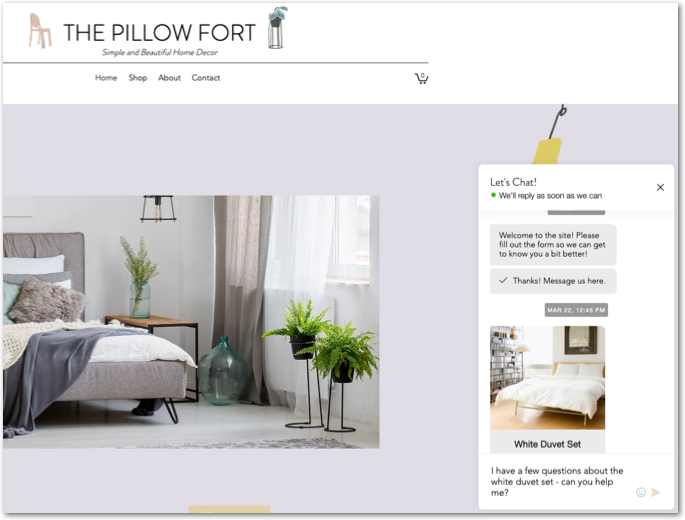
Adding Wix Chat to your site
You can add the Wix Chat app to your site from the dashboard or directly from your editor.
To add Wix Chat to your site:
Wix Editor
Studio Editor
Dashboard
Click Add Apps
 on the left side of the editor.
Search for the Wix Chat app in the search bar.
Click Add to Site.
Next steps:
Reflect your business's personality by designing your site's chatbox.
Make Wix Chat work best for you by customizing your chat settings.
FAQs
Click a question below to learn more about adding Wix Chat:
Why isn't my chatbox visible on my desktop site?
The chatbox only appears after the member logs in. It won't appear on member login pages.
Why isn't my chatbox visible on my mobile site?
The chatbox doesn't appear on a mobile device if you have activated the old Mobile Action Bar. To show the chatbox, you must switch to the new Quick Action Bar.
Why am I not receiving notifications for new messages?
Make sure you have enabled notifications for new messages. Click the Notifications tab in your Wix Chat settings and select Manage Inbox Notifications.
If you’re using the Wix mobile app, ensure notifications are enabled in your phone’s settings.
What should I do if Wix Chat is not loading correctly?
Make sure that the Wix Chat app is properly installed and activated on your website.
Check if there are any conflicting apps or elements on the mobile version that might be affecting the functionality of the Wix Chat button.
Clear your browser’s cache and cookies, then reload your site. If the issue persists, try accessing your site from a different browser or device.
How do I handle spam messages in Wix Chat?
Clear spam messages from your Inbox:
Hover over the relevant message and click the More Actions icon
 .
.Click Report as spam.
Click Report & Delete.