


Using the Wix app to manage your bookings
Wix Bookings: Managing Your Resources Using the Wix App
Manage the resources for your services while you're on the go, using the Wix app. Assign resources to specific services, at specific locations, to streamline your day-to-day operations.
This is especially useful when staff members need access to particular rooms, equipment, or resources to provide their services. With flexible resource management from your mobile device, you can efficiently manage availability, prevent overbooking, and ensure a positive experience for your staff and clients.
Important:
Go to your Wix account on desktop to create and edit resources.
In this article, learn more about:
Assigning resources to existing services on the Wix app
You can assign existing resources to your services using the Wix app. This is useful if there are any last-minute changes, or cancellations, and you need to reassign resources to open up more bookings.
Note:
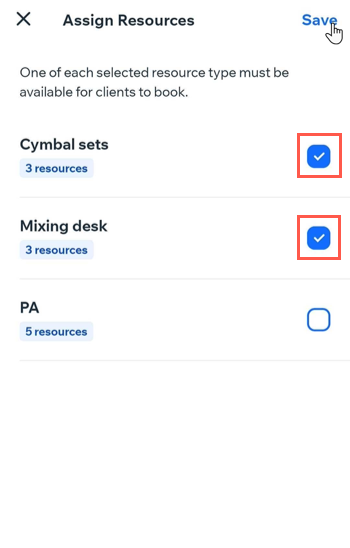
One of each selected resource type must be available for clients to book, when you assign resources.
To assign a resource to an existing service:
Go to your site in the Wix app.
Tap Manage
 at the bottom.
Tap Booking Services, or tap Catalog and select Booking Services.
Tap to select the relevant existing service.
Tap Edit service.
Tap Assign Resources.
Tap the checkbox next to the relevant resources.
Tap Save.
Removing resources from services on the Wix app
You can remove resources from a service using the Wix app at any time. This is useful if you are running special events at one of your locations and need more resources for the day to accept more bookings.
To remove a resource from a service:
Go to your site in the Wix app.
Tap Manage
at the bottom.Tap Booking Services, or tap Catalog and select Booking Services.
Tap to select the relevant existing service.
Tap Edit service.
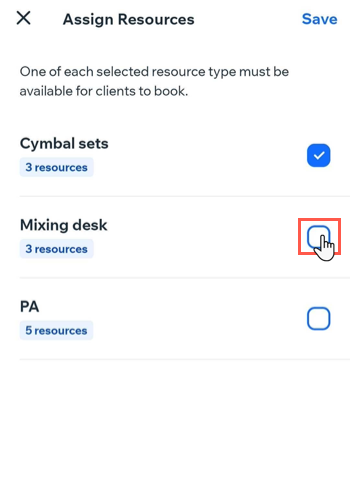
Tap Assign Resources.
Tap to deselect the checkboxes next to the relevant resources you want to remove from the service.
Tap Save.
(FAQs)
Click a question below to learn more.
Can I create and edit resources using the Wix app?
No, you need to use your Wix account on a desktop to create and edit resources. The app allows you to assign and remove existing resources only.
What is required for clients to book a service with assigned resources?
At least one of each selected resource type must be available for clients to book the service. Make sure to properly assign your resources where and when you need them to get as many bookings as possible.