Wix Bookings
Wix Bookings: Setting the Time Zone Display
Your customer may be in a different time zone than you when booking one of your services, especially if you offer online services. To avoid confusion or missed sessions, you have several options for how to display the service times on your site.
Before you begin:
Make sure to set your own time zone in the General section of your site's dashboard.
Notes:
The first calendar day of the week is determined by the business location you enter in your regional settings. Learn how to change your regional settings.
In this article, learn more about:
Display only your local time zone
This option is useful for businesses with local clients who visit in person, such as a hair salon.
Your regional settings define your time zone, and you can edit this at any time.
To display only your local time zone:
Go to Booking Settings in your site's dashboard.
Scroll down and select Calendar time zone.
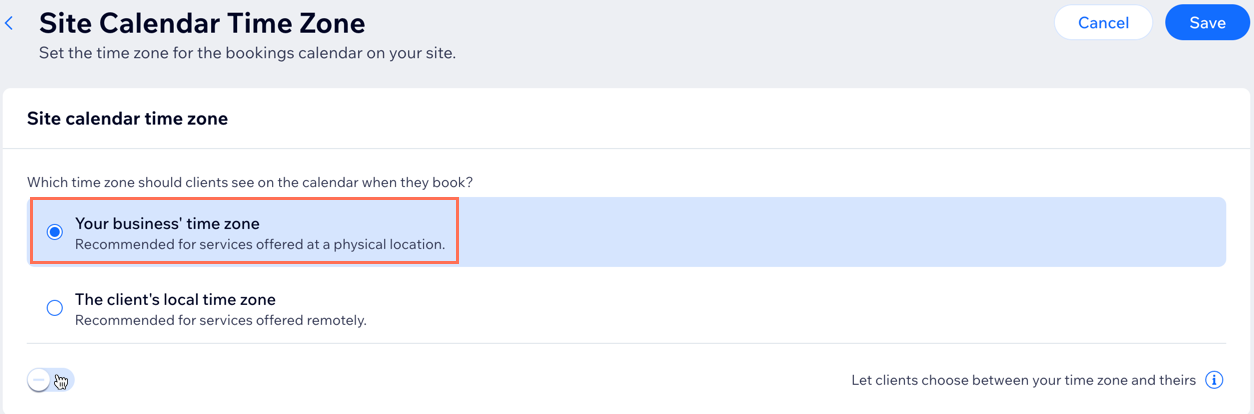
Select Your business' time zone.
Disable the Let clients choose between your time zone and theirs toggle.
Click Save.
Display only the client's time zone
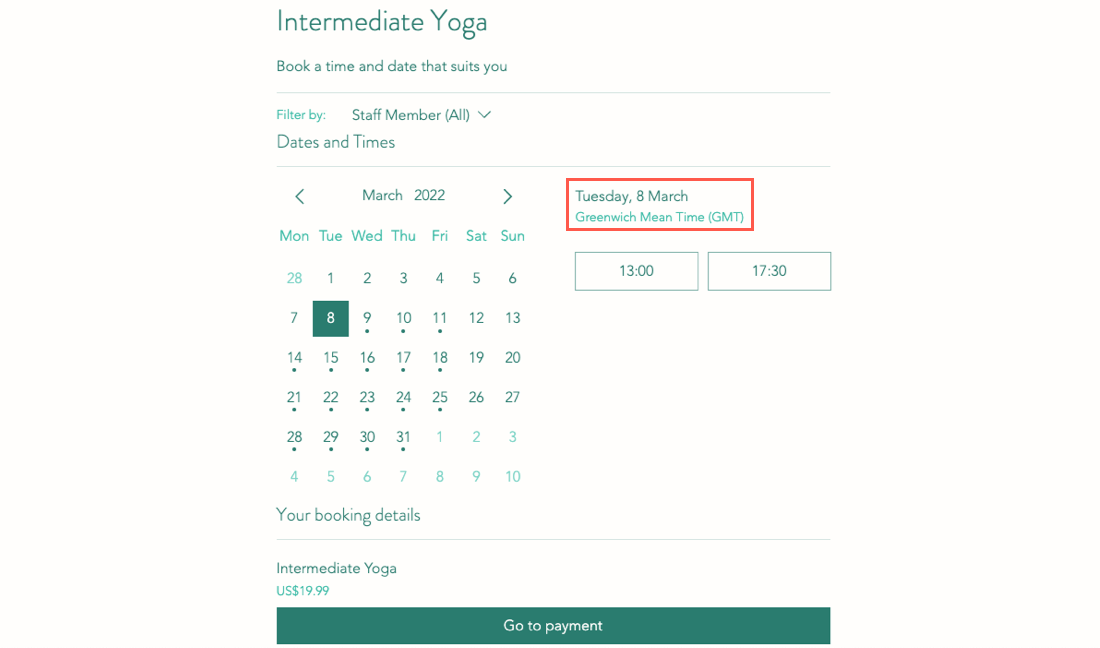
This option is useful for businesses that sell online sessions with clients around the world. The system detects where the customer is currently located and displays services in their local time zone.
To display only the client's time zone:
Go to Booking Settings in your site's dashboard.
Scroll down and select Calendar time zone.
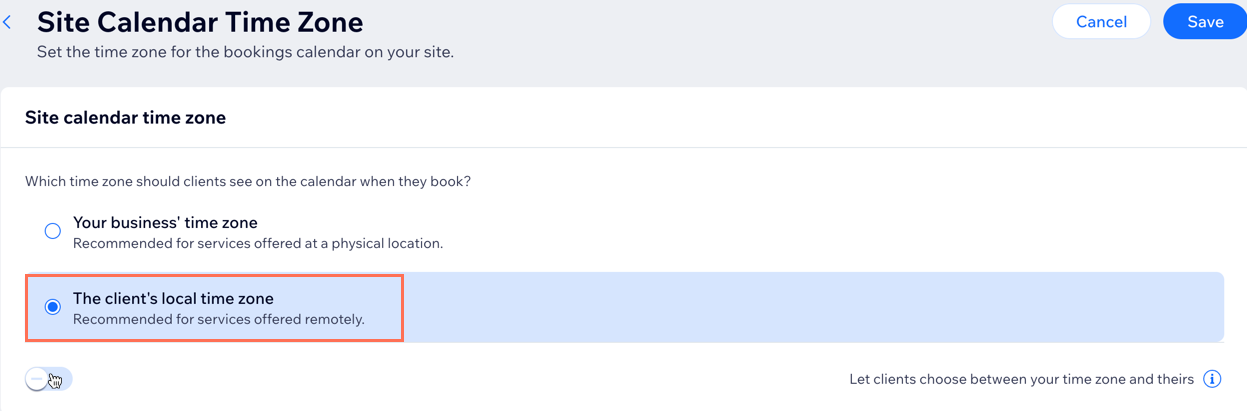
Select The client's local time zone.
Disable the Let clients choose between your time zone and theirs toggle.
Click Save.
Allow clients to choose which time zone they want to view
If you have both local and international bookings, you may want to select this option. Choose a default time zone display and then let clients decide if they want to change it.
Note
In the Wix member apps, clients are not able to choose which time zone they want to view. The calendar time zone you select in your Booking Settings determines which time zone clients see when they view services.
To allow clients to choose a time zone display:
Go to Booking Settings in your site's dashboard.
Scroll down and select Calendar time zone.
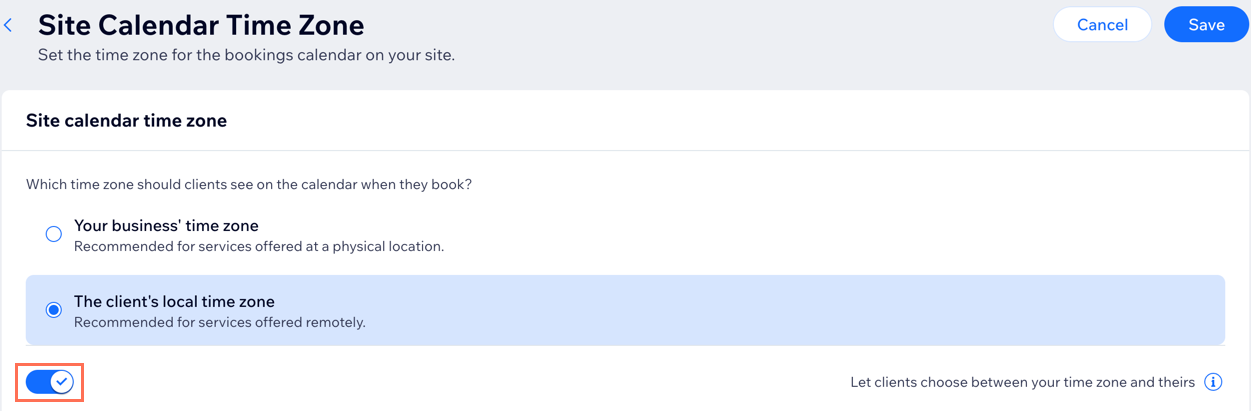
Enable the Let clients choose between your time zone and theirs toggle.
Click Save.