Wix Bookings
Wix Bookings: About Wix Bookings
Wix Bookings is an easy-to-use scheduling system that lets your members book and pay for services online, so you can focus on managing your business.
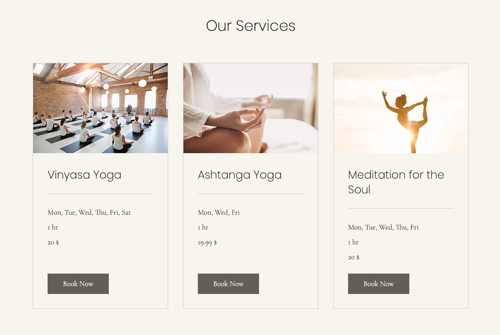
Whether you offer services like workshops, courses, or private sessions, online or in-person, Wix Bookings has you covered.
Important:
You can add Wix Bookings to your site for free, but you must upgrade your site to accept bookings. Some Wix templates come with Wix Bookings included.
In this article, learn more about:
Adding Wix Bookings to your site
Add Wix Bookings to your site from the Wix App Market. Then complete the setup in your site's editor.
To add Wix Bookings to your site:
Go to the Wix Bookings app in the App Market.
Click Add to Site.
Go to your editor.
Complete the setup by clicking Add to Site or Add App.

Accepting online and offline payments
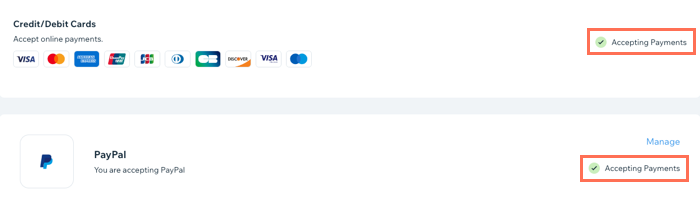
With Wix Bookings, you can offer your clients flexibility by accepting both online and offline payments options. Choose from credit card, Paypal or in-person payments that best suit your business and your clients.
Important:
You must upgrade your site in order to accept online payments.
Show me how
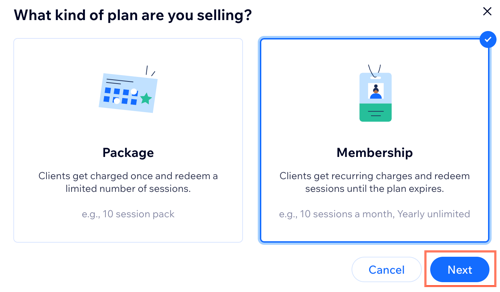
Selling membership plans and packages
Offering membership plans and packages is a great way to keep your clients coming back for more, filling up your sessions and offering the best value for money.
Important:
Membership plans and packages are currently not available for courses.
Show me how
Offering services in multiple locations
As your business grows, add additional locations where you offer your services while keep the same ease of use for your clients through Wix Bookings.
Show me how
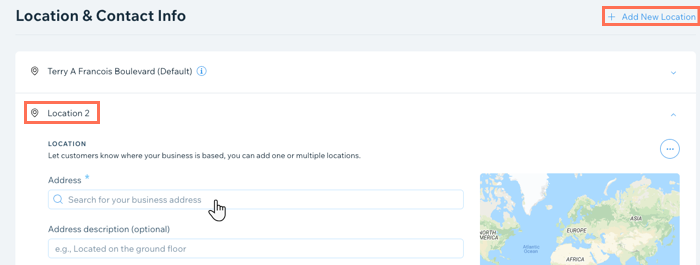
Go to Business Info in your site's dashboard.
Scroll down to the Location & Contact Info section.
If you have not already done so, enter your first location:Enter your business address.
(Optional) Enter a description (e.g. Enter from the back).
Enter contact info relevant for this location.
Click + Add New Location and repeat the steps above.
Click Save.
Learn more about offering services at multiple locations.
Managing your calendars
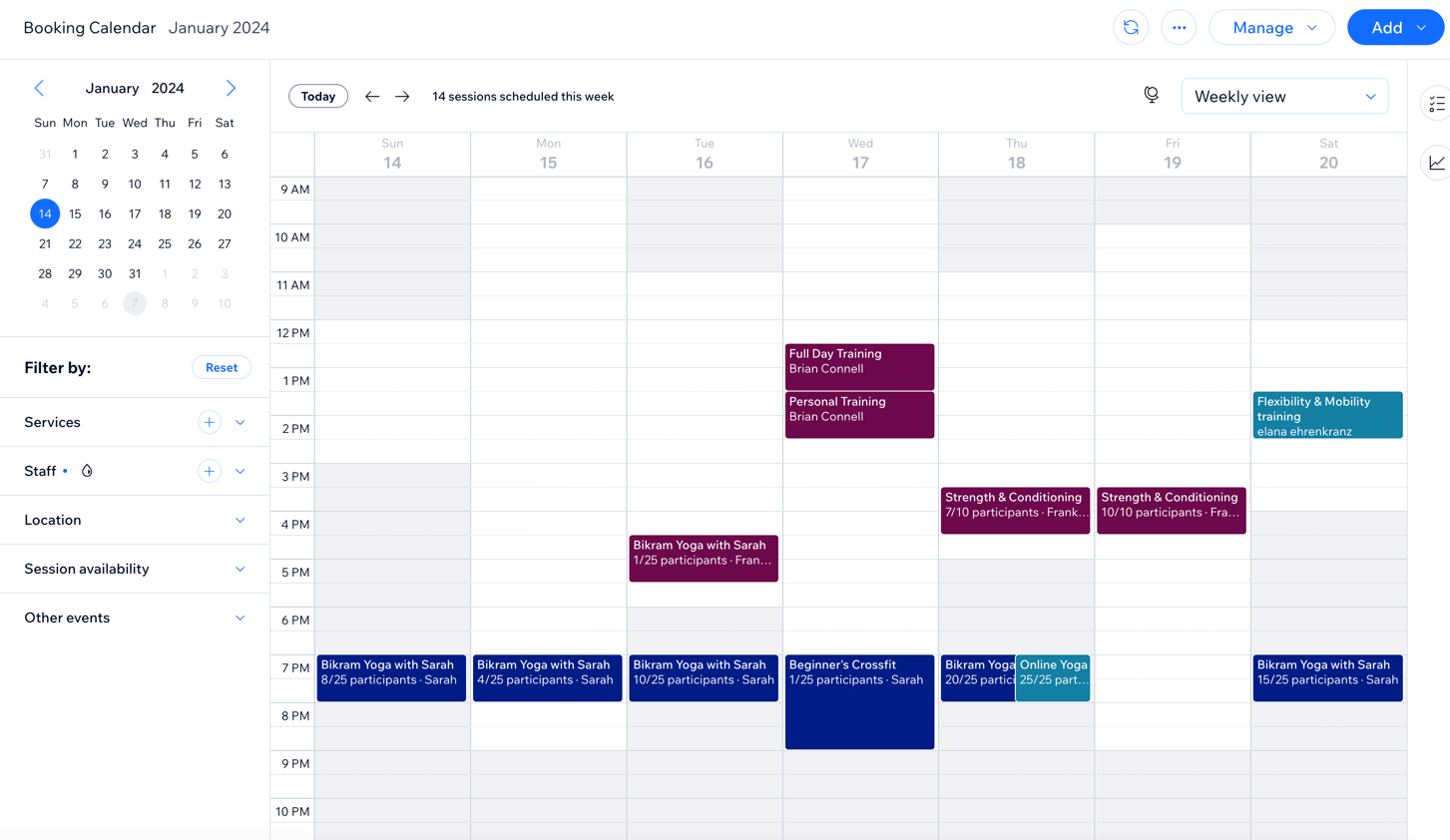
The Wix Bookings calendar is where you manage your appointments, classes and courses and make quick scheduling changes when needed.
Tip:
Avoid scheduling conflicts between your business and personal life by syncing your personal calendar with your Wix Bookings Calendar.
Show me how
Customizing your booking form
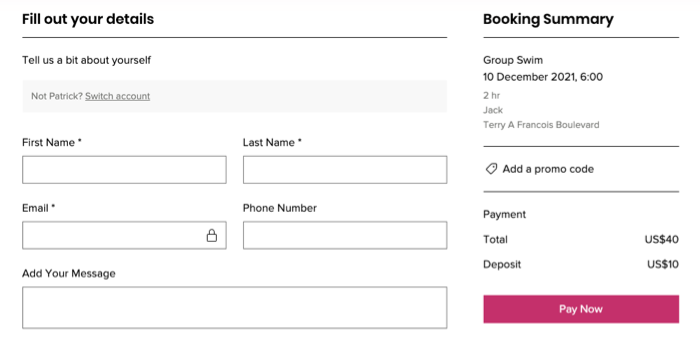
The booking form is a great way to learn more about your clients and their needs before they attend one of your sessions.
Whether you require a heads up about allergies, specific health details such as injuries or recent surgeries, or any other need-to-know information in order to provide the best service possible, make sure to add it to your site's booking form.
Show me how
Go to the Booking Services tab in your site's dashboard.
Click More Actions
 beside the relevant service.
Click Edit.
Scroll down to Additional Settings and click Show More.
Select Edit Default Booking Form.
Learn more about ways to customize your booking form.
Sending reminder emails or SMS messages to clients
Make sure your clients remember to show up for their upcoming services by sending them SMS (text message) reminders or emails 24 hours before a session starts.
Show me how to enable reminder emails
Go to Booking Settings in your site's dashboard.
Click Emails & SMS Reminders.
Enable the toggles next to the relevant emails you want to send to clients automatically.

Learn more about setting up reminder emails.
Show me how to enable SMS reminders
Go to Booking Settings in your site's dashboard.
Click Emails & SMS Reminders.
Click the Session Reminders toggle to enable it.

Learn more about activating SMS reminders.
Viewing clients' past bookings
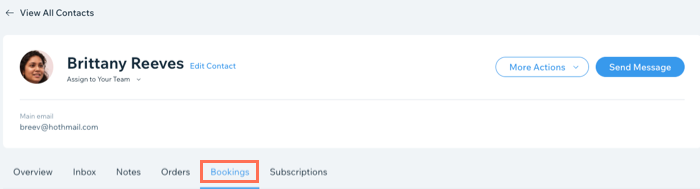
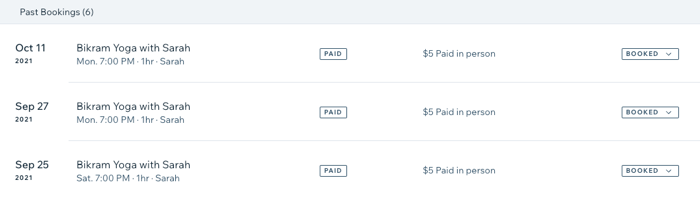
View and update clients' past bookings, including payment and attendance information, using the contacts tab in your site dashboard.
Show me how
Go to the Contacts tab in your site's dashboard.
Hover over the relevant client and click View.
Click the Bookings tab.
Learn more about reviewing clients' past bookings.