top of page

Additional Wix Apps

Wix Apps: Design Guides

The Wix Design Guides add-on lets you create rows, columns or cells in your Studio Editor to help structure and design your site in a more organized manner.

The guide appears on your Editor as a colored grid, it does not appear on your live site. The purpose of this is to guide you as you place your elements on your site and make sure everything is aligned correctly.

Wix Design Guides is only available in the Wix Studio Editor.

A screenshot showing the Design Guides panels.

In this article, learn more about:

Adding Wix Design Guides to your site

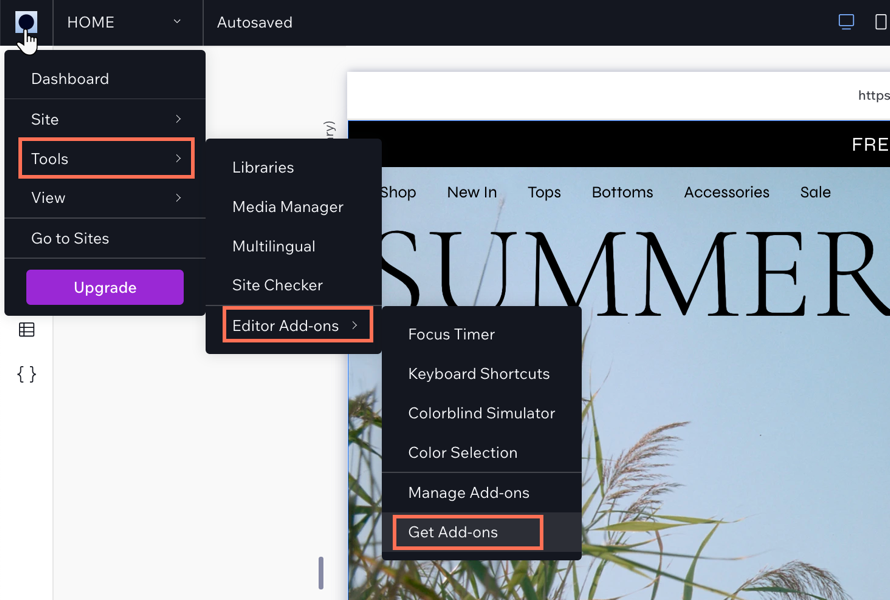
Add the Wix Design Guides add-on from the tools in your Studio Editor.

To add Wix Design Guides:

  1. Click the Wix Studio icon  at the top left.

  2. Click Tools.

  3. Click Editor Add-ons.

  4. Click Get Add-ons.

  5. Click Design Guides.

A screenshot showing the Wix Studio icon and the options to add Editor Add-ons to your site.

Customizing your Design Guide settings

Customize your grid to get the exact layout you want. You can make changes to the number of columns or rows in a grid, and change their size and spacing etc. The settings change depending on the grid type you choose.

To customize the settings:

  1. Click the Wix Studio icon  at the top left.

  2. Click Tools.

  3. Click Editor Add-ons.

  4. Click Design Guides.

  5. Click the drop-down icon  next to columns to display the settings.

  6. Choose what you want to customize:Type of guide: Click the drop-down icon  and choose a guide.
    Alignment: Set the alignment, stretch, left, right, or center.
    Columns: Enter the amount of columns you need for your guide.
    Margin width: Set the width of the margin.
    Gutter width: Set the gutter width. This is the space between the columns.
    Column width: Depending on your alignment, the column width maybe set to Auto.
    Opacity and Color: Set a color for your columns and the adjust the opacity.

  7. (Optional): Click Add Guide to add a new guide to your site.
    Note: This layers the guides on top of each other so the pink lines are more visible as you edit.
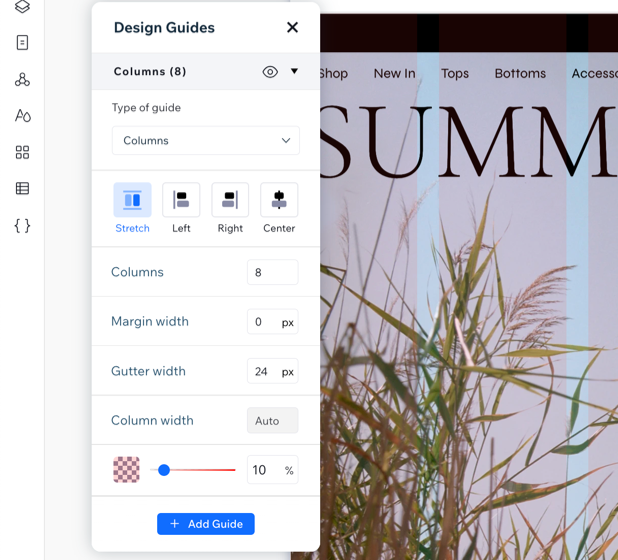
A screenshot showing the design settings for the Design Guides Add-on.

Need A Professional Website?
Contact Us 
Today!

Online Programs: Managing Your Sections and Steps

Online Programs: Adding Sections and Steps to Your Program

Online Programs: Editing Your Program Settings

Online Programs: Creating a New Program

Online Programs: Adding and Setting Up Online Programs

Online Programs: An Overview

Wix Art Store: Available Print Sizes

Wix Art Store: Order A Print Product Availability

Wix Art Store: Printing and Shipping Issues in the Wix Art Store

Wix Art Store: Image Quality Web Ready vs. Original File

Wix Art Store: Test Ordering Your Printed Merchandise in Wix Art Store

Wix Art Store: Creating Special Offers in Your Art Store

Wix Art Store: Setting Up Wix Art Store to Sell Digital Images

Wix Art Store: Setting Up Wix Art Store to Sell Digital Images and Prints

Wix Art Store: Withdrawing Your Earnings in the Wix Art Store

Wix Art Store: Changing Your Currency in Wix Art Store

Wix Art Store: Setting Prices in Your Wix Art Store

Wix Art Store: Choosing What Types of Files to Sell

Wix Art Store: No Longer Available in the App Market

Wix Art Store: About the Wix Art Store

Wix Photo Albums: Reordering the Products in Your Photo Album Store

Wix Photo Albums: Editing the 'Buy Now' Button

Wix Photo Albums: Viewing Available Print Sizes

Wix Photo Albums: Adding Watermarks to Your Photos

Wix Photo Albums: Setting Prices in the Wix Photo Albums Store

Wix Photo Albums: Withdrawing Your Earnings in the Wix Photo Albums Store

Wix Photo Albums: Test Ordering Your Printed Merchandise in the Wix Photo Album Store

Wix Photo Albums: Store Image Quality Web Ready vs. Original File

Wix Photo Albums: Selecting a Payment Method in Wix Photo Albums Store

Wix Photo Albums: Changing Your Currency in the Wix Photo Albums Store

wix experts
Graphic2Traffic web design
©
bottom of page