


Other video players
Single Video Player: Uploading Media from Your Video Library
In the single video player, you can show videos that you've uploaded to Wix Video. Media you upload to Wix Video appears in your video library, which is separate from your Media Manager. This allows you to seamlessly manage and display video content on your site.
For example, if you're a fitness instructor, you can upload workout videos to your video library and easily showcase them on your site using the single video player.
Before you begin:
Add Wix Video to your site and upload videos to your video library.
Add the single video player to your site so you can upload video files to it.
Uploading a video to the single video player
Choose the video you want to play and set the video's playback options.
To upload a video from your video library:
Click the single video player.
Click Change Video.
Click Change Video to open the Media Manager.
Double click the Video Library folder shortcut to open it.
Select the video you want to use in the player and click Upload Selection.
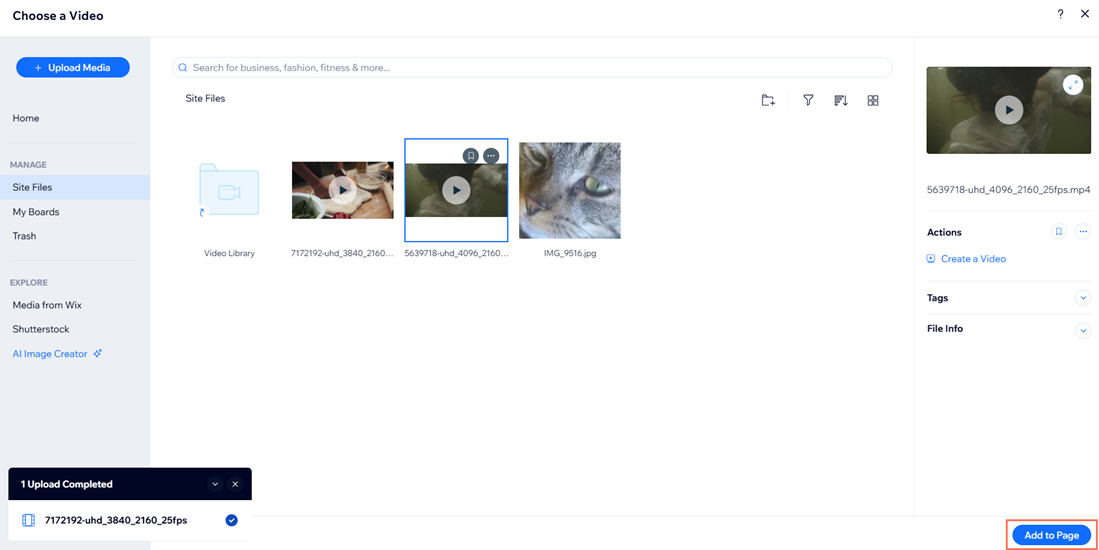
Select the video you just uploaded and click Add to Page.
Choose the video's Playback options from the Video Settings:Autoplays: Enable the toggle to have the video play on mute automatically when the page loads. Visitors can turn the sound on manually if they'd like.
Plays in a loop: Enable the toggle to have the video replay itself continuously.
Set the Video Description: Enter a description of the video under What's this video about?
Frequently Asked Questions (FAQs)
Click a question below to learn more about uploading media from your video library.
What is the difference between the Media Manager and the video library?
The Media Manager is a hub for most of your site's uploads, while the video library is specifically for videos uploaded through Wix Video. The video library allows for larger file sizes (up to 15GB) compared to the Media Manager (1GB max).
Learn more about viewing and managing your site's media storage usage.
Do I need to add a description to my video?
Adding a description is optional but recommended. It provides context for your visitors about what the video is about.
What happens if I enable autoplay for my video?
When autoplay is enabled, the video will play automatically on mute when the page loads. Visitors can turn the sound on manually.
Can I make my video play on a loop?
Yes, you can enable the option to have the video replay itself continuously in the Video Settings.