


Instagram Feed
Setting Up the Old Instagram Feed App
Important:
This article refers to the old Instagram Feed app. The app is no longer available to download from the Wix App Market, however, it may have come with your site template. If you have the old app, but have not yet set it up, you can follow these steps below to configure the app.
If you no longer wish to use the old version of the app, you can read our article about how to switch from the old app to the new app.
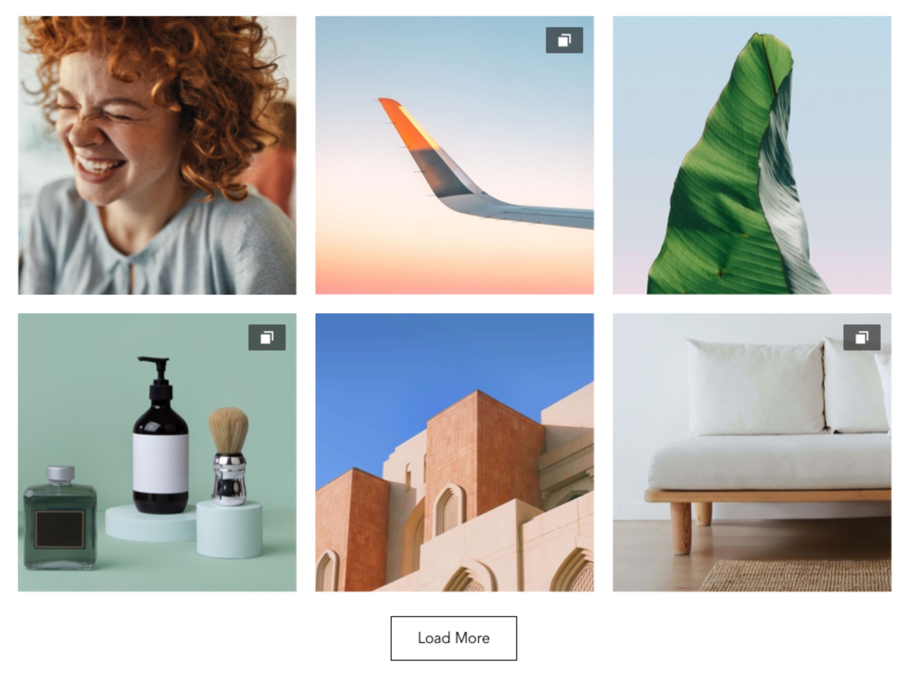
You can customize the Instagram Feed app after you connect it to your Instagram business account or Instagram personal account. Choose the app language, change the design and layout, customize button text, and add links to your posts.
In this article, learn more about:
Changing the app's display
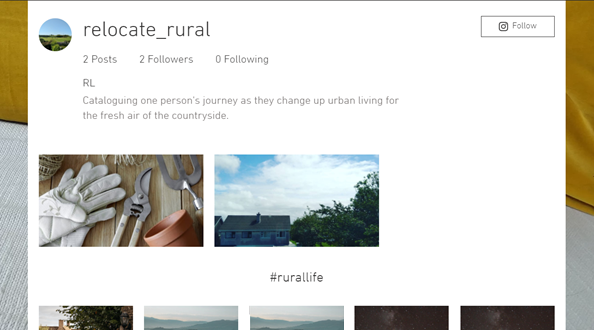
From the Display tab of your Instagram Feed's Settings panel you can choose the information that you want to display from your Instagram account, and if you want to display or hide your posts and Hashtag Feed.
Note:
You need to connect an Instagram business account to customize these options.
To change the display:
Select the Instagram Feed app in your editor.
Click Settings.
Click the Display tab.
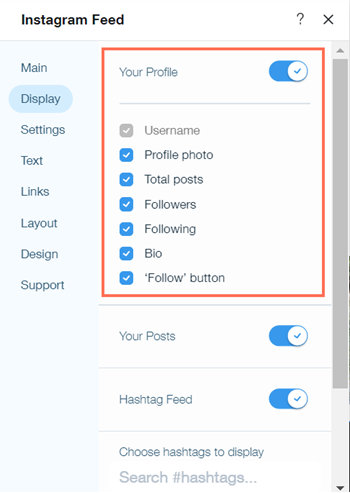
Enable the Your Profile toggle to select the account information you want to display on your Instagram Feed.
Enable the Your Posts toggle to display your posts on your Instagram Feed.
Enable the Hashtag Feed toggle to display hashtags on your Instagram Feed.
Note: Hashtags that were not used in the last 30 days will not display in your Hashtag Feed. This is a limitation from Facebook.Search for hashtags to display on your Hashtag Feed under Choose hashtags to display.
Note: You can search for 30 hashtags in 7 days. This is a limitation from Facebook.
Customizing the app's settings
You can customize how your Instagram Feed behaves when visitors interact with it on the Settings tab of the app's Settings panel.
Select the app's language, how posts react when visitors click or hover on them, and the direction that your profile information and posts are displayed in.
To customize the settings:
Click the Instagram Feed app in your editor.
Click Settings.
Click the Settings tab.
Select the language you want to use in the app under Show app in.
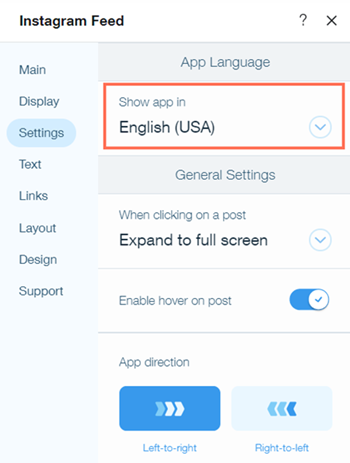
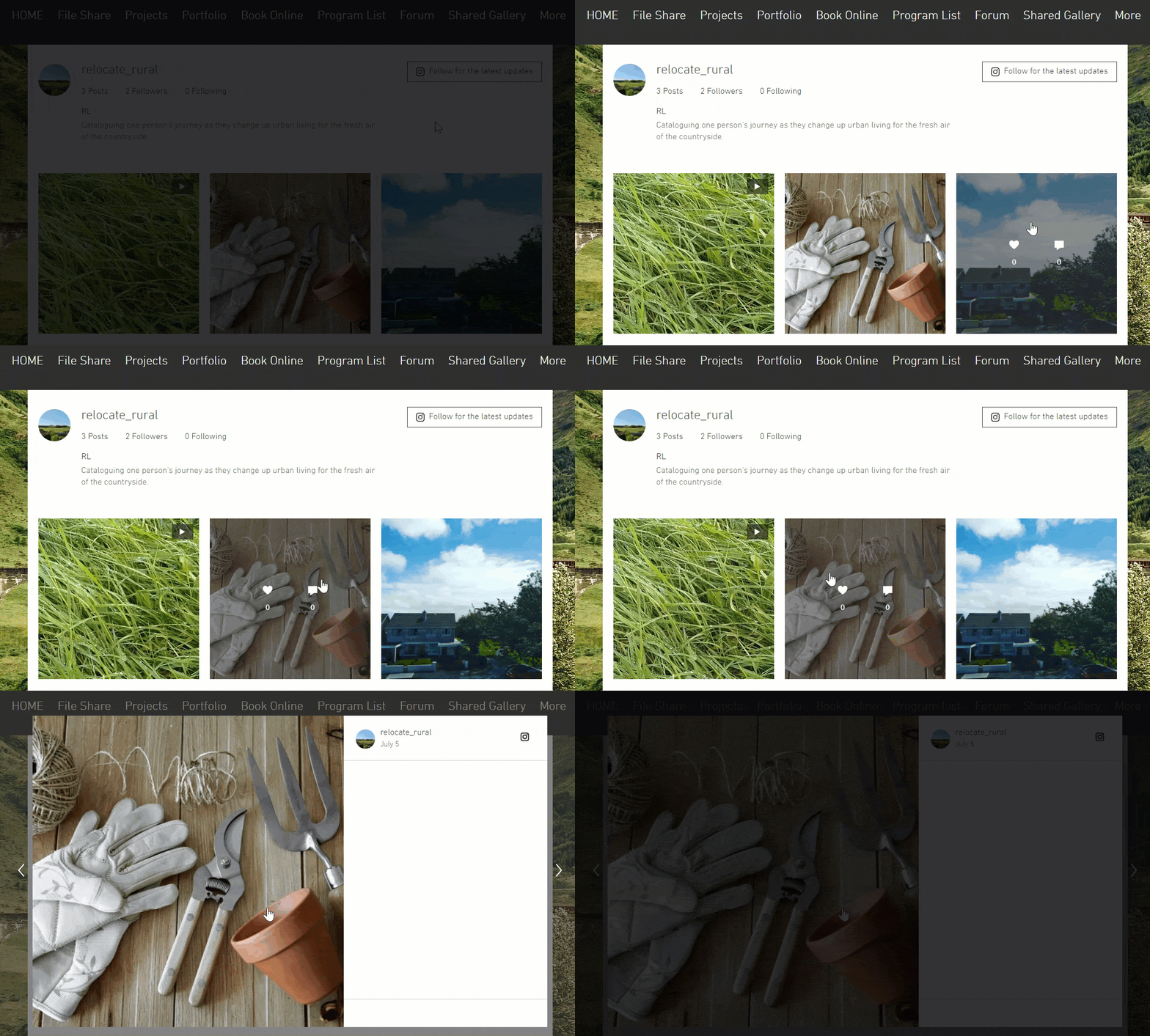
Select what happens when a visitor clicks on a post under When clicking on a post.Expand to full screen: Clicking on a post expands it to full screen.
Open on Instagram: Clicking on a post opens it in Instagram in a new tab.
Nothing happens: Clicking on a post will not trigger an action.
Click the Enable hover on post toggle to select whether to show or hide captions, comments, and likes when a visitor hovers on a post.
Select the direction that your posts will appear in to visitors under App direction.
Editing the app's text and links
You can select the text you want to appear on app and add links to your Instagram posts in the Text tab of the app's Settings panel.
To edit text and links:
Click the Instagram Feed app in your editor.
Click Settings.
Click the Text tab.
Select whether to show hashtags, a custom title, or no title under Gallery title.
Note: This option is only available when you connect an Instagram business account.Edit the text for the button that lets visitors follow your account under "Follow" button text.
Note: This option is only available when you connect an Instagram business account.
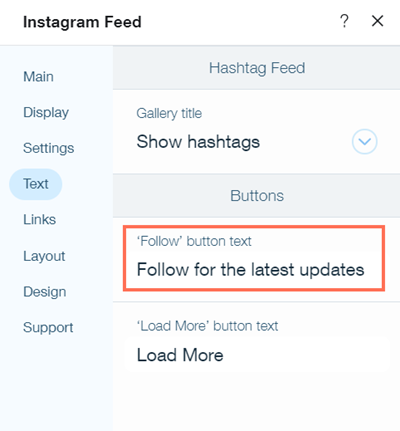
Edit the text for the button that lets visitors load more Posts under "Load More" button text.
Click the Links tab.
Click Add Custom Links to add links to your Instagram posts. You can add links to pages on your site, Wix Stores products, or other websites.
Changing the app's layout
You can customize the layout of your Instagram Feed on the Layout tab of the app's Settings panel. You can select different settings for your profile information, your posts, and your Hashtag Feed.
Note:
The profile information and Hashtag Feed options are only available when you connect an Instagram business account. If you connected an Instagram personal account, you will only see an option to customize your posts.
To change the layout:
Click the Instagram Feed app in your editor.
Click Settings.
Click the Layout tab.
Click Your Profile.
Customize the layout, shape, and size of your profile image.
Click Back.
Click Your Posts.
Select the layout, size, spacing, and padding of your posts.
Select whether to allow visitors to see older posts under Enable "Load More" button.
Click Back.
Click Hashtag Feed.
Select the layout, spacing, and padding of your Hashtag Feed.
Tip:
Click Reset to original design at the bottom of the Your Profile, Your Posts, or Hashtag Feed tabs to restore them to their default design.
Customizing the app's design
You can customize the design of the Instagram Feed app in the Design tab of the app's Settings panel. You can select different settings for your posts, text, buttons, app background, and the expanded versions of individual posts.
To customize your app's design:
Click the Instagram Feed app in your editor.
Click Settings.
Click the Design tab.
Click Posts.
Customize the opacity and color of your overlay and text, select the information you want to display, and choose the hover effects for your posts.
Click Back.
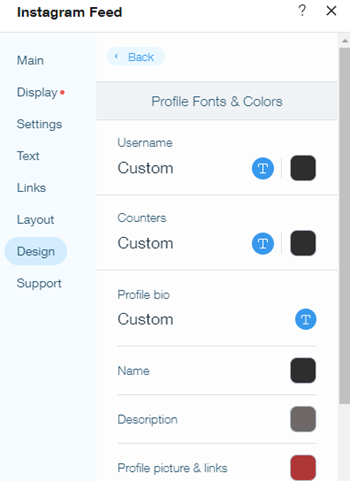
Click Text. Note: This option is only available when you connect to an Instagram business account.
Customize the fonts and colors of the text for your profile information and Hashtag Feed.
Click Back.
Click Buttons.
Customize the font, color, and design of your buttons.
Click Back.
Click Background.
Customize the opacity and color of the Instagram Feed app and your profile, posts, and hashtags.
Click Back.
Click Customize Expand Mode.
Customize how your Instagram Feed posts are displayed in expand mode.
Click Done.