


Setting up Wix Hotels
Renting Apartments Using Wix Hotels
Important:
This article refers to the original Wix Hotels. If you are using the new Wix Hotels by HotelRunner, which is not yet available to all users, please read the information here. Learn how to check which version of Wix Hotels you are using.
Wix Hotels is an all-in-one booking system, allowing you to rent and manage any type of vacation rental, including apartments. There are just a few small adjustments you'll need to make and you're ready to go.
Step 1 | Add Wix Hotels
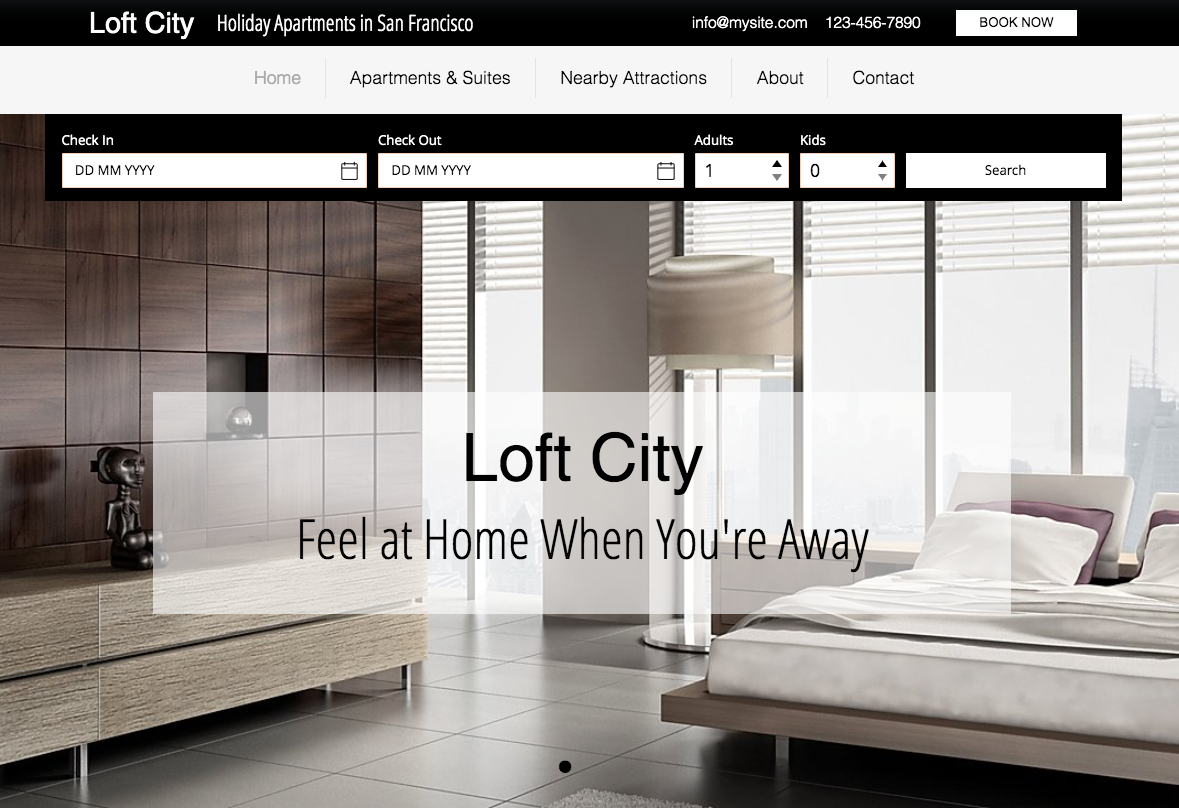
We have some stunning apartment templates for you to choose from. These already come with Wix Hotels installed, but you're welcome to use any template and add Wix Hotels to it.
Show me how
Click the App Market icon on the left side of the Editor.
Type "Wix Hotels" in the search bar and select Wix Hotels from the drop-down menu.
Click Add to Site.
Click OK.
Step 2 | Set Up Your Apartment
Let's start by choosing your property type and adding your apartment. If you have more than one apartment, you can always go back and add more. Click Manage on the Wix Hotels app in the Editor at any time to access the Hotels dashboard.
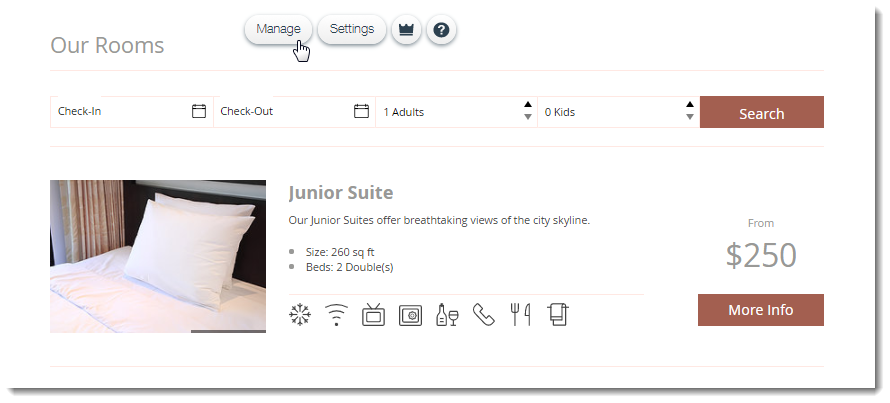
Now, follow the prompts to add your first apartment, enter your property settings and set up payments. For detailed information, follow the steps here.
Step 3 | Customize the Wix Hotels App in the Editor
The default settings of the Wix Hotels app are customized for renting hotel rooms. In order to set up the Wix Hotels app for apartment rentals, you'll need to make a few tweaks to the app's display settings.
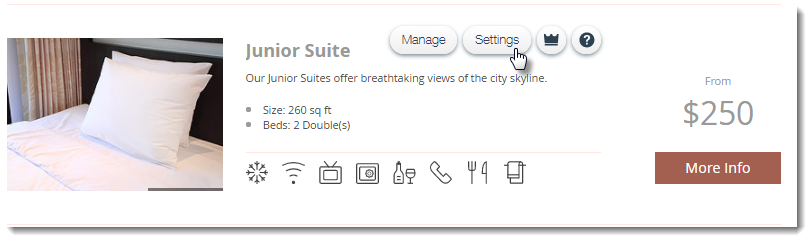
Click Settings on the Wix Hotels app in the Editor and customize it to suit your needs.
Show me how
In the Wix Hotels Settings, you can customize your Rooms list, text and design. We'll give you some suggestions on how to edit these settings for renting an apartment. Click the tabs and make the changes below:
Rooms list: This is the main list of all the apartments you're renting. If you only have a single apartment, you can select the Single layout.
Text: Since a lot of the text refers to "rooms" and "hotels", you can go ahead and edit this text accordingly. Click the drop-down to select a page and make the following changes:
Rooms List Page: Edit the title of the Rooms list (by default it says "Our Rooms").

Booking Form: Edit the button text and summary labels ("Reserve Your Room" and "Room Type").

Confirmation Page: Edit the title ("Your Room is Booked!) and Hotel Details field.

Tip: You can edit any text you want, not just the suggestions above.
Step 4 | Change the Hotel Page Name
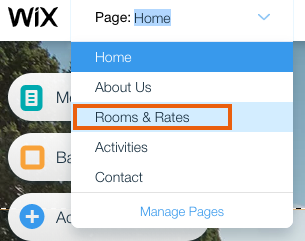
If you are not using a template created specially for apartment rentals, the name of the Hotel page (and therefore the menu tab) might be "Rooms & Rates" or "Book a Room". You can easily edit the page/menu name to suit your needs.
Show me how
Click the Pages drop-down menu at the top left of the Editor.
Click the Show More icon next to the page containing the Wix Hotels app (e.g. "Rooms & Rates" or "Book a Room").
Click Rename.
Enter the name you want to use and click Done.