


Creating your plans
Pricing Plans: Connecting a Plan to Content and Services
Monetize your content and services by offering them as benefits in your pricing plans. This helps create a community around your business.
For example, clients who purchase a monthly membership plan can book your Zumba classes (created in Wix Bookings) using their membership. These members can also contribute to your community by participating in groups and engaging in your forum.
Show me how to connect Wix services and content to my plans
Go to Pricing Plans in your site's dashboard.
Hover over an existing plan and click Edit to update it, or click + Create Plan to add a new one
Enter or update the relevant details.
Select the checkbox(es) next to the content and services you want to include in the plan under Benefits.
Click Save.

Connecting your services
You can connect existing Wix Bookings services when creating or editing a pricing plan. You can also add new services when you create plans later.

When you connect a pricing plan with Wix Bookings, you can offer your clients:
Memberships: Select "Unlimited" to provide unlimited access to selected services for a time frame you choose, (e.g. monthly membership gives you unlimited access to exercise classes at your gym).
Packages: Select "Limited" to give clients the option of buying a set number of services at a discounted rate, (e.g. Buy a package of 10 manicures at your nail salon).
Connecting your events
Offer guests discounted access to your events with a membership plan. You can set the discount percentage, select which events are included, and determine the membership duration. Additionally, choose whether to offer a single membership plan or multiple options.

Connecting your online programs
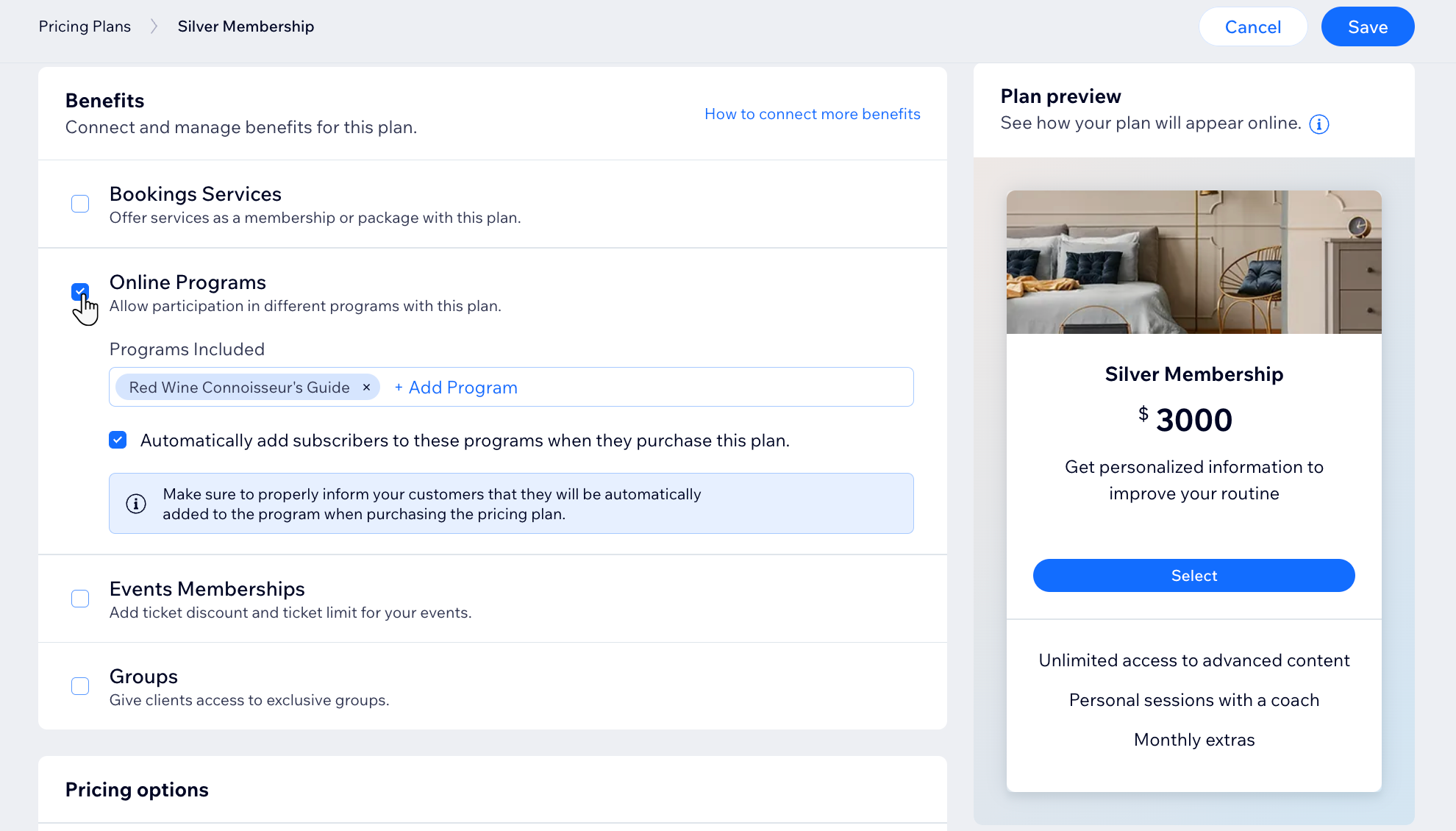
Create step-by-step programs for participants to follow, like a 30-day healthy eating challenge. You can then offer these programs as part of a pricing plan, adding value for your participants.
If you already created programs with the Online Programs app, you can connect them when creating or editing a pricing plan.
Connecting site pages
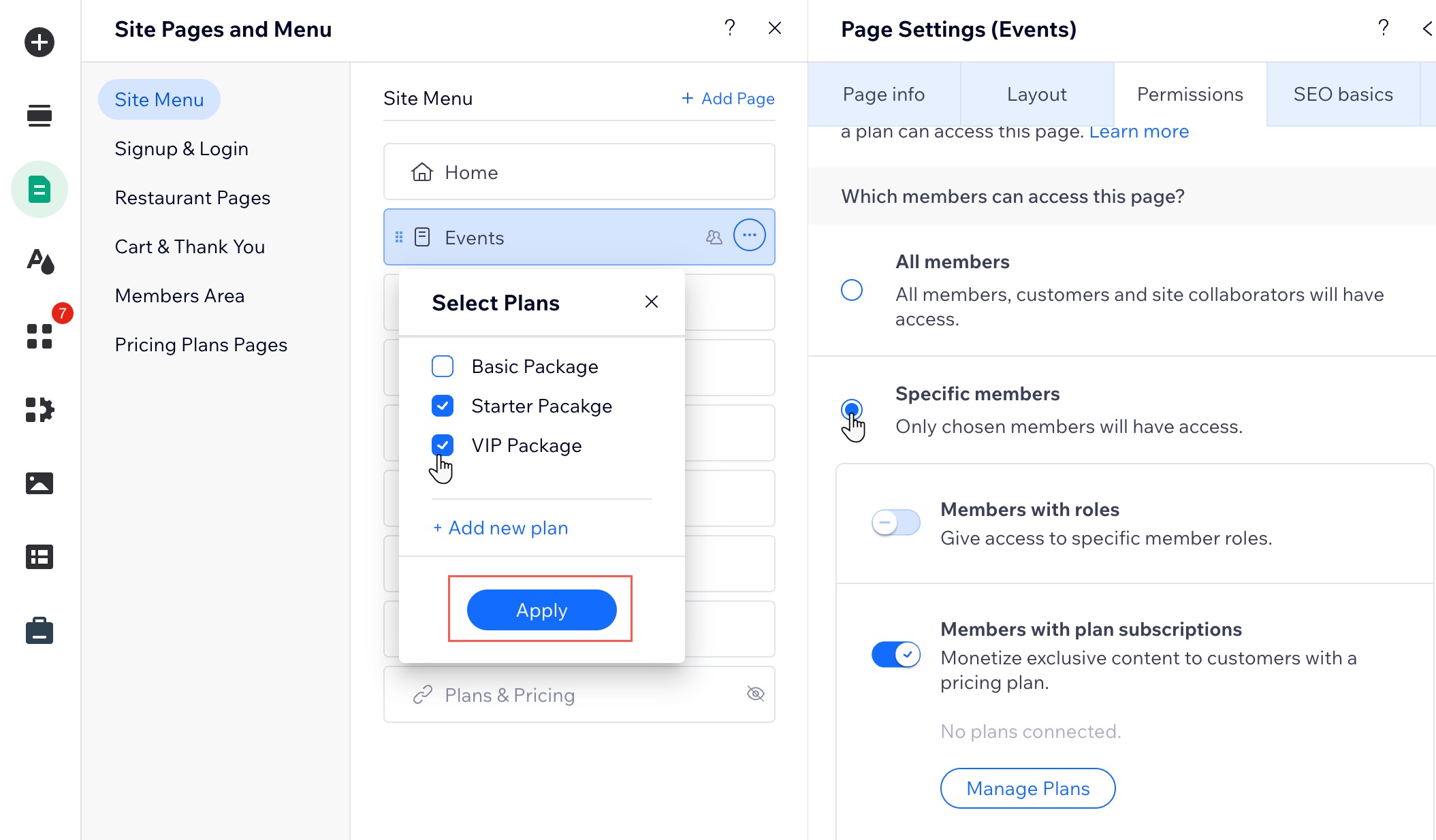
Offer your clients access to exclusive site pages by connecting your plans to pages. Clients who buy a membership can log into your site and view your exclusive content.
Connecting your blog
You can limit access so that only plan holders have access to selected blog posts. When site visitors click to view a post, they are prompted to subscribe. Learn how to set up blog post subscriptions.

Tip:
You can also limit access to your entire blog by making the blog feed a paying members-only page.
Connecting your forum
You can create exclusive forum categories that are accessible only to paying members. This allows you to offer premium content, discussions, or support tailored to your members.
If you already created categories in Wix Forum, you can connect them when creating or editing a pricing plan. Any categories you connect here to pricing plans automatically become private.

Tip:
You can also limit access to your entire forum by making the forum page a paying members-only page.
Connecting a video channel
If you already created video channels with Wix Video, you can connect them when creating or editing a pricing plan.
Alternatively, when setting up a new video channel, you can make it exclusive to paying members by selecting plans you already created.

Connecting a file share library
With the File Share app, you can create a secure library for your community to upload, download, and share documents in organized folders. Folders are automatically private and accessible only to plan holders, with access limited to selected pricing plans.
You can also connect existing folders when creating or editing a pricing plan.

Additional options:
Limit library access: Follow these instructions to limit access to the entire library page.
Manage permissions within the File Share app:Limit who can upload files.
Limit who can manage the library.
Limit access to a folder.
Connecting a group
Use Wix Groups to help build a community around your business. Encourage your members to learn and share tips and advice together. You can limit access to selected pricing plan holders.

Tip:
You can connect existing groups to your pricing plans or create a new, exclusive group.