


Setting up Pricing Plans
Pricing Plans: Adding the My Subscriptions Page to Your Site
Let your clients keep track of the pricing plans they purchased - both active and expired ones - in their own account on your site. When using the Members Area, clients can create an account and view a page titled My Subscriptions.
In this page, clients can check a plan's status (e.g. active, expired), when it's set to expire or cancel a plan (if cancellation is enabled).
In this article, learn more about:

Before you begin:
Make sure to add and set up the Members Area before trying to add the My Subscriptions page to your site.
Adding the My Subscriptions page to the Members Area
Some Wix apps like Wix Stores, Wix Bookings, and Wix Forum automatically add the Members Area to your site. If you don't have the app installed, learn how to add and set it up.
Customizing the My Subscriptions page
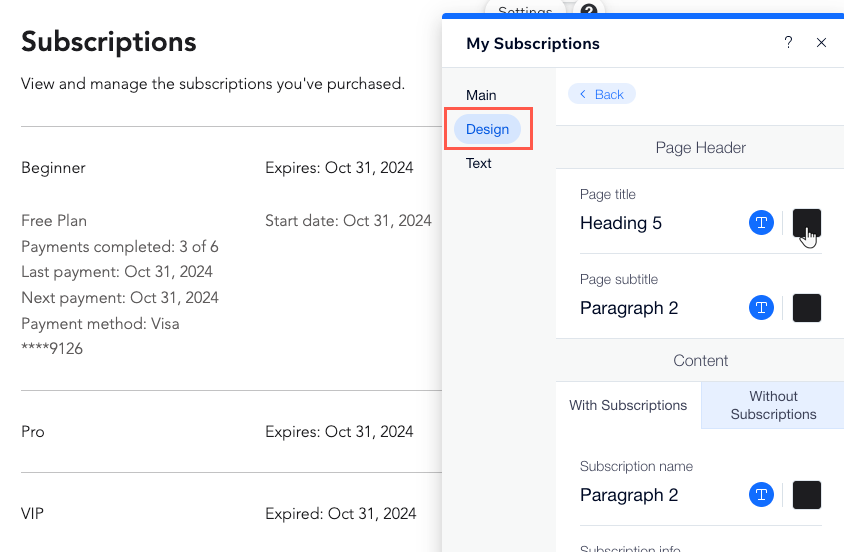
Adjust the colors, fonts and overall design of the My Subscriptions page to match the look of your site. You can also personalize the content appearing on this page, for example, the message your members see before purchasing any plans:
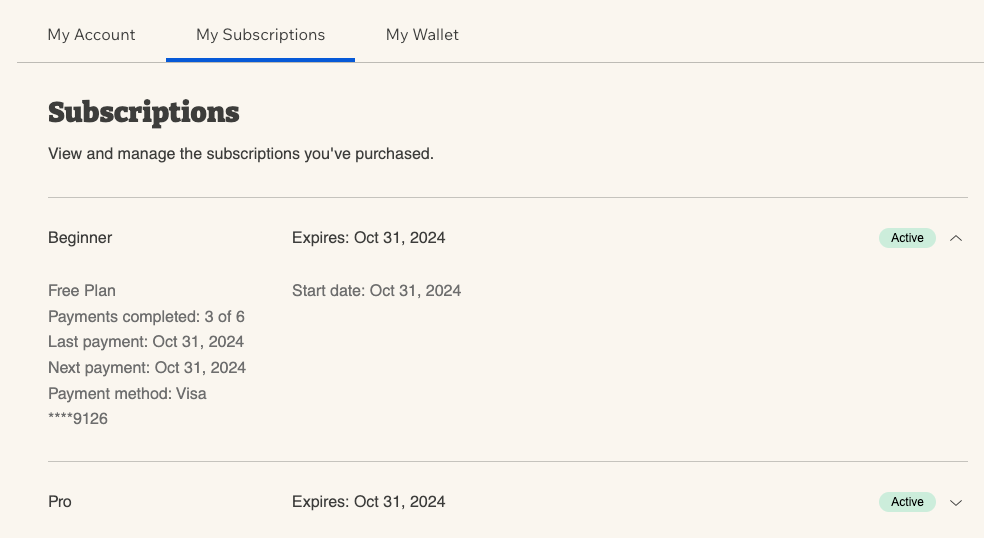
To customize the My Subscriptions page settings:
Wix Editor
Studio Editor
Click Pages & Menu
 on the left side of the editor.
Click Members Area.
Click the My Subscriptions page.
Click the My Subscriptions element on the page.
Click Settings.
Click the relevant tab to customize the page design and text:Design: Choose colors and fonts for the page, including its text, background and dividers.
Text: Customize the text that members see on this page to include the information you want.
Personalize your Members Area:
Create a custom signup form for your Members Area.
Allowing clients to cancel subscriptions
You can let clients cancel subscriptions on their own by enabling cancellation. When enabled, clients see a Cancel Subscription link.
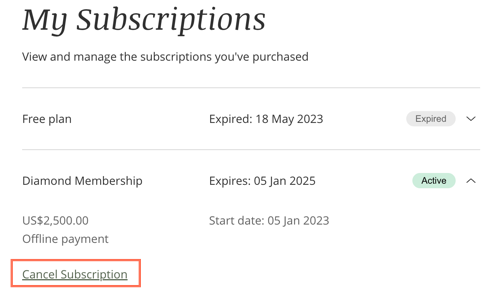
To allow clients to cancel a subscription:
Go to Pricing Plans in your site's dashboard.
Create a new plan or edit an existing one.
Scroll down to the Settings section.
Enable the Allow customers to cancel their subscription toggle.
Click Save to save the plan.
Repeat steps 2 - 5 for any other plans in which you want to enable cancellation.
Refunding clients:
Canceling a plan does not trigger a refund.
One-time payment: To issue a refund, contact your payment provider (e.g. PayPal, Stripe, etc.)
Recurring payment: When a client cancels a recurring payment, such as a monthly payment, the purchased plan and payment does not continue for the next cycle (e.g. for the next month).