top of page

Using the Wix app for Online Programs

Online Programs: Connecting a Group to Your Program in the Wix App

Connect a group to your program using the Wix app. This gives participants a place to discuss their progress and share updates to motivate each other to complete the program. You can connect an existing group or create a new one straight from the app.

To connect a group to your program in the Wix app:

  1. Go to your site in the Wix app.

  2. Tap Manage  at the bottom.

  3. Tap Online Programs.

  4. Tap the More Actions icon  next to the relevant program.

  5. Tap the Edit.

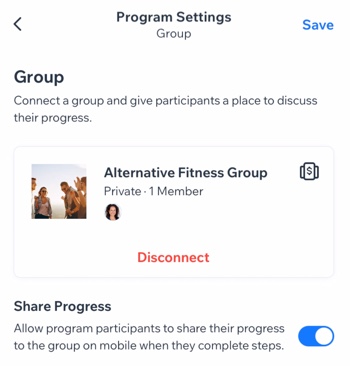
  6. Scroll down to Group and tap Connect a Group.

  7. Choose what you want to do:Connect an existing group to the program: Select a group from the list and tap Done.
    Note: Once a group is linked to the program, anyone who joins your program automatically joins the group.

    Create a new group for the program:Tap Create New Group.
    Enter the group details including the name, cover image, and privacy setting. Learn more about creating a group using the Wix app.
    Tap Done.

  8. (Optional) Enable the Share Progress toggle to allow participants to share their progress to the group when they complete steps.

  9. Tap Save.

A screenshot of the Program Settings panel with a connected group.

Want to disconnect the group?

If the group is no longer relevant to your program (e.g. the program has ended or you want to add different one), you can remove the group from your program. Tap Disconnect under the group.

Need A Professional Website?
Contact Us 
Today!

Receiving Your Payouts from Wix Payments

Wix Payments: Receiving Your First Payout

Wix Payments: Viewing Your Payouts

Managing Business Owners in Wix Payments

Wix Payments: Updating Your Account Settings

Wix Payments: Understanding the Status of Your Account

Wix Payments: Accessing Your Account Dashboard

Wix Payments: Troubleshooting Site Access Issues

Wix Payments: Adding Klarna as a Payment Method

Wix Payments: Adding Affirm as a Payment Method

Wix Payments: Adding Afterpay as a Payment Method

Wix Payments: Assigning Payments Roles

Wix Payments: Adding Tap to Pay on Mobile as a Payment Method

Wix Payments: Adding Google Pay as a Payment Method

Wix Payments: Enabling Point of Sale (POS)

Wix Payments: Adding Apple Pay as a Payment Method

Wix Payments Terms of Service

Wix Payments: Service Fees

Customizing Your Wix Payments Statement Descriptor

Wix Payments: Ensuring Your Business is Ready for Sales

Best Practices for Merchants Using Wix Payments

Wix Payments: Prohibited Products and Services

Wix Payments: Guidelines for Uploading Documentation

Wix Payments: Verifying Your Employer Identification Number (EIN)

Adding Business Owners to Your Wix Payments Account

Wix Payments: The Difference Between Account Types

Wix Payments Verification Process

Completing Your Wix Payments Account Setup

Switching to Wix Payments

Wix Payments: Creating an Account

wix experts
Graphic2Traffic web design
©
bottom of page