


Music, sound & audio in Wix
Adding Audio to Your Site
We have several types of music players that let you play, share and even sell your music directly on your site. Choose what you would like to do:
Play Single Tracks on Your Site
The Wix Audio Player is a stylish and simple music element that allows you to add a single track to a page on your website. Customize the colors, text and border to match your site.

Add the Wix Audio Player from the Add panel in the Editor.
Show me how
Click Add
 on the left side of the Editor.
Click Video and Music.
Click Audio Players.
Click one of the players to add it, or alternatively drag it to the relevant location.
Sell Your Music on Your Site
Wix Music gives you everything you need to promote and sell your music. You can create albums , singles and playlists in WAV, FLAC, M4A & MP3 formats, and allow your fans to listen or buy your music. What's more, it's commission free!
Note:
Wix Music is not yet available in Wix Studio. If this is something you'd like to see in the future, vote for that feature.

Add the Wix Music player from the Add panel to get started.
Show me how
Click Add
 on the left side of the Editor.
Click Video and Music.
Click Wix Music.
Click a Wix Music Player to add it, or drag it to the relevant location.
Share Music that is Hosted Elsewhere
Add Spotify and SoundCloud players to your website to let your visitors listen to music that's hosted with them. You can also place an iTunes button on your site to connect your site visitors to music on iTunes.

You can add these music elements from the Add panel in the Editor.
Show me how
Click Add
on the left side of the Editor.Click Video and Music.
Click a tab:SoundCloud Player
Spotify Player
iTunes Button
Click a music element to add it, or drag it to the relevant location.
Connect Your RSS Feed and the Wix Podcast Player
Connect podcasts from anywhere using the Wix Podcast Player. With just a few clicks you can set up a main podcast feed and individual pages dedicated to each podcast.
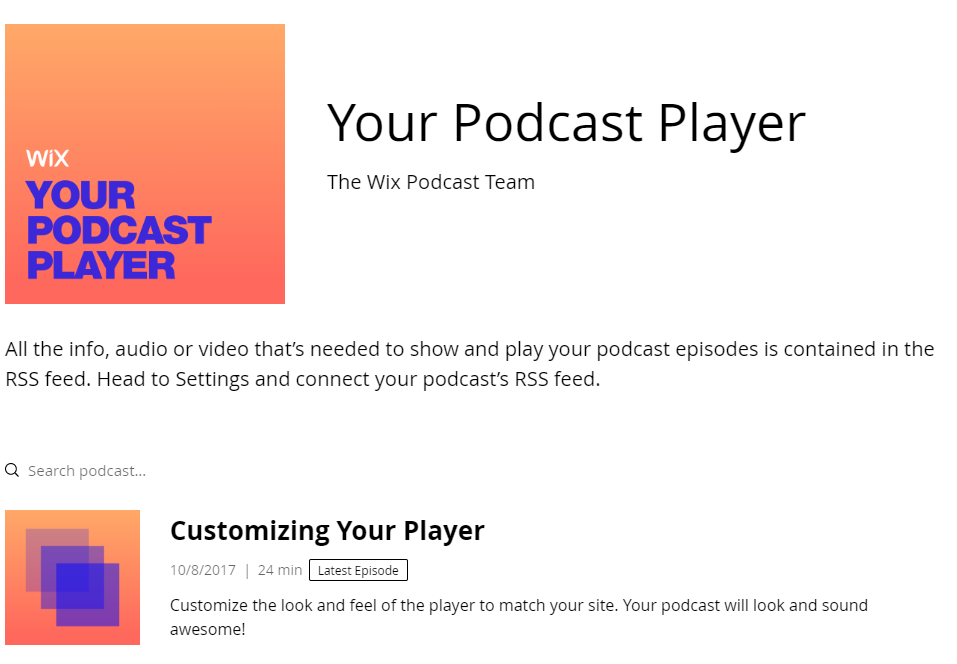
Show me how
Click Add Apps
 on the left side of the Editor.
Enter Wix Podcast Player into the search bar.
Click +Add to Site