top of page

wix studio

Adding and Setting Up Flexboxes

Use flexboxes to streamline the display of your site content. Flexboxes are layout tools that are made up of responsive containers, so they automatically adjust to your visitors' screen sizes.

Step 1 | Add a flexbox

Open the Add panel to select a flexbox preset and drag it onto your page. There are many designs to choose from according to the type of content you need to display (e.g. images only, images and text, etc.)

To add a flexbox:

  1. Click Add Elements  on the left side of the Editor.

  2. Click Layout Tools.

  3. Click Flexboxes.

  4. Drag and drop your chosen flexbox onto the page.
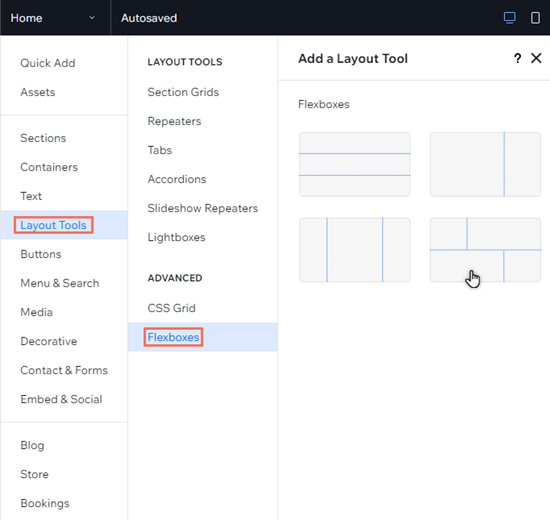
The Add elements panel in the studio editor. The cursor is hovering over a flexbox layout.

See how it works:

Drag the handles on your canvas to see how the content of the flexbox seamlessly reorganizes across breakpoints.

Step 2 | Add items to your flexbox

A flexbox is made up of several items that are responsive containers. You can change the number of items in a flexbox and it will automatically resize the items to fit the available space.

To add a new item, you can click Add Item or use the Manage Items panel in the Inspector.
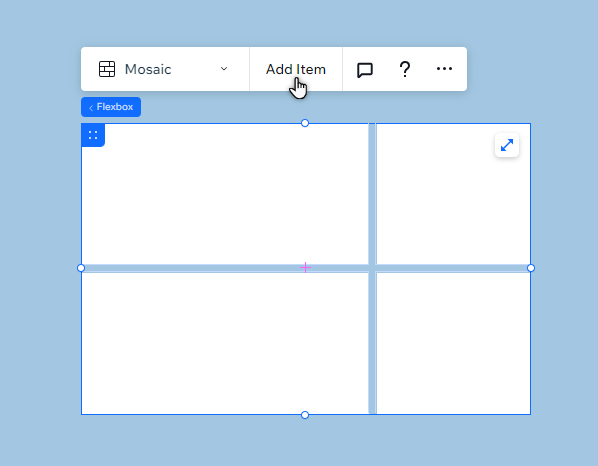
A blank flexbox in the Editor. The cursor is hovering over the Add items button.

Step 3 | Add elements to your flexbox

Choose what you want to display in your flexbox by adding adding elements to the items. You can hide or show elements on different breakpoints to create a unique experience for visitors, no matter the device.

To add elements to an item:

  1. Click Add Elements  on the left side of the Editor.

  2. Select the element type you want to add.

  3. Click your chosen element to add it to your page.

  4. Drag the element to the flexbox item, and drop it when you see Attach.
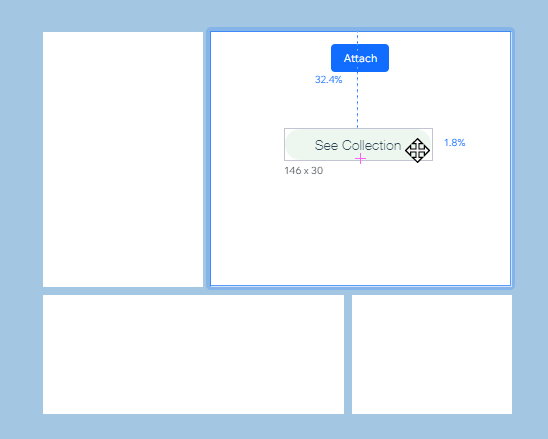
A button that has been dragged to a flexbox. The Attach message is displayed.

Need A Professional Website?
Contact Us 
Today!

Connecting PayU India as a Payment Provider

Connecting Paystack as a Payment Provider

Connecting Oceanpayment as a Payment Provider

Connecting DPO Group as a Payment Provider

Connecting Peach Payments as a Payment Provider

Connecting Portmone as a Payment Method

Connecting PayU as a Payment Provider

Connecting Bancontact as a Payment Method (Through Stripe)

Connecting KOMOJU as a Payment Provider

Connecting iyzico as a Payment Method

Connecting GMO-Epsilon as a Payment Provider

Connecting Privat24 as a Payment Method (Through Interkassa)

Connecting UniPAY Georgia as a Payment Provider

Connecting SumUp as a Payment Provider

Connecting YooKassa (YooMoney) as a Payment Provider

Connecting Square as a Payment Provider

Connecting Stripe as a Payment Provider

Connecting Online Bank Transfer by Klarna as a Payment Method (Through Stripe)

Connecting PayPal as a Payment Provider

Connecting Pay-Easy or Convenience Stores as a Payment Method (Through GMO)

Connecting PagueloFacil as a Payment Provider

Connecting PagSeguro as a Payment Provider

Connecting Mercado Pago as a Payment Provider

Connecting Max as a Payment Provider

Connecting Isracard Powered by PayMe as a Payment Provider

Connecting iDeal as a Payment Method (Through Stripe)

Connecting Fat Zebra as a Payment Provider

Connecting Eway as a Payment Provider

Connecting Braintree as a Payment Provider

Connecting AliPay as a Payment Method (Through Stripe)

wix experts
Graphic2Traffic web design
©
bottom of page