Managing products and categories
Wix Stores: Product Import Error Messages
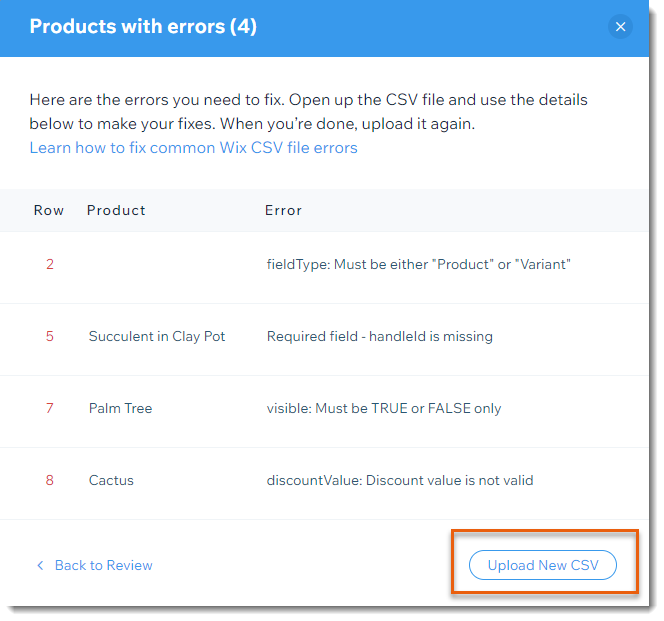
When importing products from another store to your Wix store, you may encounter some error messages.
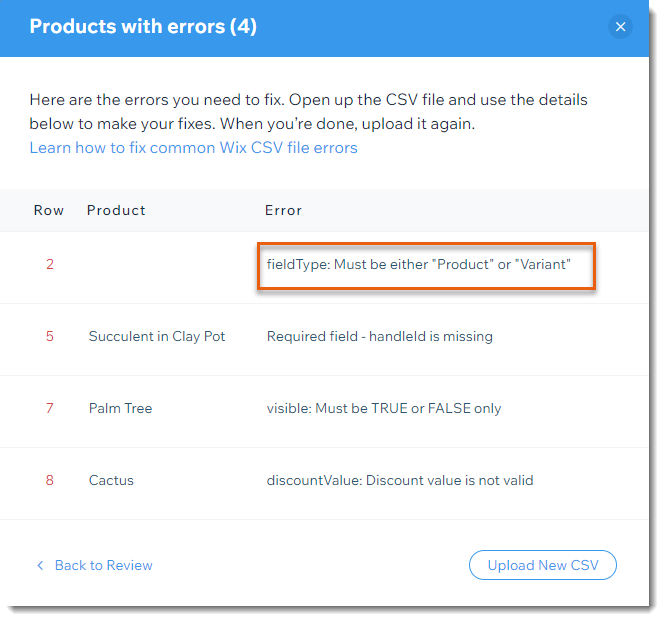
Error message example
Error messages generally have two parts. Let's look at this example:

The text before the colon shows which column the error occurs in - in this case, the fieldType column.
The text after the column explains what the problem is - here the error is that the text must be either "Product" or "Variant" and some other text was entered.
Error messages and solutions
Below is a list of possible error messages and how to correct them.
Tip: Row 3 in the Template file indicates which columns are required.
Variant must have same "handleid"
as its product
Edit the handleID so that each of a product's variants has the same handleId as the product.
Must be either "in_stock", "out_of_stock",
or a number
If you track inventory, enter the number of the product or variant you have in stock (e.g. 100).
If you do not track inventory, enter whether the item is InStock or OutOfStock.
Incorrect option choice
For product rows:
If a product has options, list all options choices. For example, "small; medium; large".
The choices must be separated by semi-colons and can be maximum 20 characters.
For variant rows:
For each variant row, you must enter the variant. This must correspond to the information entered in the product row. So for example, if you entered "small; large" and "blue; green" in the product row, enter "small;blue", "small;green" "large;blue" and "large;green" in each of the variant rows.
For both products and variants:
If you chose "COLOR" for the productOptionType, then in the productOptionDescription column, you must enter one of the following:
1. RGB + an RGB value + text description (e.g. RGB(94,162,38):green
2. A hexadecimal value + text description (e.g. #ffffff:white)
If you chose "DROP_DOWN" for the productOptionType, then in the productOptionDescription column, you must enter a text description per option.
The text description can be no more than 20 characters per option.
What's next?
After correcting all the errors, click Upload New CSV to upload the corrected file.