


Promoting stores sales
Wix Stores Troubleshooting: Customer are Unable to Apply Coupon
There are a number of reasons why a customer may be unable to enter or apply a coupon code. Follow the steps below to identify and resolve the most common causes.
In this article, find out how to:
Check the visibility of the promo code link
If you disabled the "Enter a promo code" link, or selected a color that is the same or very similar to your site's background color, the button is hidden or hard to see.
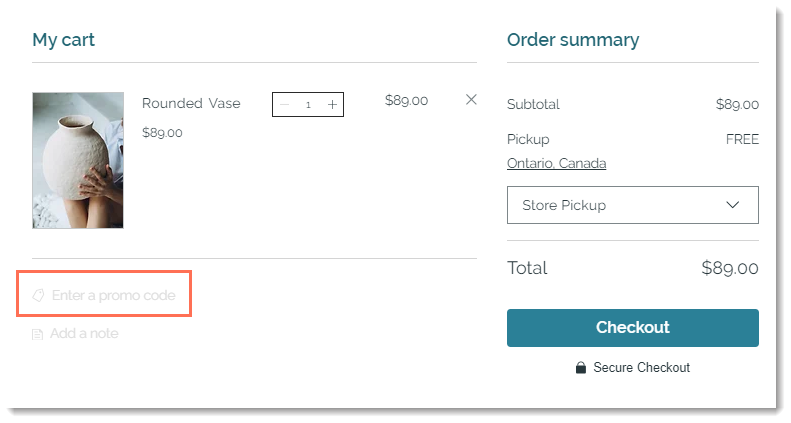
You can fix this problem by making sure the promo code link is enabled and the font color you chose is a suitable one.
Wix Editor
Studio Editor
Click Pages & Menu
 on the left side of the editor.
Select an option:
My site has only Wix Stores:Click Store Pages.
Click Cart Page.
My site has only Wix Bookings:Click Bookings Pages.
Click Cart Page.
My site has Wix Restaurants Orders (New) / 2 business solutions:Click Cart & Thank You.
Click Cart Page.
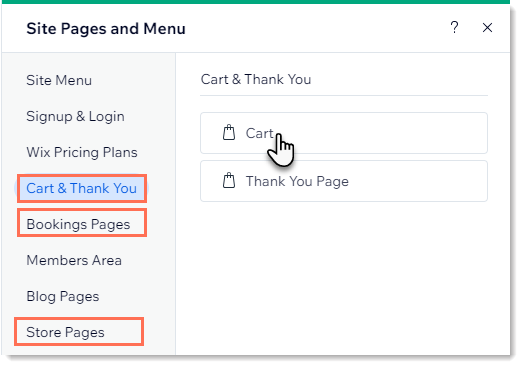
Click the Cart Page element on your page.
Click Settings.
Click the Settings tab.
Select the Promo code link checkbox.
Select a color that makes the link visible:Click the Design tab.
Click the Links color box.
Select a color that contrasts with the Cart Page background.
Check if the coupon is out-of-date
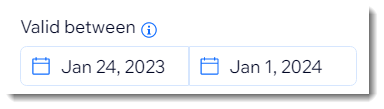
When you create a coupon, you have the option of limiting when it can be used. For example, you can create a "June Sale" coupon and make it active from June 1 to June 30. Customers who try to use it outside those dates cannot apply the coupon.
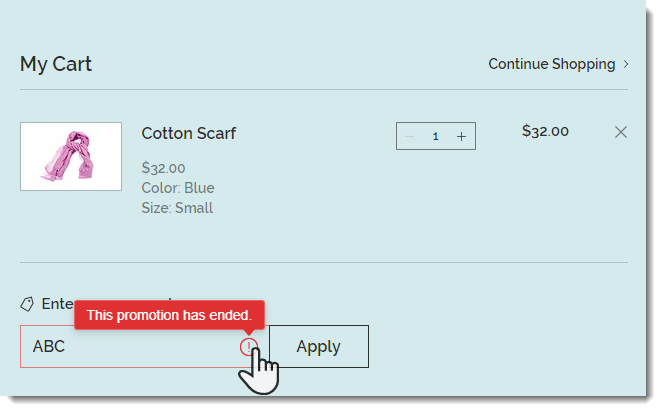
If you choose to do so, you can edit the dates to make the coupon valid.
To edit the start or end date:
Go to Coupons in your site's dashboard.
(Optional) Select Expired from the Status drop-down.
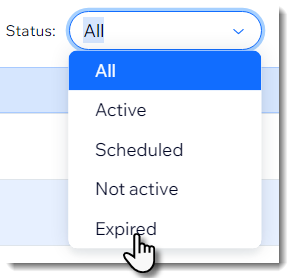
Select the relevant coupon.
Edit the start or end dates.
Click Save.
Make sure the coupon is activated
If you deactivated a coupon and a customer tries to use it, it is not accepted.
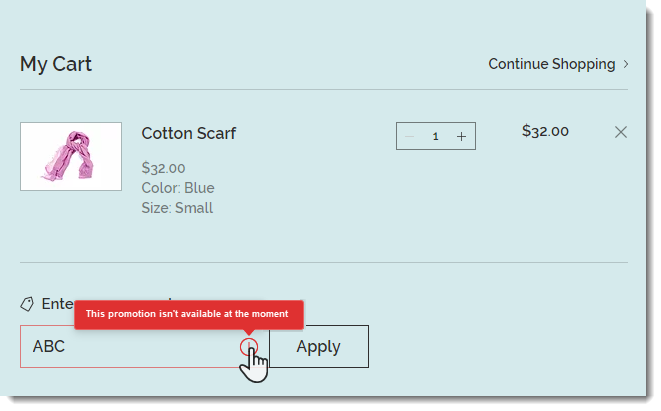
You can reactivate a coupon at any time.
To reactivate a coupon:
Go to Coupons in your site's dashboard.
(Optional) Select Not active from the Status drop-down.
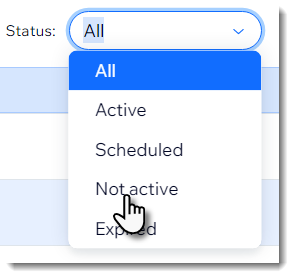
Click the More Actions icon
 next to the relevant coupon.
Select Activate.
Check if the coupon reached its usage limit
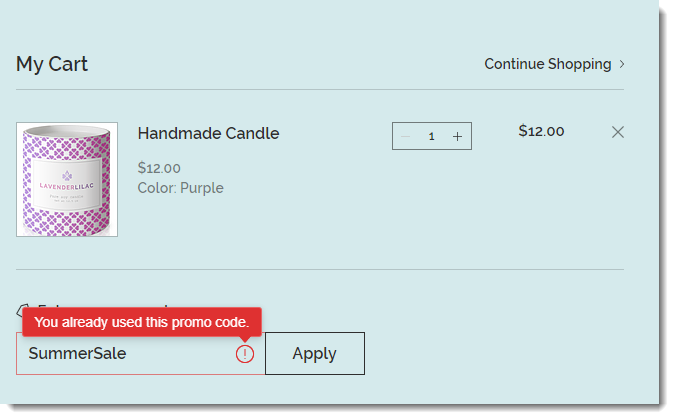
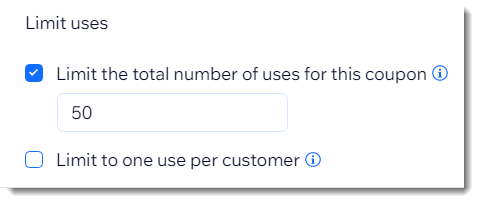
When you create a coupon, you can limit the number of times it can be used in two ways: limit the total usage (e.g. the first 50 people get a discount) or you can limit it to one use per person.
If a coupon has been used beyond the allowed number of times, customers will not be able to apply it.
To remove usage limits:
Go to Coupons in your site's dashboard.
Select the relevant coupon.
Select an option:Remove limitations: Deselect the checkbox to remove any limitations you placed on the coupon.
Edit the total number of uses: Edit the number of times the coupon can be used.
Click Save.
Check if the customer added a blank space
If a customer adds an extra space in your coupon (e.g. March Madness instead of MarchMadness), the coupon becomes invalid. To resolve this issue, tell your customer to copy and paste the coupon code without making any changes.
Notes:
Coupons are not case-sensitive.
When a coupon is applied to an order purchased with the manual payment method, the number of available coupons (if limited), updates when you change the order status to "paid".