


Setting up payment and checkout
Wix Stores: Understanding Customer Checkout with PayPal
After connecting PayPal as a payment provider, customers who select PayPal can pay from their PayPal funds or credit / debit card. The PayPal button can change to offer different PayPal options depending on your customer's location, spending history, and more.
This article explains how PayPal button versions work and shows you where the PayPal options appear in your online store.
PayPal button versions
PayPal has 3 versions of their PayPal button.
Pay Later: Multiple, interest-free payments
PayPal Checkout: Regular payment
PayPal Monthly: Payment with special financing
Important:
You receive payment right after purchase no matter which option your customer picks.
PayPal decides which button or buttons (up to 2) they display to each customer, based on the customer's location. When more than one button is offered, customers click the "More Payment Options" link to view the additional button.
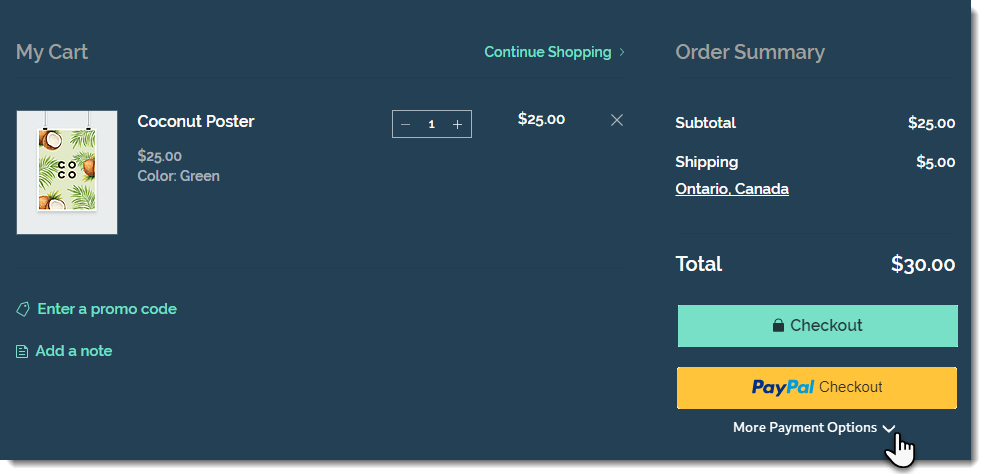
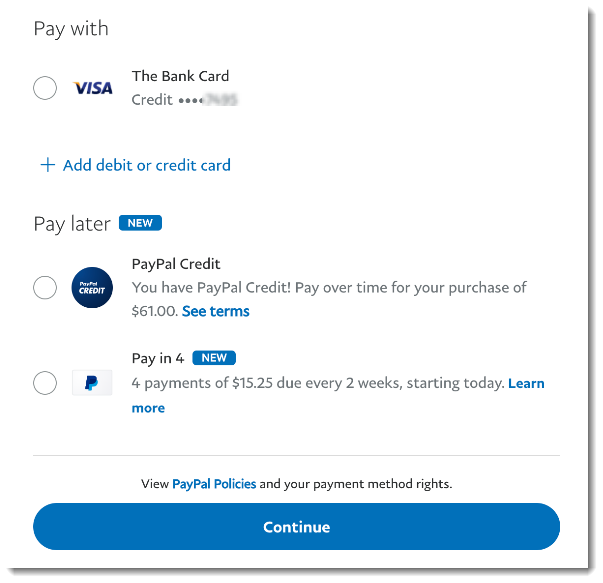
After clicking any of the PayPal buttons offered, your customer is directed to log in to PayPal. There, they see all the options available to them.
Important:
Terms and conditions vary by location.
Pay Later and PayPal Monthly are only available to customers in certain countries and the payment conditions vary from country to country.
Only eligible customers see the Pay Later or PayPal Monthly buttons.
PayPal buttons in the Product Page
You can display a PayPal button in the Product Page, along with the Add to Cart button. This is instead of the Buy Now button.
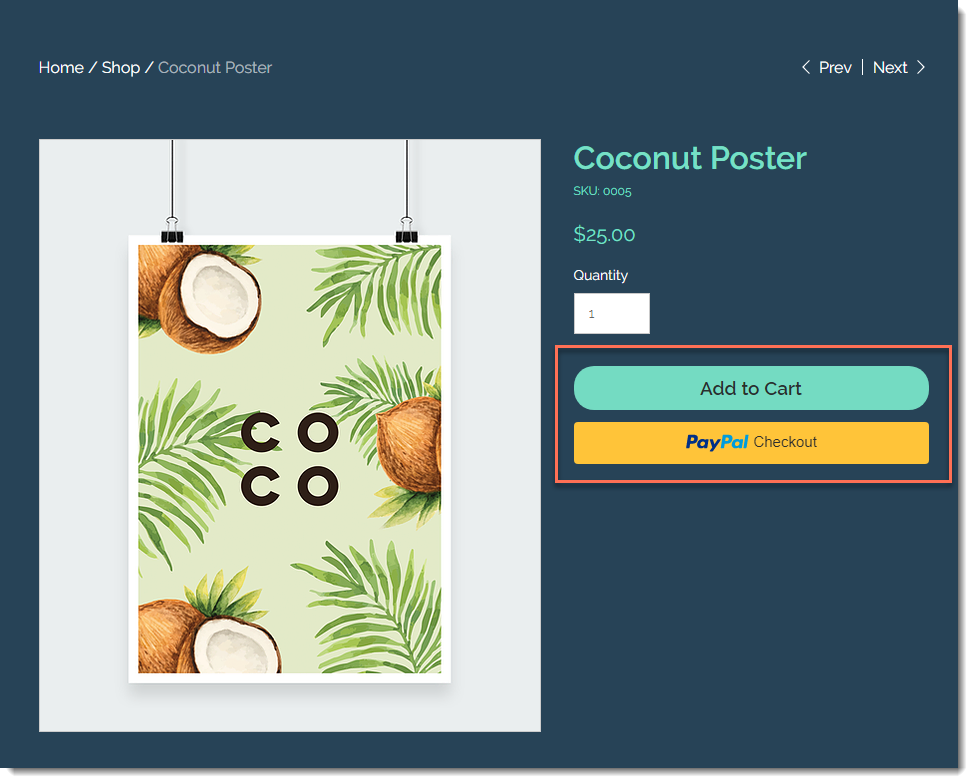
Customers see the best payment method for them based on their location, payment history, and more.
To display a PayPal button in the Product Page:
Click the Product Page in the editor.
Click Settings.
Click the Settings tab.
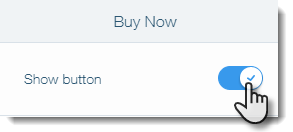
Under Buy Now, enable the Show button toggle.
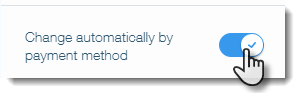
Enable the Change automatically by payment method toggle.
PayPal buttons in the Cart Page
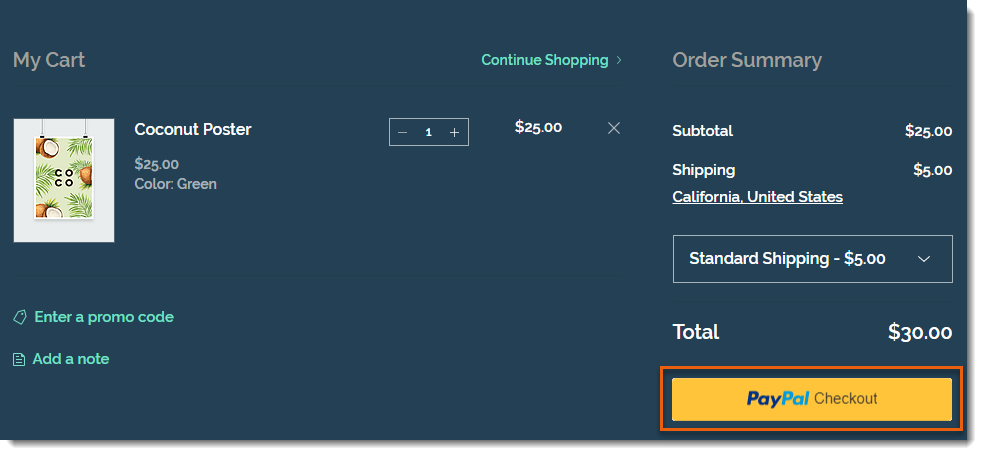
When PayPal is the only enabled payment method, customers see one button on the Cart Page.
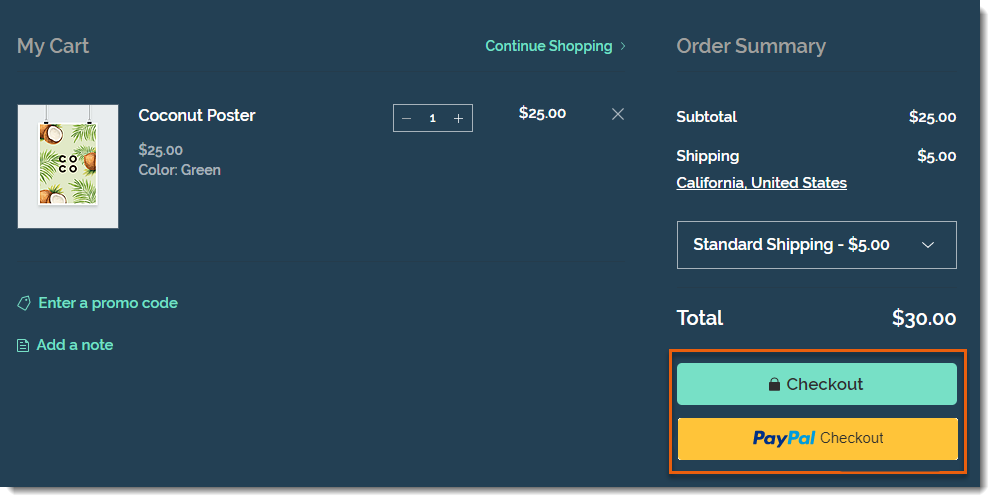
If you selected other payment methods along with PayPal (e.g. manual payment, Square, Stripe), customers see 2 checkout buttons.
After clicking the PayPal button, customers can choose whether they want to pay by credit card or from their PayPal funds.
Notes:
When customers checkout with PayPal, they see the policy checkboxes you created only after they approve the sale on the PayPal site.
To collect phone numbers from customers who pay with PayPal, go to the PayPal dashboard and update the settings to add a contact telephone field. Learn how
PayPal buttons in the Checkout Page
A PayPal checkout button is also displayed at the top of the Checkout page. This means customers won't be required to enter their details on your site as well as in PayPal.
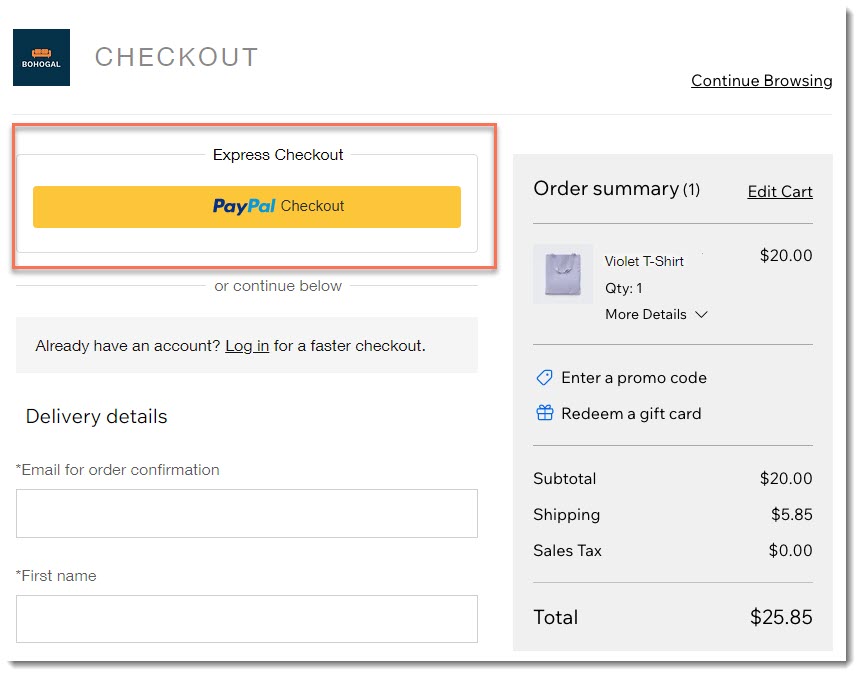
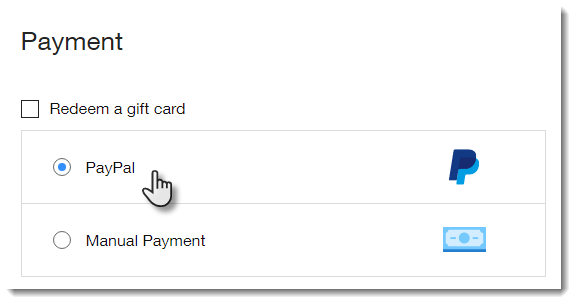
Customers who skip the Express Checkout with PayPal option, can still select PayPal when they get to the payment section of the Checkout Page.
FAQs
Click a question below to learn more.
Can the color of the PayPal button be customized?
No, the color of the PayPal button cannot be customized.
How does authorization and capture affect the button display?
It's not currently possible to authorize and capture payments made through PayPal. Therefore, if you enable authorization and capture, your PayPal buttons are removed from your site. Learn more about authorizing payments and capturing them later.