Setting up shipping & fulfillment
Wix Stores: Setting Up Free Shipping
Important:
We're in the process of rolling out new shipping settings. If you have a Create Region button instead of Add Region, then you have the new version. Learn how to set up shipping using the new settings.
Customers love not paying for shipping. Encourage shoppers to complete checkout by offering free shipping in your store.
Other free shipping options:
Offer a free shipping coupon. Learn How
Create a different shipping rule (e.g. Flat Rate) and offer free shipping to customers who purchase over a certain amount.
Step 1 | Create or Select a Shipping Region
To start, create the region the shipping rule applies to.
Tip:
If you already created the shipping region, just select it and move on to step 2.
A region can be made of one or more countries. Alternatively, it can be made of one or more regions within a country. You can set up different shipping regions for your store. For example, a merchant might set up 4 shipping rules: a local shipping region for California, a region for the rest of the US, another for Mexico and Canada, and finally one for the rest of the world.
Important:
If there is no rule for a region, customers from that region cannot make store purchases.
If you previously set up shipping (and tax) in a merchant account (e.g. in PayPal), remove these settings before starting.
Can't find a shipping region you need? Contact us to let us know which region is missing.
Show me how
Go to the Shipping & fulfillment settings in your site's dashboard.
Select an option:Edit a default rule: Click the region you want to set up.
 Create a new rule:Click Add Region.
Click +Add destination, start typing a country name and select it.
(Optional) Select specific region(s) within a country (Not all countries have local regions):Click Edit next to the region number.
 Deselect the checkboxes next to the regions or states you don't want the rule to apply to and click Done.

(Optional) Click the title (e.g. Region 2) and rename it (e.g. England & Scotland).

Click Done or move directly on to the next step.

Step 2 | Set Up a Free Shipping Rule
Now that you've selected a region, it's time to set up the Free Shipping rule for that region.
Show me how
Click Shipping.

If not already selected, select Free Shipping from the Select how shipping is calculated drop-down.

Enter a name in the Shipping Option Name field (e.g. Standard Shipping).
(Optional) Enter a time in the Est. Delivery Time field.
Click Save.
Step 3 | (Optional) Offer Local Delivery or Pickup Options
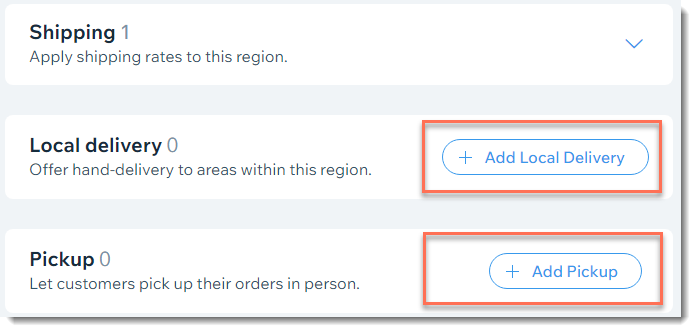
After saving your shipping rule, you can select the region again and add local delivery or pickup options.