


Setting up shipping & fulfillment
Wix Stores: Sending Orders by Email to Fulfillers
As your business grows, you may need other fulfillment services to take over some or all of the process. These services can include:
Fulfillment centers
Distributor centers
Suppliers (individuals or companies who create the products and fulfill them directly to customers)
You can connect to any fulfiller you choose. After setup, store orders display an indication of who is supposed to fulfill the purchased items.
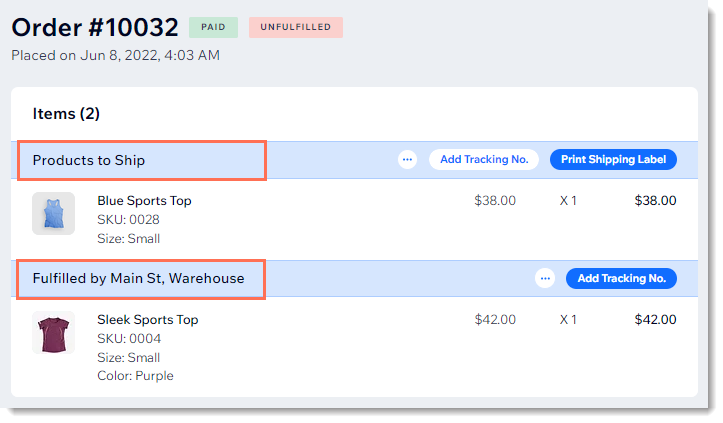
Email notifications are then sent to your fulfillers (manually or automatically) to let them know when there are orders they need to fulfill.
Tip:
You can also connect to any of the available third-party logistics providers that service your region.
Step 1 | Add and set up a fulfillment service
Add one or more fulfillers to help you handle orders. In the next step you can select which of your products they fulfill.
To connect a fulfiller:
Go to the fulfillment services settings in your site's dashboard.
Click Add Fulfiller.

Enter the service name (seen only by you).
Enter the email address (orders are sent to this address).
Select the action that triggers sending a store order to the fulfiller.
Click Save & Continue.
Step 2 | Select which products are fulfilled by the service
Before a custom fulfillment service can start fulfilling your store orders, you need to select which of your products will be fulfilled by them.
To assign products to a fulfiller:
If not already on the Assign products to fulfiller page:Go to the fulfillment services settings in your site's dashboard.
Click Assign Products.
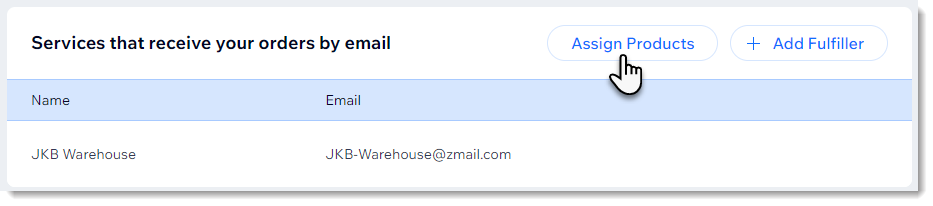
Depending on the products you want to assign, follow the steps:Assign individual products to a service: Click the Fulfillment service drop-down next to a product and select a fulfiller.
 Assign multiple products at once:
Select which products you want to assign:All products: Select the checkbox at the top left.
Individual products: Select or deselect the checkboxes next to products.
Click the Choose Services drop-down and select a fulfiller.

Click Done.
Step 3 | Set fulfillment for new products
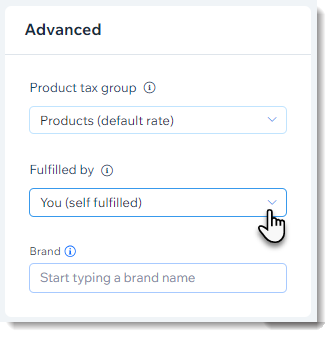
By default, when you add a new product to your store, it is set to be fulfilled by you. To select a different fulfillment service, go to the Advanced section and select a service.
To assign a fulfiller to a new product:
Go to Products in your site's dashboard.
Create a new physical product or edit an existing one.
Scroll down to the Advanced section on the right.
Click the Fulfilled by drop-down and select a fulfiller.
FAQs
How can my fulfiller see new orders from my store?
Email notifications are then sent to your fulfillers (manually or automatically) to let them know when there are orders they need to fulfill.
What is the difference between custom fulfillers and 3rd-party logistics fulfillment apps?
In the top part of the Fulfillment Services page, you'll find a list of third-party logistics (3PL) apps that integrate with your Wix store.
These fulfillment apps operate in different regions around the world. They store and deliver your orders. Since they are integrated with the Wix store, a tracking number is automatically added to orders when they are shipped. In addition, you'll be able to view and manage orders in the dashboard of the 3PL app.
A custom service is one you add manually. You can, for example, add a local distribution center that you use or a partner who manufactures products and wants to deliver them directly to the customer. After setup, orders are automatically or manually forwarded to the service whenever a customer makes a purchase of relevant products. When orders are shipped, the tracking number won't automatically appear in the Orders tab, but can be added manually.
Learn more about order fulfillment.
After I add a custom fulfillment service, can they start fulfilling orders immediately?
Before a custom service can receive orders, you need to indicate which products they fulfill. Unless the fulfiller is the manufacturer, you'll also need to arrange to ship your products to the fulfiller.
Note: By default, all products are set to self-fulfillment. Follow instructions in Step 2 above to select which products are fulfilled by the custom service.