top of page

Managing store emails

Wix Stores: Sending Automated Emails to Customers

Manage your business more efficiently with Wix Automations. Choose from a variety of automated emails to suit your needs - some of them designed especially to work with Wix Stores.

These automations are already set to go. Just select the one you want to use and click Activate, or customize the timing, images, text, and more to make it your own. Learn how to create a new automation.

In this article, learn about some Wix Stores automated email options:

Sending an email when a customer abandons a cart

A great way to boost sales among customers who are undecided is to send them an email after they leave your store with items in their carts. The email automatically displays one of the items they abandoned.  Learn more about abandoned cart emails.
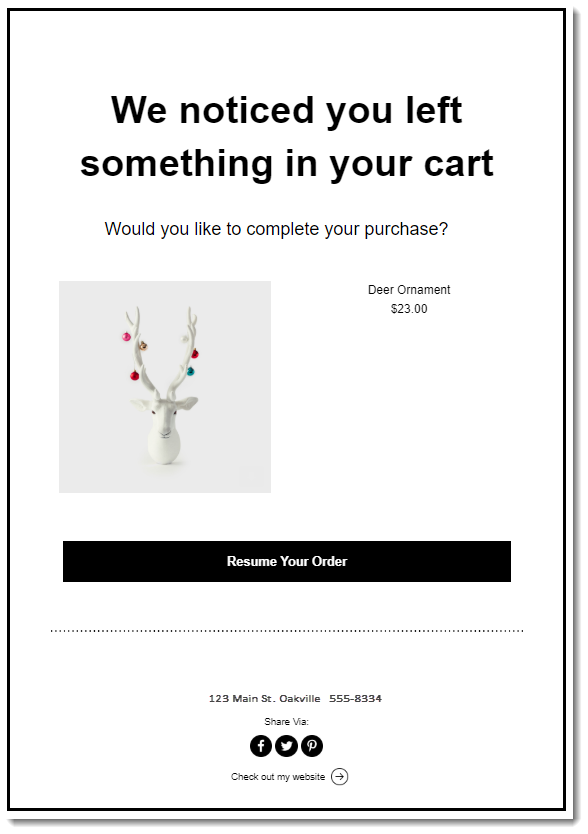
Screenshot of and abandoned cart Automation

To get started, click +New Automation and select Email visitors to recover abandoned carts.

Screenshot of New Automation selection screen

Inviting customers back after a purchase

Create a connection by sending your customers an automated message after they complete a purchase. This is a great opportunity to tell them more about your other products or deals.

Note that this email is sent in addition to the confirmation email that every customer receives after placing an order. By default, the timing is set for 30 days after the initial order was placed.

To get started, click +New Automation, select Sell more online, and then click Invite customers back via email.

Screenshot of New Automation selection screen

Asking customers for their feedback

Want to know what's working in your store and what isn't? Ask your shoppers.
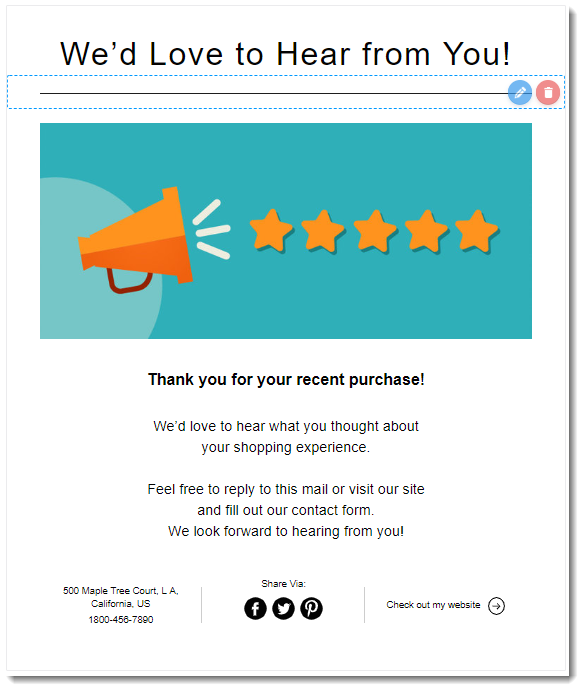
Screenshot of a Automation asking customers for feedback

To get started, click +New Automation, select Engage with clients, and then click Get feedback from customers.

Screenshot of New Automation selection screen

Need A Professional Website?
Contact Us 
Today!

Google Workspace Error Message: "Your subscription has been suspended by your reseller"

Google Workspace Error Message: Service Is Temporarily Suspended until Your Customer Accepts the New Terms of Service

Google Workspace Error Message: "You already have a Google Workspace business email account. You can manage it from the Google Admin Console"

Google Workspace: Data Migration from an External Email to Your Google Workspace

Google Workspace: Revoking Admin Status to Delete a Workspace Account

Google Workspace: Connecting Your Business Email to a Mail Client Using IMAP and SMTP

Google Workspace: Changing the Language of Your Business Email

Google Workspace: Emails Missing from Your Business Email

Google Workspace: Allowing Access for ‘Less Secure Apps’ in Your Business Email

Google Workspace: Adding Google Workspace MX Records to Your Wix Account

Google Workspace: Setting Up a Domain Alias

Google Workspace: Manually Verifying Your Domain with Google

Google Workspace: Connecting a Business Email for a Domain Pointing to Wix

Google Workspace: Setting Up an Email Alias for an Existing Workspace User Email Address

Google Workspace: Resetting a Workspace User's Password

Google Workspace: Renaming a Workspace User

Google Workspace: Accessing Your Additional Workspace Users

Google Workspace: Purchasing Additional Business Emails from Wix

Google Workspace: Setting Up Business Email Users

Gemini for Google Workspace: An Overview

Google Workspace: Upgrading a Workspace Plan

Google Workspace: Choosing a Plan

Google Workspace: Business Email Sending Limits

Google Workspace: Forwarding Emails From Your Business Email to Another Email Address

Google Workspace: Resetting Your Admin Password

Google Workspace: Accessing Your Admin Console

Google Workspace: Identifying Your Admin Workspace User

Google Workspace: Setting Up Your Business Email on Mobile Devices

Google Workspace: Username and Password Guidelines

Google Workspace: Accessing your Business Email Through Your Wix Account

wix experts
Graphic2Traffic web design
©
bottom of page