


Managing products and categories
Wix Stores: Selling Product Subscriptions
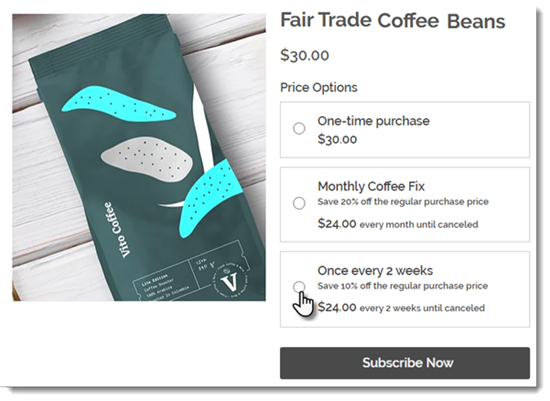
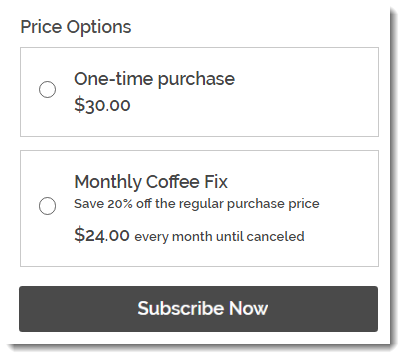
Selling product subscriptions online is the perfect way to create a steady income stream while making life easy for your customers. You can offer a product only as a subscription, or let your customers choose what's right for them: A one-time purchase or one of your subscription options.
Important:
To sell product subscriptions, you must connect a payment method that supports recurring payments.
In this article, learn more about:
Creating a product subscription
Go to Products in your site's dashboard.
Create a new physical product or edit an existing one.
Scroll down and click Create a Subscription.
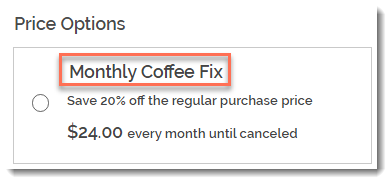
Enter a name.
Tip: The name appears on the Product Page.
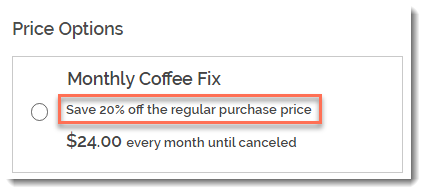
(Optional) Enter a tagline.
Tip: The tagline appears on the product page.
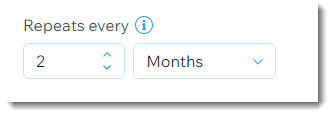
Select how often the a new order is created (e.g. once every 2 months):Use the up and down arrows to select a number.
Select a time unit (day, month, or year).
Click the Expires after drop-down and choose when the subscription ends:Preset option: Click to select one of the available options.
Create a custom expiration time: Select Custom and enter the number of billing cycles before the subscription expires.
(Optional) Offer a discount off the regular price:Select the discount type (price or percentage).
Enter the discount amount.
Tip: The price per week / month / year adjusts accordingly. Alternatively, you can enter the price and the discount adjust accordingly.
Click Apply.
(Optional) Click +New Subscription to create an additional subscription option (max. 6 subscription options).
(Optional) Click and drag the subscription options (if there are more than one) to reorder them.
Select how you offer this product:By subscription only: Clients can't make a one-time purchase.
By subscription and for one-time purchase: Clients can choose between a one-time purchase or a subscription.
Click Save.
Fulfilling product subscriptions
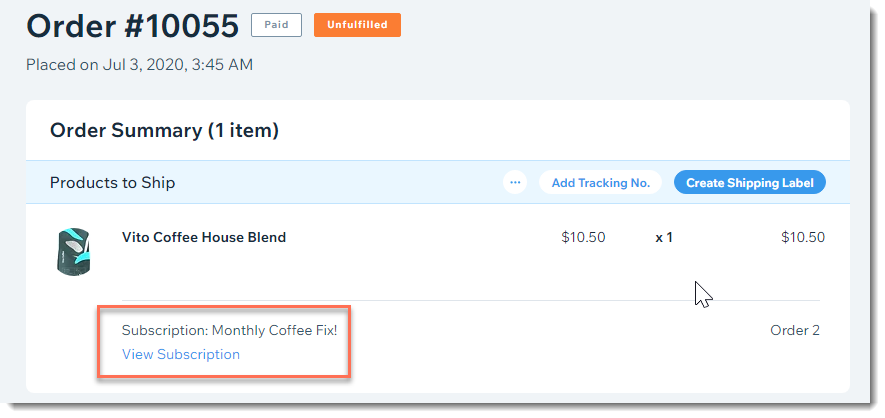
After a customer purchases a subscription, a new order appears in your Orders tab. Then, every subscription period, an additional order appears in the tab. For example, if your customer purchased a monthly subscription, an order appears every month for you to fulfill.
When you look at an individual order, you can see that it's part of a subscription. Click View Subscription to view and manage the entire subscription.
FAQs
What products cannot be sold as product subscriptions?
Product subscriptions cannot be created for digital products.
Additionally, some payment providers place restrictions on the type of products that can be sold (e.g. restriction on CBD products). For more information, check with your chosen payment provider.
How can I edit, hide, or delete a subscription option?
To edit, hide, or delete a subscription option, click the More Actions icon  next to the option and choose what you want to do.

How can I change payment providers if customers have already purchased plans?
If you choose to switch payment providers, you must first cancel all active subscriptions, switch providers, and then ask your clients to repurchase the same product subscription.
What happens if I make changes to the details of a subscription?
If you make changes to a plan which customers already purchased, the changes only affect new purchases.
So if a customer purchases a subscription and it is set to auto-renew indefinitely, it isn't possible to change the price, tax, or shipping rate for that customer.
Can customers checkout with a subscription product and another product?
No, it's not possible for customers to buy a product subscription and another product at the same time.
Can I create a free subscription?
No, it's not possible to offer a product for free as a subscription.
How can customers use coupons to buy a subscription?
By default, coupons aren't applied to subscription products. When creating a coupon, you can, however, select the Include subscriptions checkbox to apply them.
When you do so, and a customer uses a coupon to purchase a subscription, the discount applies each cycle (e.g. for a 12-month subscription, the customer gets a discount for 12 months).
What happens if the product is out of stock when it's time for the next cycle of a customer's subscription?
If the product is out of stock when the next subscription cycle occurs, the order is still created.
In other words, if a subscription customer has an order is created at the 1st of every month, an order is still created on June 1st even if your inventory status that day is zero.
Note: The order pushes your stock into negative numbers.
Is it possible to reactivate a product subscription after it was canceled?
No, the customer has to purchase the subscription again.