top of page

Setting up shipping & fulfillment

Wix Stores: Integrating with Envia

Important:

To print shipping labels, you must first enter your business's address in the Business Info page. Learn how

Envia is a third-party app that integrates with Wix Stores so you can create domestic and international shipping labels with reliable couriers - all at a great price.
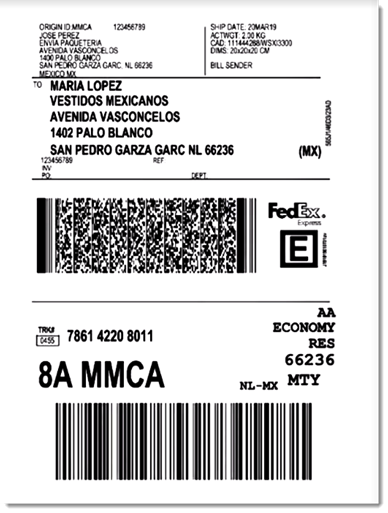
Sample shipping label created through Envia

Choose from a wide variety of shipping carriers, including:

  • FedEx

  • DHL

  • iVoy

  • Redpack

  • UPS

  • Sendex

  • Carssa

  • Paquete Express

  • 99 Minutos

  • Quiken

Notes:

  • Envia is currently available for stores located in the US, Mexico, Colombia, Spain, Brazil, Argentina, Chile, Guatemala, Canada, India, and Australia.

  • Envia is free to use. You pay only for the shipping labels you purchase.

  • You can connect one Wix store to one Envia account.

To integrate with Envia:

  1. Click here to access the app.

  2. Click Add to Site.

  3. Click Agree & Add.

  4. Click Continue.

  5. Enter your email address and click Continue.
    Note: You will be logged into your existing account or a new one will be created.

  6. For new accounts: Fill in the required information and click Continue.

  7. Select an address from the Saved addresses drop-down or complete the fields to add a new one.
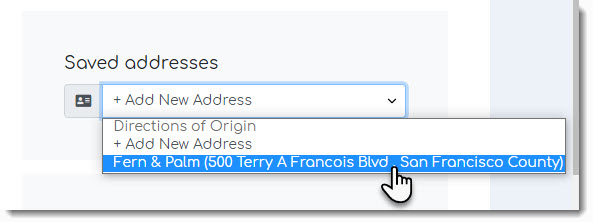
Screenshot of the address list drop-down in the Envia dashboard

  1. Click See Orders.

After integration, new Wix store orders appear in the Envia dashboard every time you make a sale. In the Envia dashboard you can manage your shipments, printing labels and track orders.

When a shipping label is created, the order in your Wix dashboard is updated so that the order status changes to "Fulfilled" and the tracking number is added.

To learn more, check out the Envia help center.

Need A Professional Website?
Contact Us 
Today!

Google Workspace Error Message: "Your subscription has been suspended by your reseller"

Google Workspace Error Message: Service Is Temporarily Suspended until Your Customer Accepts the New Terms of Service

Google Workspace Error Message: "You already have a Google Workspace business email account. You can manage it from the Google Admin Console"

Google Workspace: Data Migration from an External Email to Your Google Workspace

Google Workspace: Revoking Admin Status to Delete a Workspace Account

Google Workspace: Connecting Your Business Email to a Mail Client Using IMAP and SMTP

Google Workspace: Changing the Language of Your Business Email

Google Workspace: Emails Missing from Your Business Email

Google Workspace: Allowing Access for ‘Less Secure Apps’ in Your Business Email

Google Workspace: Adding Google Workspace MX Records to Your Wix Account

Google Workspace: Setting Up a Domain Alias

Google Workspace: Manually Verifying Your Domain with Google

Google Workspace: Connecting a Business Email for a Domain Pointing to Wix

Google Workspace: Setting Up an Email Alias for an Existing Workspace User Email Address

Google Workspace: Resetting a Workspace User's Password

Google Workspace: Renaming a Workspace User

Google Workspace: Accessing Your Additional Workspace Users

Google Workspace: Purchasing Additional Business Emails from Wix

Google Workspace: Setting Up Business Email Users

Gemini for Google Workspace: An Overview

Google Workspace: Upgrading a Workspace Plan

Google Workspace: Choosing a Plan

Google Workspace: Business Email Sending Limits

Google Workspace: Forwarding Emails From Your Business Email to Another Email Address

Google Workspace: Resetting Your Admin Password

Google Workspace: Accessing Your Admin Console

Google Workspace: Identifying Your Admin Workspace User

Google Workspace: Setting Up Your Business Email on Mobile Devices

Google Workspace: Username and Password Guidelines

Google Workspace: Accessing your Business Email Through Your Wix Account

wix experts
Graphic2Traffic web design
©
bottom of page