top of page

Designing your store

Wix Stores: Hiding Product Prices

For some types of online stores, hiding product prices makes good business sense.

By default, prices appear wherever you display your products. You can decide if you want to remove the price display from any place where products are displayed.

Screenshot of a sample Wix store with products displayed without prices

In this article, learn how to hide the price display:

Hiding product prices in the Category Page

The new Category Page is your main store page. Go to this page in your editor to hide product prices (among other details that you can choose to show or hide).

Wix Editor

Studio Editor

  1. Go to your editor.

  2. Go to your Category page:Click Pages & Menu  on the left side of the editor.
    Click Store Pages.
    Click Category Page.

  3. Click the Category Page element on your page.

  4. Click Settings.

  5. In the Settings tab, deselect the Product price checkbox.
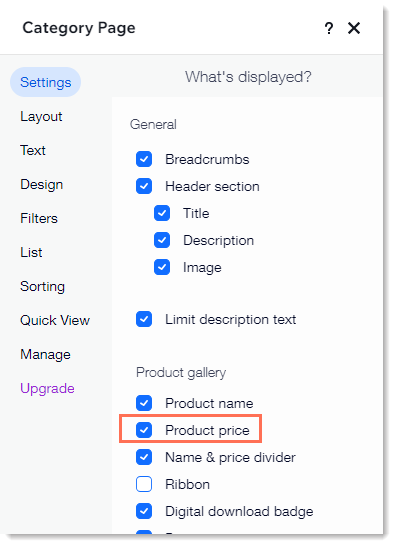
Screenshot of the settings tab in the Category Page settings, with the product price checkbox outlined

Hiding product prices in Product Galleries

If your shop has any kind of Product Galleries, you can customize them so that the product prices are hidden.

To hide prices in a gallery:

  1. Go to your editor.

  2. Go to the page with the gallery you want to customize.

  3. Click the gallery on your page.

  4. Click Settings.

  5. Select the Settings tab.

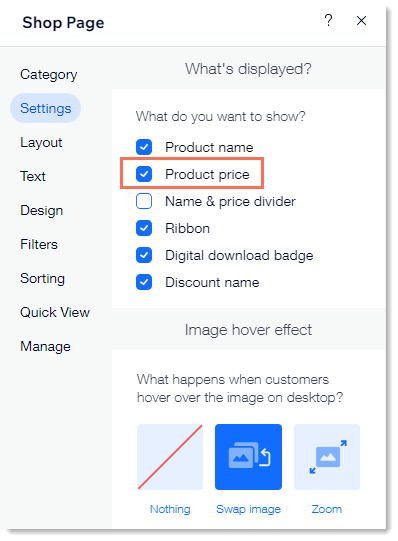
  6. Deselect the Product price checkbox.

Screenshot of the settings tab in the shop gallery settings, with the product price checkbox outlined

Hiding product prices in your Product Page

Even if you hide the product prices from the Category Page and your Product Galleries, once a customer clicks to view a product in the Product Page, they'll see the price - unless you also hide it there.

Wix Editor

Studio Editor

  1. Go to your editor.

  2. Go to your Product page:Click Pages & Menu  on the left side of the editor.
    Click Store Pages.
    Click Product Page.

  3. Click the Product Page on your page.

  4. Click Settings.

  5. Select the Settings tab.

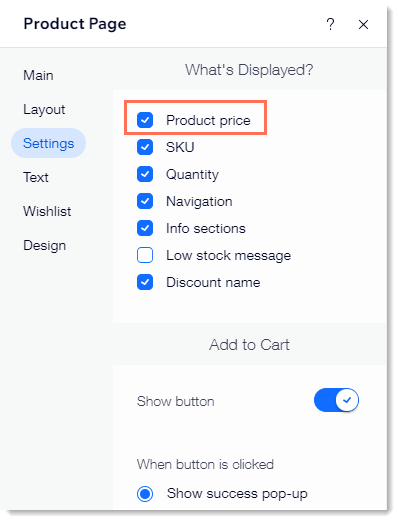
  6. Deselect the Product price checkbox.

Screenshot of the settings tab in the Product Page settings, with the product price checkbox outlined

FAQs

We are here to help with all your questions. Click a question below to learn more.

Can I display products without prices and limit access to the product page to members only?

Yes. Start by hiding product prices in the Product Gallery according to the instructions above. Next, you can limit access to the Product Page:

  1. Click Pages and Menuon the left side of the Editor.

  2. Click Store Pages.

  3. Click the Settings icon next to Product Page.

  4. Click the Permissions tab.

  5. Select Members only.

Can I display product information only to site visitors who are logged in or have a password?

You may want to hide your product information from site visitors, for example, if you're a wholesaler. You can do this by restricting store pages.

You can control which pages you restrict and whether users simply need to sign up and log in to get access or whether they need your approval to view the pages.

Need A Professional Website?
Contact Us 
Today!

Google Workspace Error Message: "Your subscription has been suspended by your reseller"

Google Workspace Error Message: Service Is Temporarily Suspended until Your Customer Accepts the New Terms of Service

Google Workspace Error Message: "You already have a Google Workspace business email account. You can manage it from the Google Admin Console"

Google Workspace: Data Migration from an External Email to Your Google Workspace

Google Workspace: Revoking Admin Status to Delete a Workspace Account

Google Workspace: Connecting Your Business Email to a Mail Client Using IMAP and SMTP

Google Workspace: Changing the Language of Your Business Email

Google Workspace: Emails Missing from Your Business Email

Google Workspace: Allowing Access for ‘Less Secure Apps’ in Your Business Email

Google Workspace: Adding Google Workspace MX Records to Your Wix Account

Google Workspace: Setting Up a Domain Alias

Google Workspace: Manually Verifying Your Domain with Google

Google Workspace: Connecting a Business Email for a Domain Pointing to Wix

Google Workspace: Setting Up an Email Alias for an Existing Workspace User Email Address

Google Workspace: Resetting a Workspace User's Password

Google Workspace: Renaming a Workspace User

Google Workspace: Accessing Your Additional Workspace Users

Google Workspace: Purchasing Additional Business Emails from Wix

Google Workspace: Setting Up Business Email Users

Gemini for Google Workspace: An Overview

Google Workspace: Upgrading a Workspace Plan

Google Workspace: Choosing a Plan

Google Workspace: Business Email Sending Limits

Google Workspace: Forwarding Emails From Your Business Email to Another Email Address

Google Workspace: Resetting Your Admin Password

Google Workspace: Accessing Your Admin Console

Google Workspace: Identifying Your Admin Workspace User

Google Workspace: Setting Up Your Business Email on Mobile Devices

Google Workspace: Username and Password Guidelines

Google Workspace: Accessing your Business Email Through Your Wix Account

wix experts
Graphic2Traffic web design
©
bottom of page