top of page

Managing products and categories

Wix Stores: Displaying the Product Price per Unit

Display a price breakdown to make it easy for customers to compare prices.

Tip:

Displaying a price per unit is required in some regions, such as Germany.
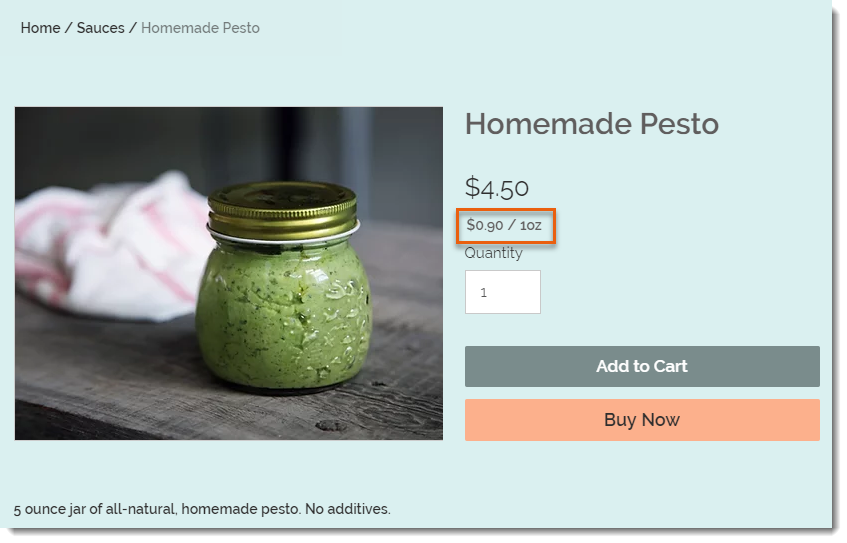
Screenshot of a product in a Wix store that has a price per unit display

To set up the price per unit display as in the image above, you need to select your type of unit (in this example, it's ounces), then enter the total weight of the product (it's a 5-ounce jar). Finally, you need to enter the unit you are using for your calculations (i.e. 1 ounce is the base unit in this example).
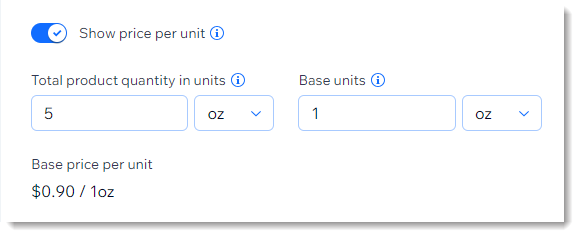
Screenshot of part of the product creation page showing the price per unit setup

After entering these parameters, the price per ounce (for example) is calculated automatically and appears on your live site under the product price.

After setup:

The price per unit calculation updates automatically whenever you:

  • Change the product price

  • Add a sale price

  • Add product variants with higher or lower prices

To add a price per unit display:

  1. Go to Products in your site's dashboard.

  2. Create a new physical product or edit an existing one.

  3. In the Pricing section, enable the Show price per unit toggle.

  4. Under Total product quantity in units, select the relevant type of unit (e.g. ounces) from the drop-down.
    Tip: You can switch between metric and imperial units in your regional settings.

  5. Under Total product quantity in units, enter the total product quantity in units (e.g. if you are selling a 5-ounce jar, enter "5").

  6. Enter the unit you want to measure by (e.g. enter 1 ounce to display a price per ounce).

  7. Click Save.

Need A Professional Website?
Contact Us 
Today!

Third-Party Apps: Marketing Apps

Third Party App: Gifted by Gifted

Third-Party App: Melhor Envio by Melhor Envio

Third-Party App: Etsy Integration by Webkul

Third-Party App: Product Auction by Webkul

Third-Party App: POSTA by TORAB

Third-Party App: Uploadly - File Upload by Inspon

Redeeming Your Smile: Points & Rewards Promo Code

Third Party App: Smile Points & Rewards by Smile

Third-Party App: skuIQ Real-Time Inventory Sync by skuIQ

Third-Party App: Shippo by Shippo

Third-Party App: QuickBooks Connector By Intuit

Third-Party App: Printify by Printify

Third-Party App: Online Store by Ecwid Inc.

Third-Party App: NetSuite Sync by Webgility

Third-Party App: Modalyst - Dropshipping by Modalyst

Offering Gift Cards with the Gifted App

Third-Party App: Barcode Man Label Printing by Gookit

Third-Party Apps: E-commerce Apps

Claiming My Free Apps

Refunds for Third-Party App Upgrades

Canceling an App Subscription

Using an Existing App Subscription for an App on Your Site

Upgrading an App from the Wix App Market

Managing Your Wix Apps from the 'My Business' Panel

Creating a Third-Party App for the Wix App Market

Troubleshooting: Unable to Open App Settings Panel

App Disappearing from Page with Hidden Footer

Reasons an App Review Was Removed

Adding a Pending App in Your Editor

wix experts
Graphic2Traffic web design
©
bottom of page