top of page

Managing store inventory

Wix Stores: Displaying an 'Out of Stock' Notice on a Product

When one of your products is out of stock, an Out of Stock message automatically appears in the Product Gallery and in the Product Page.
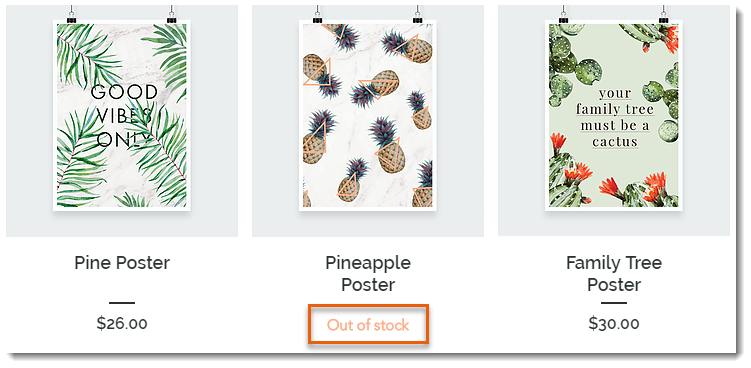
Screenshot of a Product Gallery  where the Add to Cart button text displays Out of Stock instead

Tip:

Instead of the "Out of Stock" message, you can set up back-in-stock notifications. This way, when an item is out of stock, customers see a "Notify When Available" message and can sign up to get an email letting them know when the item is available. Learn more

In this article, learn how to:

Customizing the message in Product Galleries

If you display a button in your product gallery, it changes automatically to an "Out of Stock" message when needed. You can customize the text of the "Out of stock" message.

Wix Editor

Studio Editor

  1. Go to your editor.

  2. Go to the page with the gallery you want to customize.

  3. Click the gallery on your page.

  4. Click Settings .

  5. Edit the text:Click the Text tab.
    Edit the "Out of Stock" text.

Customizing the message in the Product Page

When a product is out of stock, the Add to Cart button in the Product Page automatically changes to an Out of Stock button. The color and font of this button cannot be edited, but you can edit the message text.
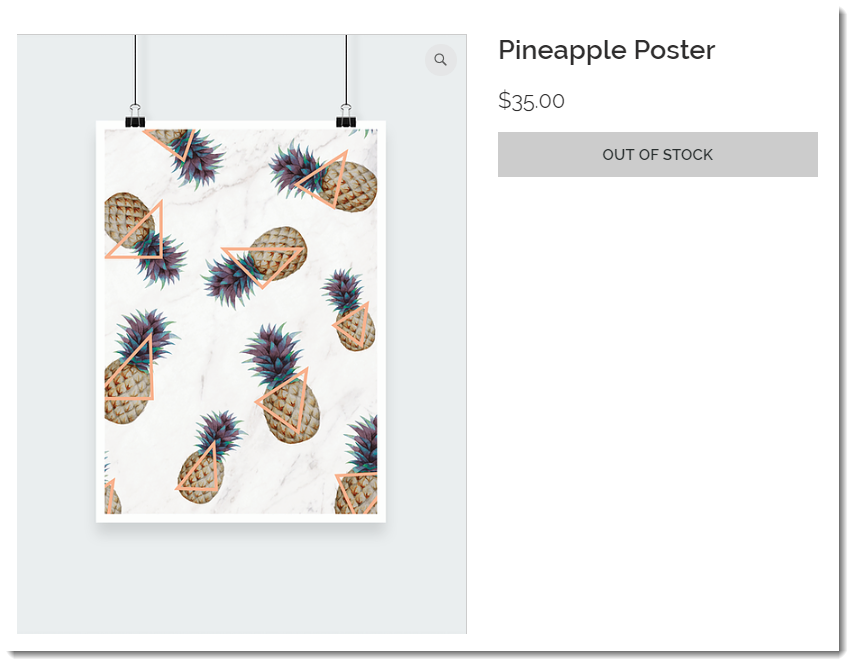
Screenshot of the Product Page where the Add to Cart button text displays Out of Stock instead

To customize the "Out of stock" message in the Product Page:

Wix Editor

Studio Editor

  1. Go to your editor.

  2. Go to your Product page:Click Pages & Menu  on the left side of the editor.
    Click Store Pages.
    Click Product Page.

  3. Click the Product Page element on your page.

  4. Click the Text tab.

  5. Edit the "Out of Stock Message" text.

Need A Professional Website?
Contact Us 
Today!

Wix Bookings: Adding and Setting Up the Next Availability Widget

Wix Bookings: Scheduling and Managing Multi-Service Appointments

Service List Title / Image Navigates to Calendar Page Instead of Service Page

Wix Bookings: Adding and Setting Up a Single Service Calendar

Wix Bookings: Customizing Your Weekly Timetable

Wix Bookings: Adding and Setting Up a Weekly Timetable

Wix Bookings: Customizing Your Staff Members Widget

Wix Bookings: Customizing Booking Form Fields

Wix Bookings: Customizing Your Booking Calendar Page

Wix Bookings: Adding and Setting up a Staff Members Widget on Your Site

Wix Bookings: Adding and Setting Up a Daily Agenda on Your Site

Wix Bookings: Adding and Setting Up a Standalone Book Button

Wix Bookings: Customizing Your Service Pages

Wix Bookings: About the "My Bookings" Page

Wix Bookings: Displaying Different Services on Different Pages

Wix Bookings: Displaying a Featured Service on Your Site

Wix Bookings: Hiding Images from the Service List

Wix Bookings: Changing the Contact and Location Info on the Service Page

Wix Bookings: Customizing Your Thank You Page

Wix Bookings: Setting Up Your Service List

Wix Bookings: About Bookings Pages

Wix Bookings: Saving and Charging Clients' Credit Cards

Wix Bookings: Sending Payment Requests to Clients Using Automations

Wix Bookings: Understanding Price Options

Wix Bookings: Making Credit Card Payments for Your Clients

Wix Bookings: Setting Up Tax

Wix Bookings: Sending an Invoice

Wix Bookings: Extending the Duration of a Membership Plan or Package

Memberships, packages & payments

Wix Bookings: Getting Paid Offline or in Person

wix experts
Graphic2Traffic web design
©
bottom of page