top of page

Managing store inventory

Wix Stores: Displaying an 'Out of Stock' Notice on a Product

When one of your products is out of stock, an Out of Stock message automatically appears in the Product Gallery and in the Product Page.
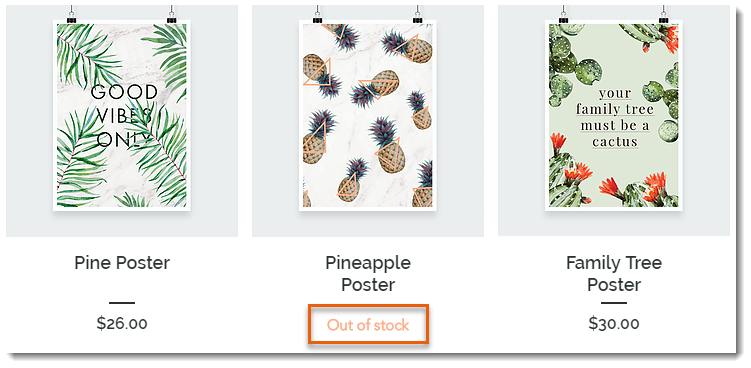
Screenshot of a Product Gallery  where the Add to Cart button text displays Out of Stock instead

Tip:

Instead of the "Out of Stock" message, you can set up back-in-stock notifications. This way, when an item is out of stock, customers see a "Notify When Available" message and can sign up to get an email letting them know when the item is available. Learn more

In this article, learn how to:

Customizing the message in Product Galleries

If you display a button in your product gallery, it changes automatically to an "Out of Stock" message when needed. You can customize the text of the "Out of stock" message.

Wix Editor

Studio Editor

  1. Go to your editor.

  2. Go to the page with the gallery you want to customize.

  3. Click the gallery on your page.

  4. Click Settings .

  5. Edit the text:Click the Text tab.
    Edit the "Out of Stock" text.

Customizing the message in the Product Page

When a product is out of stock, the Add to Cart button in the Product Page automatically changes to an Out of Stock button. The color and font of this button cannot be edited, but you can edit the message text.
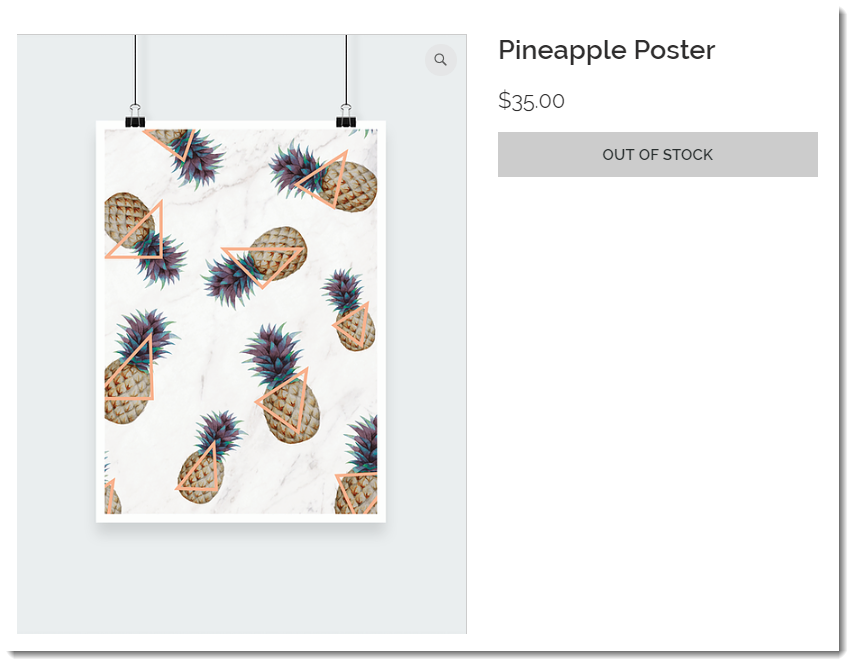
Screenshot of the Product Page where the Add to Cart button text displays Out of Stock instead

To customize the "Out of stock" message in the Product Page:

Wix Editor

Studio Editor

  1. Go to your editor.

  2. Go to your Product page:Click Pages & Menu  on the left side of the editor.
    Click Store Pages.
    Click Product Page.

  3. Click the Product Page element on your page.

  4. Click the Text tab.

  5. Edit the "Out of Stock Message" text.

Need A Professional Website?
Contact Us 
Today!

Connecting Authorize.net Powered by Bankful as a Payment Provider

Connecting Klarna as a Payment Provider

Connecting SeerBit as a Payment Provider

Connecting Webpay Plus-Transbank as a Payment Provider

Connecting Atome as a Payment Provider

Connecting Affirm as a Payment Provider

Connecting Pay TR as a Payment Provider

Connecting Sezzle as a Payment Provider

Connecting CXPay as a Payment Provider

Connecting Afterpay as a Payment Provider

Connecting Rapyd Payments as a Payment Provider

Connecting Clearpay as a Payment Provider

Connecting Yoco as a Payment Provider

Connecting Titre Restaurants Conecs as a Payment Method (Through Lyra)

Connecting Multibanco as a Payment Method (Through Lyra Collect)

Connecting Fondy as a Payment Provider

Connecting Xendit as a Payment Provider

Connecting Razorpay as a Payment Provider

Connecting Laybuy as a Payment Provider

Connecting Lyra Collect as a Payment Provider

Connecting UAPay as a Payment Provider

Connecting Paysafecash as a Payment Method (through Skrill)

Connecting Rapid Transfer as a Payment Method (through Skrill)

Connecting Przelewy24 as a Payment Method (through Skrill)

Connecting Skrill Digital Wallet as a Payment Method

Connecting Skrill as a Payment Provider for Credit/Debit Card Transactions

Connecting Mobile Payment as a Payment Method (Through KOMOJU)

Connecting Pay-Easy as a Payment Method (Through KOMOJU)

Connecting WeChat Pay as a Payment Method (Through Oceanpayment)

Connecting AliPay as a Payment Method (Through Oceanpayment)

wix experts
Graphic2Traffic web design
©
bottom of page