top of page

Managing store inventory

Wix Stores: Displaying an 'Out of Stock' Notice on a Product

When one of your products is out of stock, an Out of Stock message automatically appears in the Product Gallery and in the Product Page.
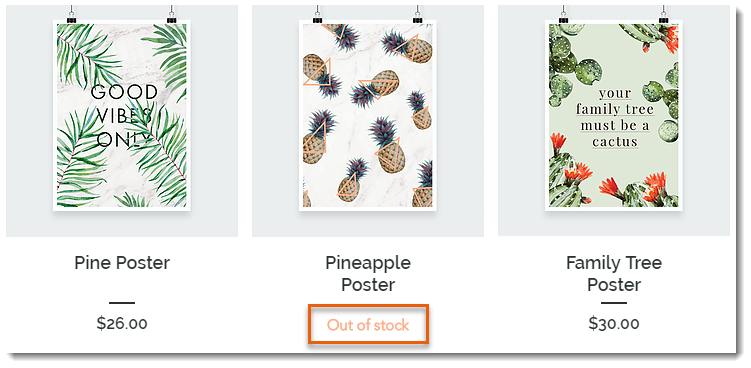
Screenshot of a Product Gallery  where the Add to Cart button text displays Out of Stock instead

Tip:

Instead of the "Out of Stock" message, you can set up back-in-stock notifications. This way, when an item is out of stock, customers see a "Notify When Available" message and can sign up to get an email letting them know when the item is available. Learn more

In this article, learn how to:

Customizing the message in Product Galleries

If you display a button in your product gallery, it changes automatically to an "Out of Stock" message when needed. You can customize the text of the "Out of stock" message.

Wix Editor

Studio Editor

  1. Go to your editor.

  2. Go to the page with the gallery you want to customize.

  3. Click the gallery on your page.

  4. Click Settings .

  5. Edit the text:Click the Text tab.
    Edit the "Out of Stock" text.

Customizing the message in the Product Page

When a product is out of stock, the Add to Cart button in the Product Page automatically changes to an Out of Stock button. The color and font of this button cannot be edited, but you can edit the message text.
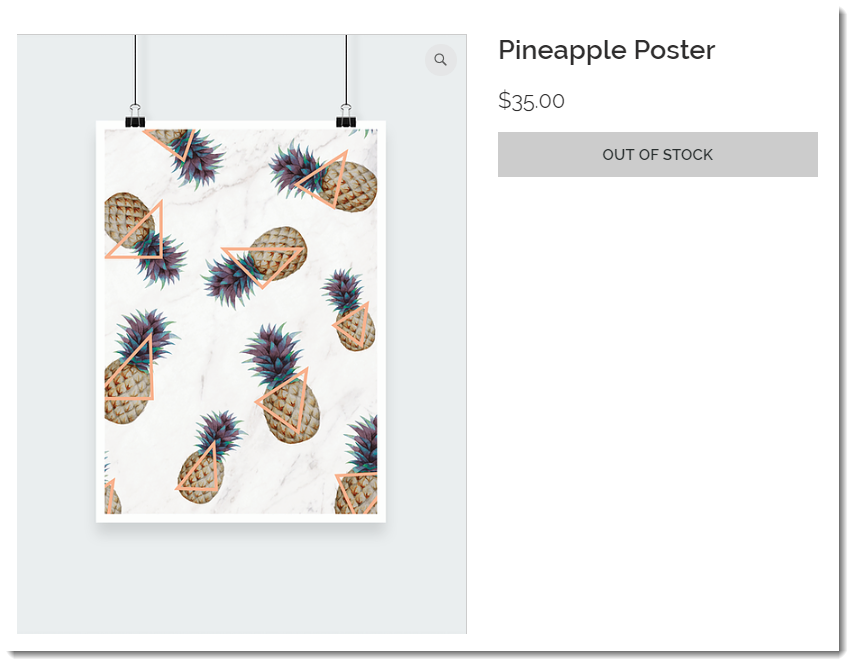
Screenshot of the Product Page where the Add to Cart button text displays Out of Stock instead

To customize the "Out of stock" message in the Product Page:

Wix Editor

Studio Editor

  1. Go to your editor.

  2. Go to your Product page:Click Pages & Menu  on the left side of the editor.
    Click Store Pages.
    Click Product Page.

  3. Click the Product Page element on your page.

  4. Click the Text tab.

  5. Edit the "Out of Stock Message" text.

Need A Professional Website?
Contact Us 
Today!

Connecting FIBONATIX as a Payment Provider

Connecting izipay as a Payment Provider

Connecting FasterPay as a Payment Provider

Connecting Kashier Payment Solutions as a Payment Provider

Disabling 2Checkout's Unfinished Payments Feature to Avoid Failed Transactions

Requiring a Customer Phone Number When Checking Out with PayPal

Disabling PayPal Encryption Messages

Connecting Smartphone Payment as a Payment Method (through KOMOJU)

Connecting Bankful as a Payment Provider for Cryptocurrency, Wallet and Credit Card Payments

Connecting Paymentwall as a Payment Provider

Connecting ACH by Choice as a Payment Provider

Connecting Vipps as a Payment Provider

Connecting Mollie as a Payment Provider

Connecting MONEI as a Payment Provider

Connecting payabl. as a Payment Provider

Connecting PayPlus as a Payment Provider

Connecting Tilopay as a Payment Provider

Connecting SumUp as a Payment Provider

Connecting YooKassa (YooMoney) as a Payment Provider

Connecting Square as a Payment Provider

Connecting Stripe as a Payment Provider

Connecting Online Bank Transfer by Klarna as a Payment Method (Through Stripe)

Connecting PayPal as a Payment Provider

Connecting Pay-Easy or Convenience Stores as a Payment Method (Through GMO)

Connecting PagueloFacil as a Payment Provider

Connecting PagSeguro as a Payment Provider

Connecting Mercado Pago as a Payment Provider

Connecting Max as a Payment Provider

Connecting bit (Provided by Isracard powered by PayMe) as a Payment Method

Connecting Evergreen Payments Northwest as a Payment Provider

wix experts
Graphic2Traffic web design
©
bottom of page