top of page

Designing your store

Wix Stores: Customizing the Quick View in the Product Gallery

Quick view allows customers to view product details in a popup, without leaving your shop page. You can customize the quick view colors and fonts, as well as the "Quick View" and "Add to Cart" buttons.

Screenshot of a sample Grid Gallery in a Wix store

In this article, learn more about:

Enable or disable Quick View

You can add Quick View to any product gallery or to the Category page.

Important:

If the Add to Cart button is enabled and placed on top of the product image, the Quick View button won't be displayed. To customize the Add to Cart button placement, go to the Layout tab.

To enable or disable Quick View:

  1. Click the relevant Product Gallery or the Category Page in your editor.

  2. Click the Settings icon .

  3. Click the Display tab.

  4. Click the checkbox next to Quick View button to enable or disable it.

Customize the Quick View button

When Quick View is enabled and a customer on desktop hovers with their mouse over a product, the Quick View button appears. You can customize the button's colors, opacity, and font.
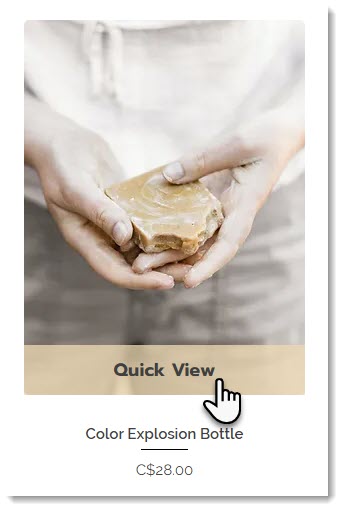
Screenshot of a product in a Wix store with the Quick View enabled

To customize the Quick View button:

  1. Click the relevant Product Gallery or the Category Page in your editor.

  2. Click the Settings icon .

  3. Click the Design tab.

  4. Select Quick View button.

  5. Customize the button using the available options.

Customizing the Quick View window

After a customer clicks the Quick View button, the Quick View window opens. You can customize the design of this window, so it matches your store's look and feel.

To customize the quick view:

  1. Click the relevant Product Gallery or the Category Page in your editor.

  2. Click the Settings icon .

  3. Click the Quick View tab.

  4. Customize the Quick View using the available options.

Need A Professional Website?
Contact Us 
Today!

Wix Photo Albums: Printing and Shipping Issues in the Wix Photo Albums Store

Wix Photo Albums: Printing and Shipping Issues in the Wix Photo Albums Store

Wix Photo Albums: Setting Up Your Photo Albums Store

Wix Photo Albums Store: No Longer Available

Wix Photo Albums: Managing Your Photo Album

Wix Photo Albums: Managing Photo Albums in the Wix App

Wix Photo Albums: Duplicating Your Photo Album

Wix Photo Albums: Changing Your Album's Privacy Permissions

Wix Photo Albums: Enabling Downloading of an Entire Photo Album

Wix Photo Albums: Changing the Album URL

Wix Photo Albums: Troubleshooting Album URL Issues

Wix Photo Albums: Displaying Specific Albums on Different Pages

Wix Photo Albums: Showing or Hiding an Album on Your Site

Wix Photo Albums: Sharing Your Album

Wix Photo Albums: Displaying a Single Photo Album

Wix Photo Albums: Supported Media Sizes and Formats

Wix Photo Albums: Deleting Photo Albums

Wix Photo Albums: Adding New Galleries to an Album

Wix Photo Albums: Changing the Layout of Your Galleries

Wix Photo Albums: Creating a Favorites List for Clients (Proofing)

Wix Photo Albums: Managing Your Favorites Lists

Wix Photo Albums: Communicating With Clients Using Your Favorites List

Wix Photo Albums: Updating Your Old Albums to the New Templates

Wix Photo Albums: Uploading Photos from Lightroom Classic

Wix Photo Albums: Viewing Your Photo Album Statistics

Wix Photo Albums: Upgrading Your Photo Albums Storage

Wix Photo Albums: Removing Wix Ads from Your Photo Album

Wix Photo Albums: Organizing Your Album

Wix Photo Albums: Adding Titles and Descriptions to Photos

Wix Photo Albums: Editing Your Album's Cover Information

wix experts
Graphic2Traffic web design
©
bottom of page