top of page

Managing your orders

Wix Stores: Creating Automated Responses for Product Purchases

Keep customers engaged by creating an automated response that they receive after purchasing your products. For example, you can send an email with a coupon offer that arrives 10 days after the initial product purchase.
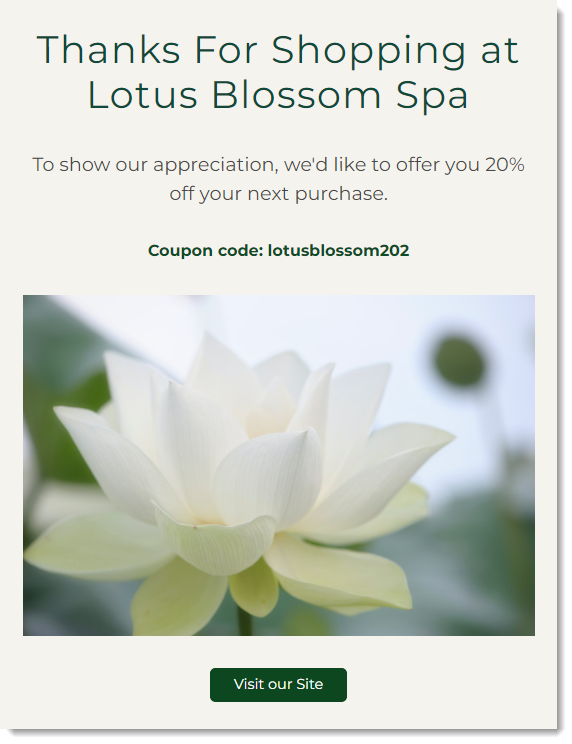
Screenshot of a sample automated email sent to a customer after purchase

Step 1 | Set up the trigger

The trigger is what sets the automation in motion. In this case, the trigger you want to select is Order placed.

To select the 'Order placed' trigger:

  1. Go to Automations in your site's dashboard.

  2. Click + New Automation.

  3. Click + Start from Scratch on the left.

  4. Click the title at the top left to give the automation a name.

  5. Search for Order placed on the left and select it.
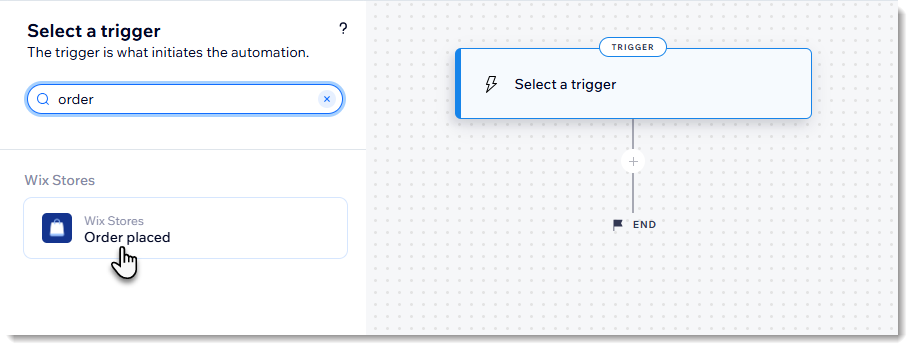
Screenshot of Wix Automations when selecting the Order placed trigger in Wix Stores

Step 2 | Add to your automation

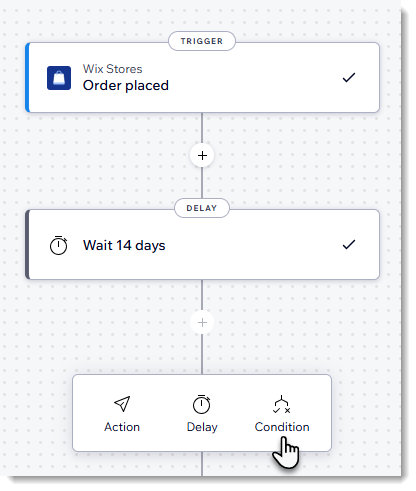
Now you can start customizing what happens when the trigger occurs. Take a moment to consider the best time to send the automated response. Customers probably won't want to receive a reminder right after completing a purchase. You may get better results by sending your message a week or two later. Set the timing by adding a delay.

Step 3 | Select products

The automations builder also allows you to add a condition. One example of a condition is that the order includes specific products.

For example, if you sell 7 types of soaps, you can add the condition that at least one of those soaps must be purchased to set the automation in motion.

To select which products trigger the response:

  1. Click the  icon to add a step.

  2. Select Condition.

Screenshot of Wix Automations when selecting to add a condition in Wix Stores

  1. Select Ordered item ID from the first drop-down.

  2. Select Includes any of from the second drop-down.

  3. Select the relevant products (up to 50).

Learn more about adding a condition to an automation.

Step 3 | Choose the automated response

Wix offers a variety of ways to respond to clients after a trigger is activated. Choose whether you want to send an email, a chat message, or maybe you can email your customer a coupon to encourage them to make another purchase.

Important:

If you're sending an email, make sure to customize the message and design your email to suit your brand.

Need A Professional Website?
Contact Us 
Today!

Google Workspace Error Message: "Your subscription has been suspended by your reseller"

Google Workspace Error Message: Service Is Temporarily Suspended until Your Customer Accepts the New Terms of Service

Google Workspace Error Message: "You already have a Google Workspace business email account. You can manage it from the Google Admin Console"

Google Workspace: Data Migration from an External Email to Your Google Workspace

Google Workspace: Revoking Admin Status to Delete a Workspace Account

Google Workspace: Connecting Your Business Email to a Mail Client Using IMAP and SMTP

Google Workspace: Changing the Language of Your Business Email

Google Workspace: Emails Missing from Your Business Email

Google Workspace: Allowing Access for ‘Less Secure Apps’ in Your Business Email

Google Workspace: Adding Google Workspace MX Records to Your Wix Account

Google Workspace: Setting Up a Domain Alias

Google Workspace: Manually Verifying Your Domain with Google

Google Workspace: Connecting a Business Email for a Domain Pointing to Wix

Google Workspace: Setting Up an Email Alias for an Existing Workspace User Email Address

Google Workspace: Resetting a Workspace User's Password

Google Workspace: Renaming a Workspace User

Google Workspace: Accessing Your Additional Workspace Users

Google Workspace: Purchasing Additional Business Emails from Wix

Google Workspace: Setting Up Business Email Users

Gemini for Google Workspace: An Overview

Google Workspace: Upgrading a Workspace Plan

Google Workspace: Choosing a Plan

Google Workspace: Business Email Sending Limits

Google Workspace: Forwarding Emails From Your Business Email to Another Email Address

Google Workspace: Resetting Your Admin Password

Google Workspace: Accessing Your Admin Console

Google Workspace: Identifying Your Admin Workspace User

Google Workspace: Setting Up Your Business Email on Mobile Devices

Google Workspace: Username and Password Guidelines

Google Workspace: Accessing your Business Email Through Your Wix Account

wix experts
Graphic2Traffic web design
©
bottom of page