top of page

Managing products and categories

Wix Stores: Adding Info Sections to Products

Customers are more likely to make a purchase when their questions are answered. Add one or more info sections (e.g. product details, shipping info) to a product to provide all the explanations your customers need.

GIF is a product in a wix store showing the info sections

In this article, learn how to:

Adding an Info Section to a product

Help customers feel comfortable about buying your products by adding the information they need. This can include product specs, sizing, care info, and store policies.

To add an info section:

  1. Go to Products in your site's dashboard.

  2. Create a new product or edit an existing one.

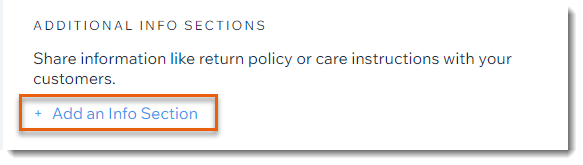
  3. Click + Add an Info Section.

Screenshot of the product creation page in the Wix dashboard with the Add info section option outlined

  1. Enter the info section title.

  2. Enter the relevant information and use the text editing toolbar to format the text.

  3. Click Save.

Adding a table

Tables are a great way to display certain types of information, such as a size chart.
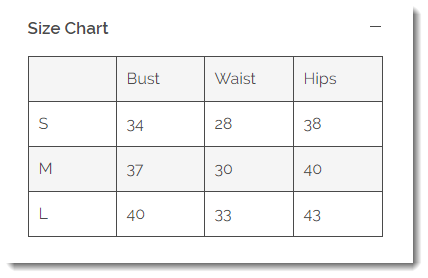
Screenshot of a size chart in an info section of a product in Wix stores

To add a table to an info section:

  1. Go to Products in your site's dashboard.

  2. Create a new product or edit an existing one.

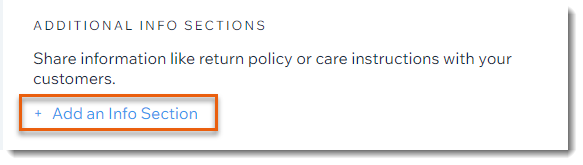
  3. Click + Add an Info Section.

Screenshot of the product creation page in the Wix dashboard with the Add info section option outlined

  1. Enter the title.

  2. Click the Table icon .

Screenshot of part of the window you use to add an info section to a product in a Wix store with the table icon outlined

  1. Set up your table:Enter the total number of columns and rows you want.
    Select an option from the Headers drop-down.
    Tip: Rows or columns designated as headers are bolded.
    Click OK.

  2. Enter the table content.

  3. Click Save.

Adding links

You can add links that direct to pages containing additional info about your product or policies. For example, you may want to display basic shipping information in the info section and also provide a link to a page with detailed shipping information.

Linking options:

You can link to hidden or live pages in your site. You can also link to any external page.
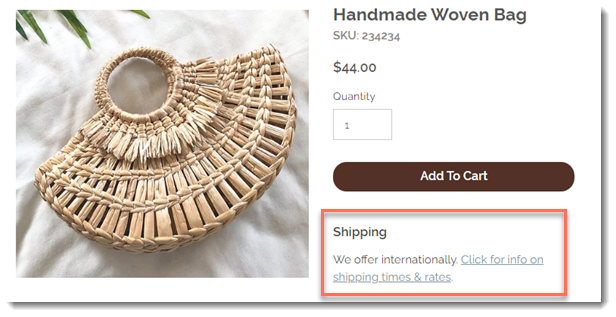
Screenshot of a product in a Wix stores that has an info section containing a link

To add links to an info section:

  1. Highlight any text.

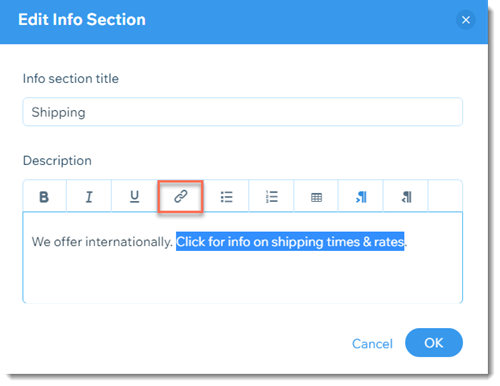
  2. Click the Link icon .

Screenshot of the window you use to add an info section to a product in a Wix store with the link icon outlined

  1. Enter the URL you want to link to.

  2. Click OK.

Adding an Info Section to multiple products

To save time, you can add the same info section to multiple products at the same time. Simply select the relevant products and create the info section as you would for a single product.

To add info sections to multiple products at once:

  1. Go to Products in your site's dashboard.

  2. Select the checkboxes next to the products you want to edit, or click the checkbox at the top left to select all products.

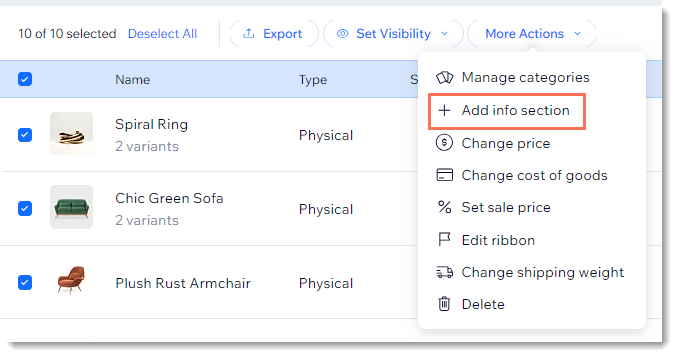
  3. Click More Actions.

  4. Select + Add info section.

Screenshot of the product list in a Wix Stores with multiple products selected and the Add info section option outlined

  1. Create and save the info section following the instructions above.

Need A Professional Website?
Contact Us 
Today!

Troubleshooting Third Party Provider Connection Issues

Connecting GB Prime Pay as a Payment Provider

Payze No Longer Available to Connect as a Payment Provider

Connecting Pagsmile as a Payment Provider

Connecting Rakuten as a Payment Method (through KOMOJU)

Receiving Payouts from Third-Party Payment Providers

Connecting Paidy as a Payment Method (through KOMOJU)

Connecting Param as a Payment Provider

Connecting HitPay as a Payment Provider

Connecting MagicPay as a Payment Provider

Connecting Payflex as a Payment Provider

Connecting Paytm for Business as a Payment Provider

Connecting Opn Payments as a Payment Provider

Connecting PayWay by Hrvatski Telekom as a Payment Provider

Connecting CoinGate as a Payment Provider for Cryptocurrency Payments

Connecting Vyne as a Payment Provider

Connecting iKhokha as a Payment Provider

Connecting Triple-A Crypto Payment Gateway as a Payment Provider

Connecting Payzone as a Payment Provider

Connecting Payguru as a Payment Provider

Connecting Grow by Meshulam as a Payment Provider

Refunding Your Customers with Third Party Payment Providers

Connecting PayZen by Lyra as a Payment Provider

Connecting Twint (Provided by PEND) as a Payment Provider

Connecting Pelecard as a Payment Provider

Connecting Dragonpay as a Payment Provider

Connecting Cashfree Payments as a Payment Provider

Connecting Priority Payments as a Payment Provider

Connecting Sipay as a Payment Provider

Connecting Nuvei as a Payment Provider

wix experts
Graphic2Traffic web design
©
bottom of page