top of page

Designing your store

Wix Stores: Adding and Setting Up an 'Add to Cart' Button

You can place a standalone 'Add to Cart' button anywhere on your site. The button is linked to the product you choose. This can come in handy when you're writing about a product somewhere on your site and want to make it easy for a customer to add the product to their cart.

Step 1 | Add the 'Add to Cart' button

Start by navigating to the relevant page and then dragging the Add the Cart button from the Add Panel to the ideal spot.

GIF showing how to add an Add to Cart button to a site page in a Wix site

Wix Editor

Studio Editor

  1. Go to your editor.

  2. Click Add Elements on the left side of the editor.

  3. Click Stores.

  4. Drag the Add to Cart Button to the page.

Step 2 | Connect the button to a product

For the button to work properly, you need to select which product is added to the customer's cart when clicked.
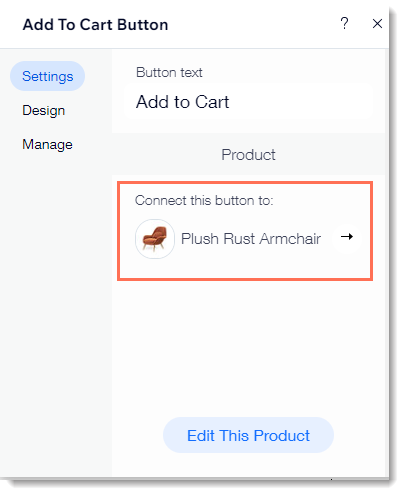
Screenshot of the settings panel where you select which product is connected to the Add to Cart button

To connect the button to a product:

  1. Click the Add to Cart button in your editor.

  2. Click Settings.

  3. (Optional) Edit the button text.

  4. Connect the button to a product. Select the default product or select a different product.

Step 3 | Design the button

Now you can design the button to fit perfectly on the page.

To customize the design of the button:

  1. Click the Add to Cart button in your editor.

  2. Click Settings.

  3. Click Design.

  4. Make any of the following customizations:Select a button style.
    Select a button color and drag the slider to adjust the opacity.
    Select a border color and drag the slider to adjust the border width.
    Drag the slider to make the corners rounder or more square.
    Select a text color or font.
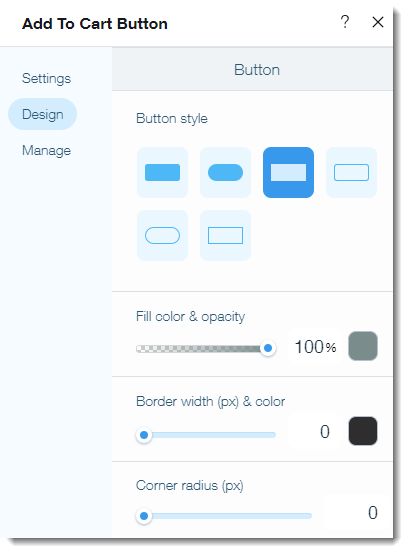
Screenshot of the design options available with the Add to Cart button

Note:

When a product is out of stock, the button text changes to "Out of Stock". It is not possible to edit the design of the "Out of Stock" button.

Need A Professional Website?
Contact Us 
Today!

Connecting FIBONATIX as a Payment Provider

Connecting izipay as a Payment Provider

Connecting FasterPay as a Payment Provider

Connecting Kashier Payment Solutions as a Payment Provider

Disabling 2Checkout's Unfinished Payments Feature to Avoid Failed Transactions

Requiring a Customer Phone Number When Checking Out with PayPal

Disabling PayPal Encryption Messages

Connecting Smartphone Payment as a Payment Method (through KOMOJU)

Connecting Bankful as a Payment Provider for Cryptocurrency, Wallet and Credit Card Payments

Connecting Paymentwall as a Payment Provider

Connecting ACH by Choice as a Payment Provider

Connecting Vipps as a Payment Provider

Connecting Mollie as a Payment Provider

Connecting MONEI as a Payment Provider

Connecting payabl. as a Payment Provider

Connecting PayPlus as a Payment Provider

Connecting Tilopay as a Payment Provider

Connecting SumUp as a Payment Provider

Connecting YooKassa (YooMoney) as a Payment Provider

Connecting Square as a Payment Provider

Connecting Stripe as a Payment Provider

Connecting Online Bank Transfer by Klarna as a Payment Method (Through Stripe)

Connecting PayPal as a Payment Provider

Connecting Pay-Easy or Convenience Stores as a Payment Method (Through GMO)

Connecting PagueloFacil as a Payment Provider

Connecting PagSeguro as a Payment Provider

Connecting Mercado Pago as a Payment Provider

Connecting Max as a Payment Provider

Connecting bit (Provided by Isracard powered by PayMe) as a Payment Method

Connecting Evergreen Payments Northwest as a Payment Provider

wix experts
Graphic2Traffic web design
©
bottom of page