top of page

Designing your store

Wix Stores: Adding and Setting Up an 'Add to Cart' Button

You can place a standalone 'Add to Cart' button anywhere on your site. The button is linked to the product you choose. This can come in handy when you're writing about a product somewhere on your site and want to make it easy for a customer to add the product to their cart.

Step 1 | Add the 'Add to Cart' button

Start by navigating to the relevant page and then dragging the Add the Cart button from the Add Panel to the ideal spot.

GIF showing how to add an Add to Cart button to a site page in a Wix site

Wix Editor

Studio Editor

  1. Go to your editor.

  2. Click Add Elements on the left side of the editor.

  3. Click Stores.

  4. Drag the Add to Cart Button to the page.

Step 2 | Connect the button to a product

For the button to work properly, you need to select which product is added to the customer's cart when clicked.
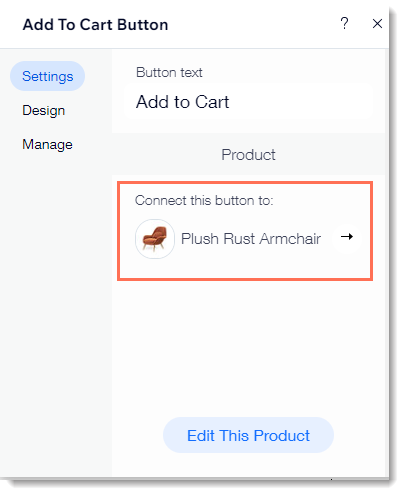
Screenshot of the settings panel where you select which product is connected to the Add to Cart button

To connect the button to a product:

  1. Click the Add to Cart button in your editor.

  2. Click Settings.

  3. (Optional) Edit the button text.

  4. Connect the button to a product. Select the default product or select a different product.

Step 3 | Design the button

Now you can design the button to fit perfectly on the page.

To customize the design of the button:

  1. Click the Add to Cart button in your editor.

  2. Click Settings.

  3. Click Design.

  4. Make any of the following customizations:Select a button style.
    Select a button color and drag the slider to adjust the opacity.
    Select a border color and drag the slider to adjust the border width.
    Drag the slider to make the corners rounder or more square.
    Select a text color or font.
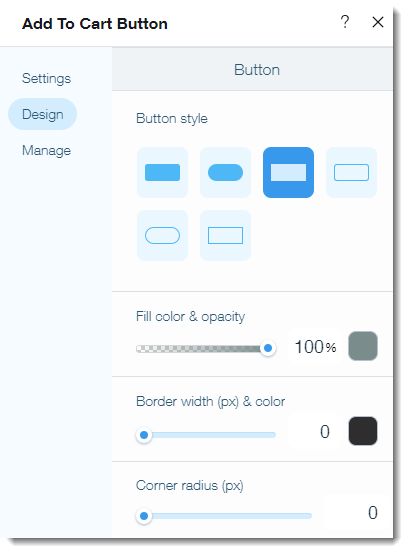
Screenshot of the design options available with the Add to Cart button

Note:

When a product is out of stock, the button text changes to "Out of Stock". It is not possible to edit the design of the "Out of Stock" button.

Need A Professional Website?
Contact Us 
Today!

Setting Up Tax Groups Using Automatic Tax Calculation

Setting Up Automatic Tax Calculation

About Automatic Tax Collection

Setting Up Tax Groups Using Manual Tax Calculation

Setting Up Tax Calculation Using the Manual Method

Tax Collection: An Overview

Connecting Flow as a Payment Provider

Connecting Tranzzo as a Payment Provider

Syncing SKU IQ with Square and Wix

Connecting iCredit as a Payment Provider

Connecting Cal powered by PayMe as a Payment Provider

Connecting Pagopar as a Payment Provider

Connecting POLi as a Payment Provider

Connecting PaidBy Bank as a Payment Provider

Connecting PostFinance as a Payment Provider

Connecting Nimbbl as a Payment Provider

Connecting airpay as a Payment Provider

Connecting Easebuzz as a Payment Provider

Connecting MakeCommerce as a Payment Provider

Connecting KG Inicis as a Payment Provider

Connecting seQura as a Payment Provider

About 3D Secure (3DS) Payments with Third-Party Payment Providers

Connecting Ziina as a Payment Provider

Connecting Faster Payment System as a payment method (through Oceanpayment)

Connecting easypay as a Payment Provider

Connecting Exactly as a Payment Provider

Connecting PayItMonthly as a Payment Provider

Troubleshooting Pending PayPal Payments

Connecting Tranzila as a Payment Provider for Card, Google Pay and bit Payments

Connecting Moneris as a Payment Provider

wix experts
Graphic2Traffic web design
©
bottom of page