


Managing products and categories
Wix Stores: About the Category Page
Important:
The new Category Page is not yet available for all users. If you don't have it, click to learn how to create and display product categories using shop pages.
The Category Page is your main store page. Here, customers can select the category they want to browse. Choose the elements you want to display on this page and customize it to get the design that reflects your store brand.
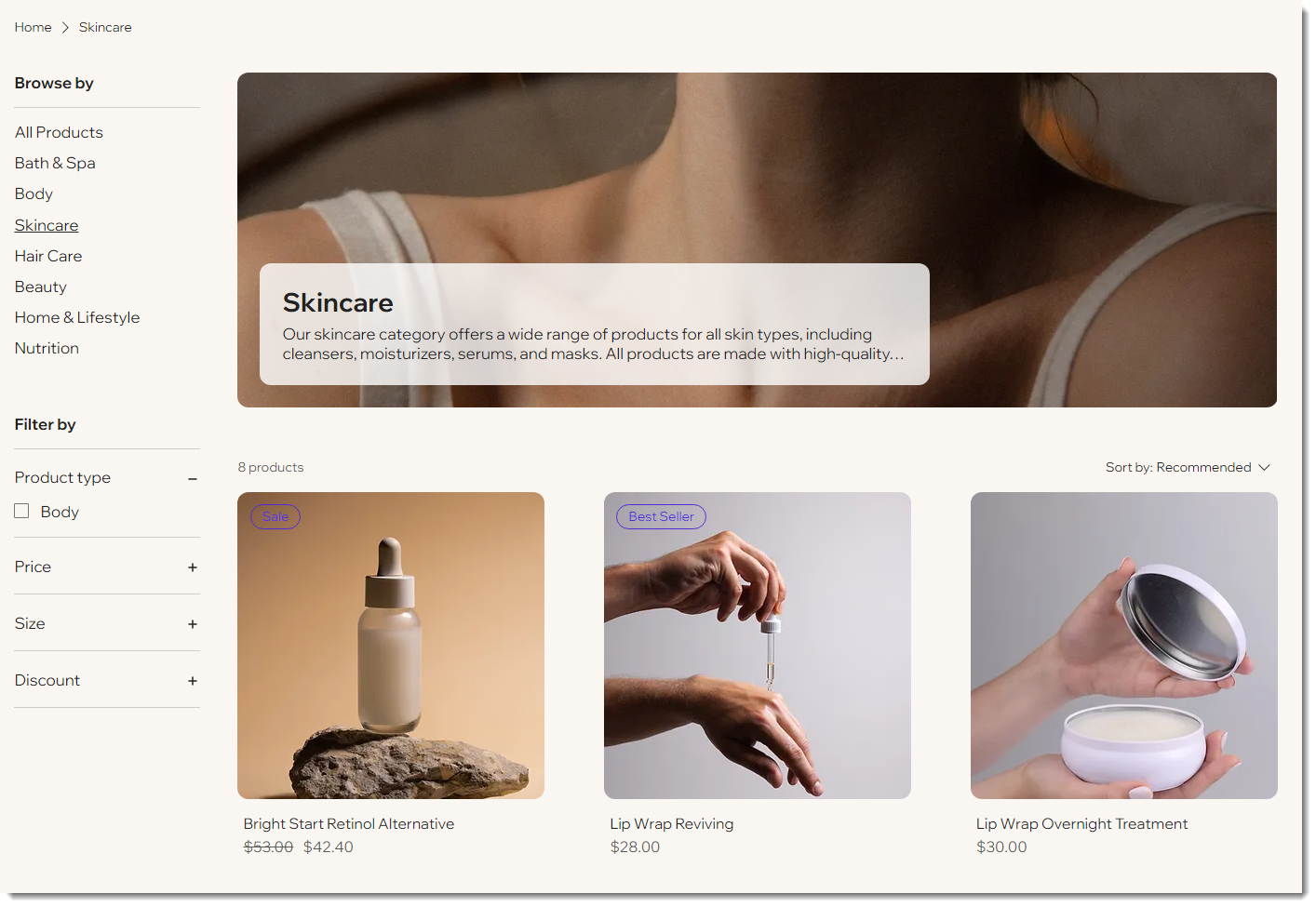
Customizing the page:
When you customize the look and function of this page once, it applies to all categories to give your store a unified look.
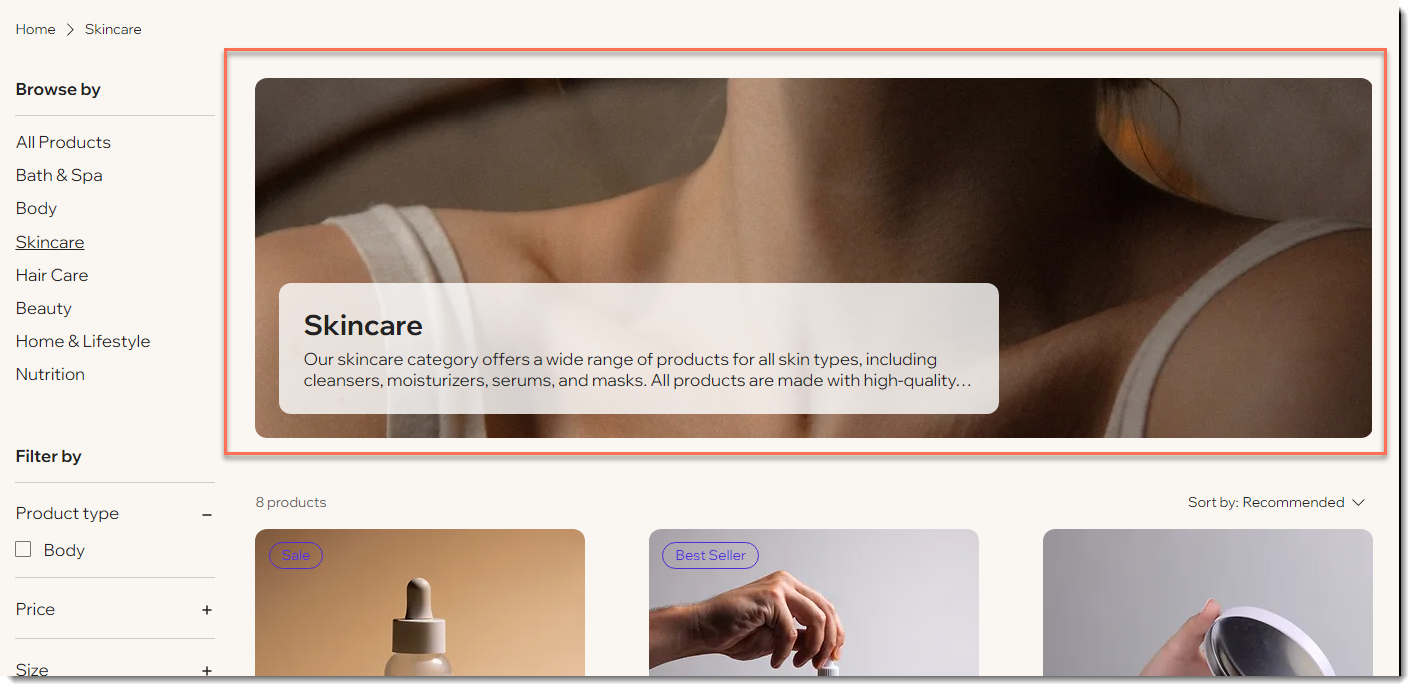
The header
The header of the Category Page displays the image and description you added when you created the category. You can hide the category name, image, description, or the entire header.
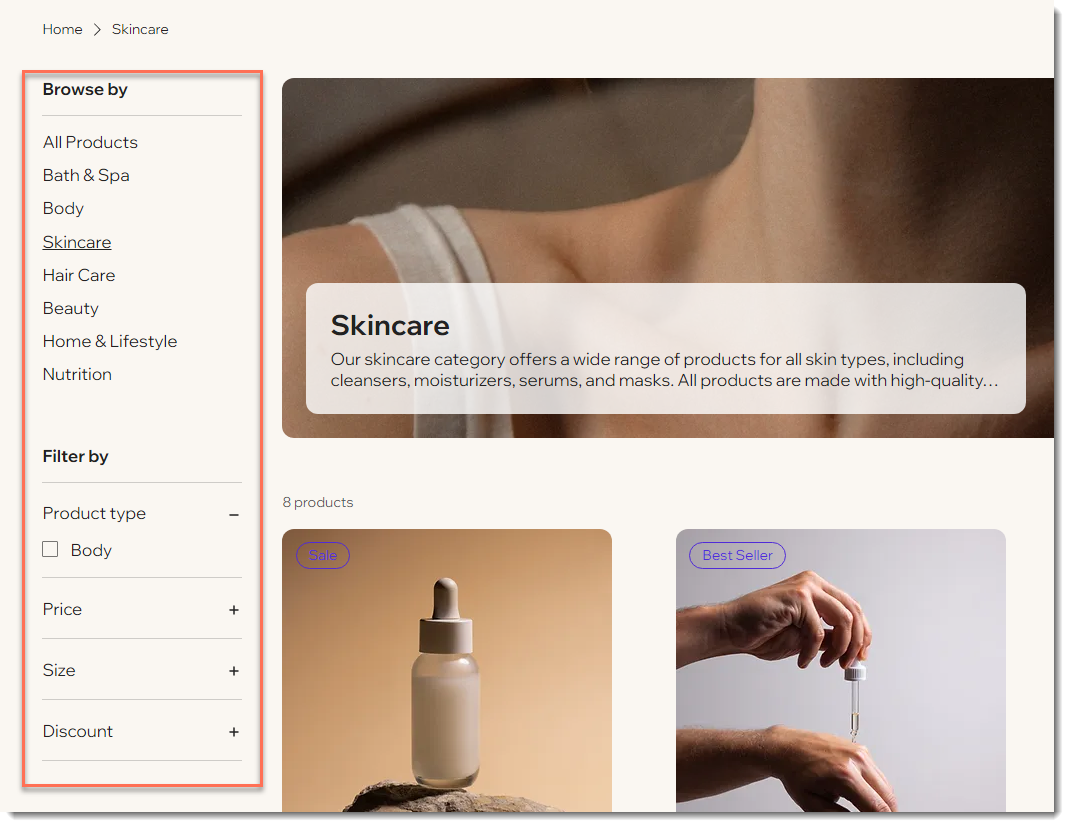
About the sidebar
The category sidebar has 2 components: the category list and filters. You can display one or both or hide the sidebar entirely.
You can choose which of your active categories to show on the sidebar and their order of appearance. Your store comes with some filter options built in (which you can display or hide), but you can also create custom filters using your categories.
Important:
The category list does not appear on mobile. Adding your categories to the site menu is the best way to give your customers easy access to them.
FAQs
Click a question below to learn more about the Category Page.
Can I display categories in my site menu instead of (or in addition to) the Category Page?
Yes. You have the freedom to organize your site in the way that works best for your business.
Learn how to display individual categories in the site menu.
Do customers on mobile see the sidebar with the category list?
No, the category list doesn't appear on mobile, even if you display it on the desktop version of your site.

To give customers easy access to all your categories, we suggest you display your categories in your site's menu.
Tip: If you set up your filters to display categories, customers can also use that option to access specific categories on mobile.
How can I design the Category Page?
Customize the layout, colors, fonts and more to get the perfect look for your brand.
Tip: You only need to customize the Category Page once. Your selections apply to each category.