top of page

Setting up Retail POS sales

Wix Retail POS: Selling Virtual Gift Cards

Important:

  • This article is about Wix Retail POS tablet for brick & mortar businesses.

  • For info on using POS on a mobile device, click here.

Sell virtual gift cards on your website and let customers use them to purchase products or services online and at your point of sale.

Notes:

  • You cannot refund the purchase of the gift card itself or orders paid for by gift card.

  • You can exchange orders paid for with a gift card only when the price of the exchanged products is the same (i.e. the customer isn't refunded or charged).

Set up a gift card option

Start by creating your virtual gift card. You can create a Wix gift card right from your Wix dashboard. You can also create gift cards using the Gifted app.

Physical (plastic) gift cards:

Learn how to order physical (plastic) gift cards and sell them in your store.

Enabling gift cards at a POS

Enable gift cards so you select them as a payment option during checkout.

To enable gift cards:

  1. Open the POS tablet.

  2. Tap the Menu icon  at the bottom left.

  3. Tap Settings.

  4. Tap Payment.

  5. Click the Accept Gift Cards toggle to enable it.
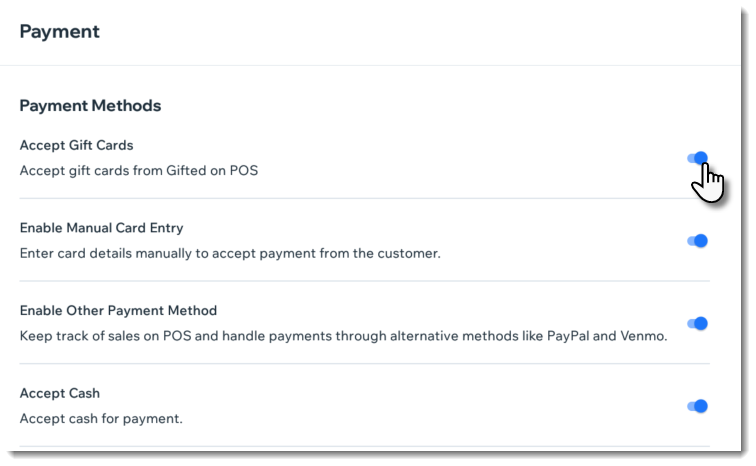
Screenshot of the payment settings screen in Wix Retail POS with the accept gift card option outlined

Accepting payment by gift card

Let customers redeem their gift cards while making a purchase.

Tip:

Gift card codes are not case sensitive.

To redeem a gift card at checkout:

  1. Open the POS tablet.

  2. Tap Checkout on the bottom bar.

  3. Process the sale and proceed to checkout.

  4. Select Gift Card under Select Payment Method.

  5. Enter or scan the gift card code and tap Apply.
    Tip: Only Gifted app codes can be scanned.

  6. (If the gift card didn't cover the entire purchase) Click Add Payment and process the balance using another payment method, such as cash or a credit card.
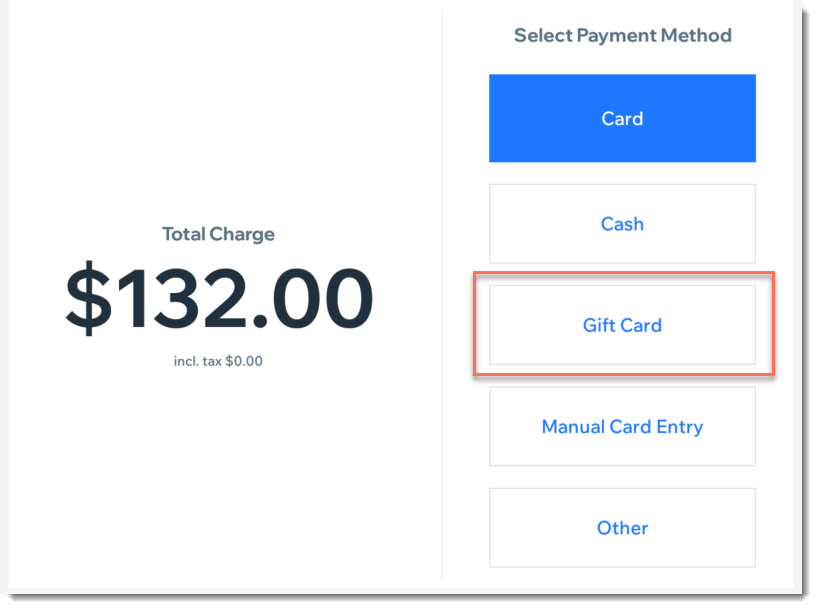
Screenshot of the payment screen in Wix Retail POS with the gift card option outlined

Checking a gift card balance

Customers may want to check how much money is left in their gift card before deciding on a purchase. You can check this for them on the POS tablet.

To check a gift card balance:

  1. Open the POS tablet.

  2. Tap Checkout on the bottom bar.

  3. Tap Gift Cards on the left.

  4. Tap Check Gift Card Balance.

  5. Select an option:Enter the code manually.
    Enter or scan the gift card code.
    Tip: Only Gifted app codes can be scanned.
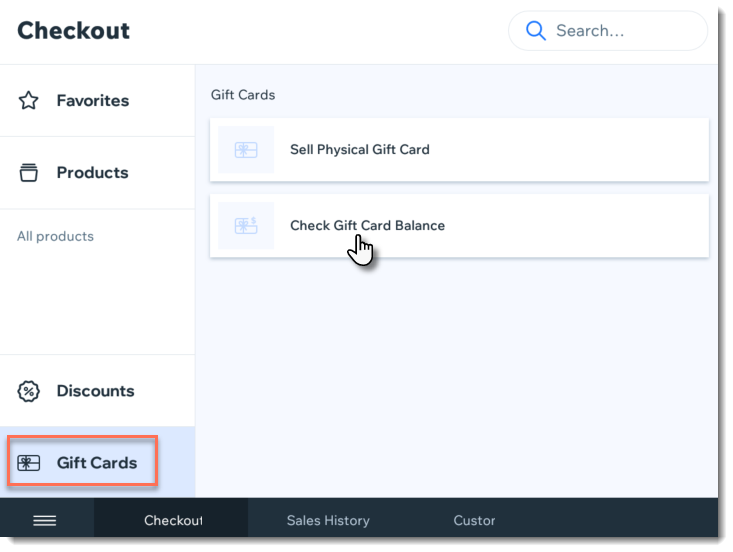
Screenshot of the Gift Card tab in the Wix Retail POS

Need A Professional Website?
Contact Us 
Today!

Google Workspace Error Message: "Your subscription has been suspended by your reseller"

Google Workspace Error Message: Service Is Temporarily Suspended until Your Customer Accepts the New Terms of Service

Google Workspace Error Message: "You already have a Google Workspace business email account. You can manage it from the Google Admin Console"

Google Workspace: Data Migration from an External Email to Your Google Workspace

Google Workspace: Revoking Admin Status to Delete a Workspace Account

Google Workspace: Connecting Your Business Email to a Mail Client Using IMAP and SMTP

Google Workspace: Changing the Language of Your Business Email

Google Workspace: Emails Missing from Your Business Email

Google Workspace: Allowing Access for ‘Less Secure Apps’ in Your Business Email

Google Workspace: Adding Google Workspace MX Records to Your Wix Account

Google Workspace: Setting Up a Domain Alias

Google Workspace: Manually Verifying Your Domain with Google

Google Workspace: Connecting a Business Email for a Domain Pointing to Wix

Google Workspace: Setting Up an Email Alias for an Existing Workspace User Email Address

Google Workspace: Resetting a Workspace User's Password

Google Workspace: Renaming a Workspace User

Google Workspace: Accessing Your Additional Workspace Users

Google Workspace: Purchasing Additional Business Emails from Wix

Google Workspace: Setting Up Business Email Users

Gemini for Google Workspace: An Overview

Google Workspace: Upgrading a Workspace Plan

Google Workspace: Choosing a Plan

Google Workspace: Business Email Sending Limits

Google Workspace: Forwarding Emails From Your Business Email to Another Email Address

Google Workspace: Resetting Your Admin Password

Google Workspace: Accessing Your Admin Console

Google Workspace: Identifying Your Admin Workspace User

Google Workspace: Setting Up Your Business Email on Mobile Devices

Google Workspace: Username and Password Guidelines

Google Workspace: Accessing your Business Email Through Your Wix Account

wix experts
Graphic2Traffic web design
©
bottom of page