top of page

Setting up Retail POS hardware

Wix Retail POS: Selecting a Card Reader

Important:

  • This article is about Wix Retail POS tablet for brick & mortar businesses.

  • For info on using POS on a mobile device, click here.

Using your card reader, you can accept payment by credit card, debit card, or by phone app.

There are a number of readers available. All readers support all magstripe and EMV payment functions and you can use them to accept new forms of payment, such as Apple Pay, Android Pay, Samsung Pay, VISA Paywave, MasterCard PayPass, AMEX ExpressPay and Discover D-PAS.

Check which model of card reader you have and click to learn how to connect it, update the software, and more.

Stripe Reader M2 (Available in the US)

This card reader, which come in white, is currently available for purchase for merchants located in the US. It connects to your tablet through Bluetooth.

An image of the Stripe Reader M2

Learn how to set up and use the Stripe Reader M2 card reader.

WisePad 3 (Available in Canada)

This card reader is available for purchase for merchants located in Canada. It connects to your tablet through Bluetooth.
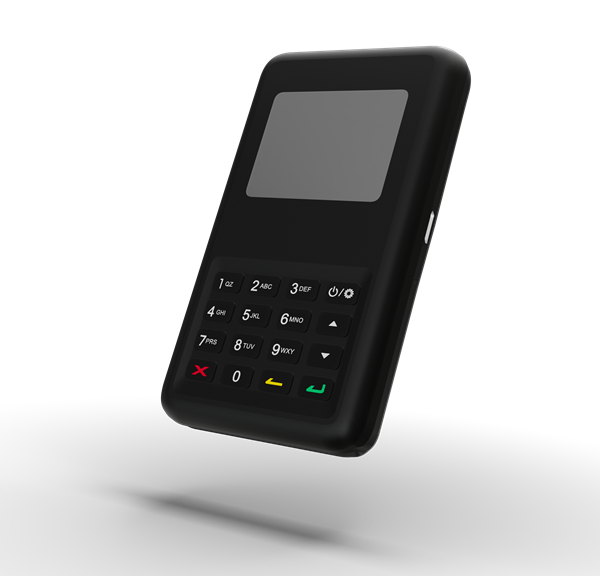
An image of the WisePad 3

Learn how to set up and use the WisePad 3 card reader.

BBPOS WisePOS E

This card reader is available for purchase for merchants both in the US and Canada. It is a network card reader which connects to your tablet through WiFi.
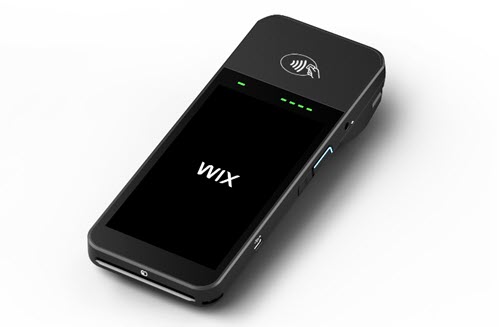
Screenshot of the card reader

Learn how to set up and use the WisePOS E card reader.

BBPOS Chipper 2X reader (previously available in the US)

If you purchased your card reader before July 2022, you may have the BBPOS Chipper 2X reader. You can identify it by its black color.
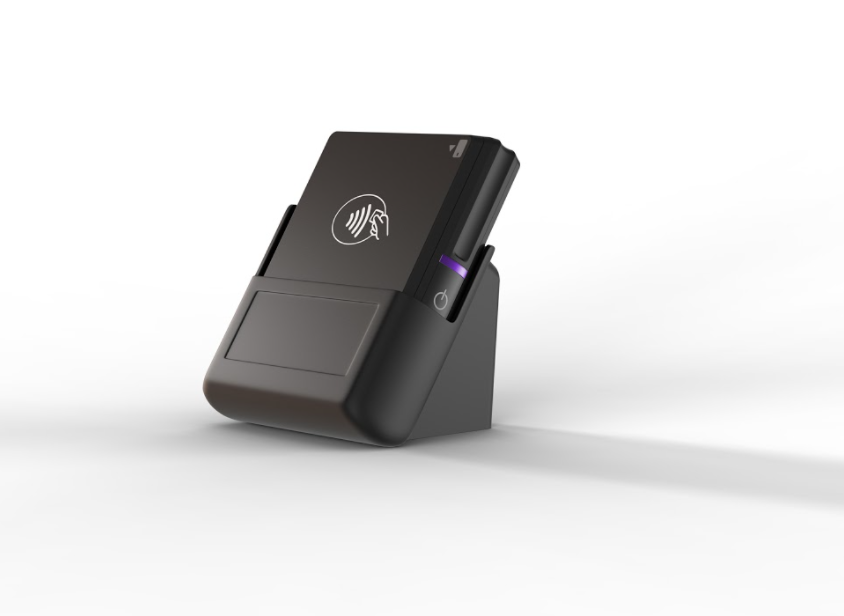
An image of the BBPOS Chipper 2X reader

Need A Professional Website?
Contact Us 
Today!

Google Workspace Error Message: "Your subscription has been suspended by your reseller"

Google Workspace Error Message: Service Is Temporarily Suspended until Your Customer Accepts the New Terms of Service

Google Workspace Error Message: "You already have a Google Workspace business email account. You can manage it from the Google Admin Console"

Google Workspace: Data Migration from an External Email to Your Google Workspace

Google Workspace: Revoking Admin Status to Delete a Workspace Account

Google Workspace: Connecting Your Business Email to a Mail Client Using IMAP and SMTP

Google Workspace: Changing the Language of Your Business Email

Google Workspace: Emails Missing from Your Business Email

Google Workspace: Allowing Access for ‘Less Secure Apps’ in Your Business Email

Google Workspace: Adding Google Workspace MX Records to Your Wix Account

Google Workspace: Setting Up a Domain Alias

Google Workspace: Manually Verifying Your Domain with Google

Google Workspace: Connecting a Business Email for a Domain Pointing to Wix

Google Workspace: Setting Up an Email Alias for an Existing Workspace User Email Address

Google Workspace: Resetting a Workspace User's Password

Google Workspace: Renaming a Workspace User

Google Workspace: Accessing Your Additional Workspace Users

Google Workspace: Purchasing Additional Business Emails from Wix

Google Workspace: Setting Up Business Email Users

Gemini for Google Workspace: An Overview

Google Workspace: Upgrading a Workspace Plan

Google Workspace: Choosing a Plan

Google Workspace: Business Email Sending Limits

Google Workspace: Forwarding Emails From Your Business Email to Another Email Address

Google Workspace: Resetting Your Admin Password

Google Workspace: Accessing Your Admin Console

Google Workspace: Identifying Your Admin Workspace User

Google Workspace: Setting Up Your Business Email on Mobile Devices

Google Workspace: Username and Password Guidelines

Google Workspace: Accessing your Business Email Through Your Wix Account

wix experts
Graphic2Traffic web design
©
bottom of page