


Setting up Retail POS sales
Wix Retail POS: Customizing Printed Receipts
Important:
This article is about Wix Retail POS tablet for brick & mortar businesses.
For info on using POS on a mobile device, click here.
Print customer receipts using your Receipt Printer. You can customize your receipt and decide what information you want to display.
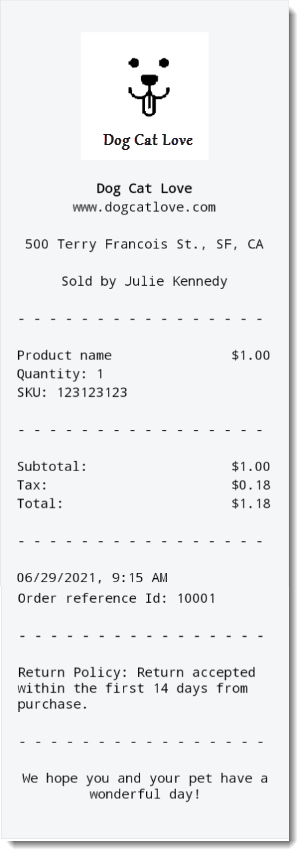
Customizing your receipt
Open the POS tablet.
Tap the Menu icon
 at the bottom left.
Tap Settings.
Tap Receipt on the left menu.
Tap Customize Your Receipt.
Add any of the following to your receipt:
Note: When you're finished customizing your receipt, tap Save at the top right.
Business name and website address
Enter your business's name under Business Name.
Add your site's URL under Website.
Logo
If you have not already done so, first go to your site's Editor and upload your logo image.
Tip: Your logo appears in grayscale on the receipt.
Tap Add Images.
Select your logo from the Media Manager.
Tap Choose.
Employee name
Click the Employee name toggle to enable or disable it.
Enabled: The receipt displays the name of the team member logged into the POS (e.g. Sold by Julie Kennedy). (Optional) You can edit the "Sold by" text.
Disabled: No employee name appears on the receipt.

Address
Click the Address toggle to enable or disable it.
Enabled: Enter your business address.
Disabled: No address appears on the receipt.
Return policy
A clear return policy on your receipt helps prevent disputes with your customers.
Click the Return Policy toggle to enable or disable it.
Enabled: Enter the policy.
Disabled: No policy appears on the receipt.
Custom text
Add custom text that appears at the bottom of your receipt. You can use this space to add a friendly message or invite customers to come back.
Click the Custom Text toggle to enable or disable it.
Enabled: Enter a message (e.g. Thank you for your purchase).
Disabled: No message appears on the receipt.

FAQs
Click a question below to learn more about customizing printed receipts.
How can I check my customizations?
You can view a preview of a sample receipt on the right of the screen. Alternatively, you can tap Print Test Receipt to print a receipt using your receipt printer.
Can I also send receipts by text message?
Yes. Just tap the Enable text receipts toggle in the Receipt tab to enable this option.
Then, when you complete a sale, you'll see the option to send a text receipt.

Can I also print gift receipts?
Yes. Go to the Receipt tab and tap the Enable gift receipts on the Thank You page toggle to enable it. When you complete a sale, you'll see the option to print a gift receipt (a receipt that doesn't display the order price).
