top of page

Managing your Store in Retail POS

Wix Retail POS: Creating Product Categories

Important:

  • This article is about Wix Retail POS tablet for brick & mortar businesses.

  • For info on using POS on a mobile device, click here.

Using product categories, you can organize your store products to help you locate them more quickly at your point of sale.

Note:

Product categories were previously called product collections.

All your products are automatically added to the "All Products" category. You can also add products to other categories so that they appear in more than one category. For example, if you have a pet shop, you can create a "Dog" category and a "Cat" category, that contain dog and cat food respectively. You can also create a general "Pet Food" category that includes the same products that are in the other categories.
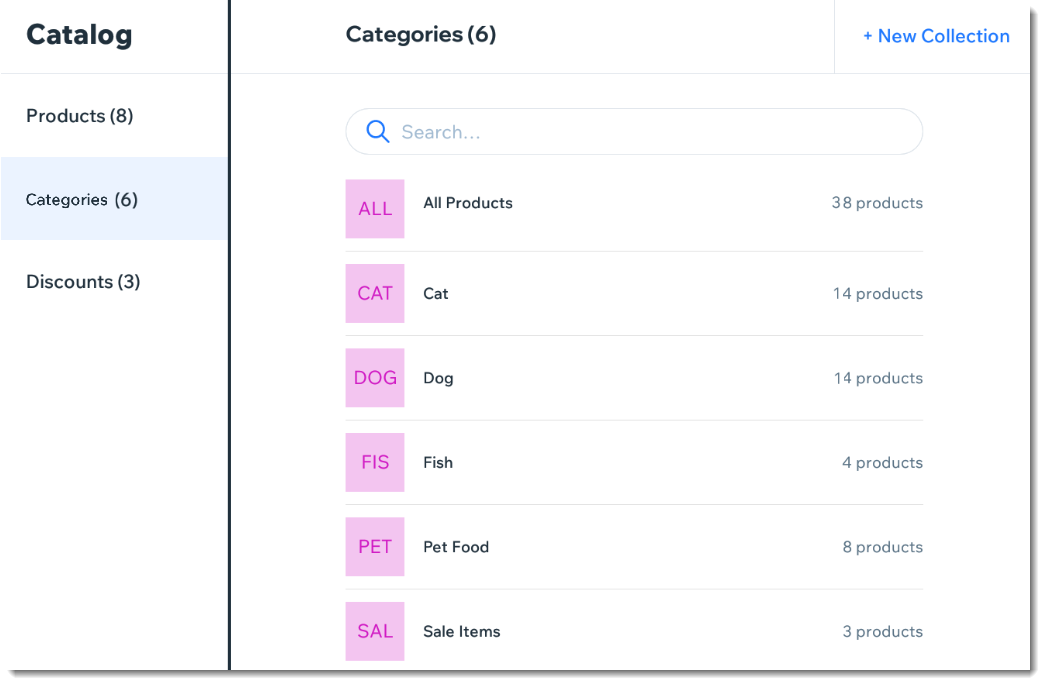
Screenshot of the Categories page in the Wix Retail POS tablet

Note:

Any product categories you create on the POS tablet also appear in your dashboard on desktop and vice versa. You can use categories in your live site to display different types of products on different pages.

To create a product category:

  1. Open the POS tablet.

  2. Tap the Menu icon  at the bottom left.

  3. Tap Catalog.

  4. Tap Categories.

  5. Tap + New Category.

  6. Enter a name for your category and tap Save.

  7. Add products to your new category:Tap Add Products.
    Select the checkboxes next to the products you want to add.
    Note: You can use the search bar to find specific products.
    Tap Add.

Notes:

  • To delete a product category, select the category and tap Delete at the top right. Deleting a category does not delete the products.

  • To remove a product from a category, tap the Remove iconnext to the product.

Need A Professional Website?
Contact Us 
Today!

Google Workspace Error Message: "Your subscription has been suspended by your reseller"

Google Workspace Error Message: Service Is Temporarily Suspended until Your Customer Accepts the New Terms of Service

Google Workspace Error Message: "You already have a Google Workspace business email account. You can manage it from the Google Admin Console"

Google Workspace: Data Migration from an External Email to Your Google Workspace

Google Workspace: Revoking Admin Status to Delete a Workspace Account

Google Workspace: Connecting Your Business Email to a Mail Client Using IMAP and SMTP

Google Workspace: Changing the Language of Your Business Email

Google Workspace: Emails Missing from Your Business Email

Google Workspace: Allowing Access for ‘Less Secure Apps’ in Your Business Email

Google Workspace: Adding Google Workspace MX Records to Your Wix Account

Google Workspace: Setting Up a Domain Alias

Google Workspace: Manually Verifying Your Domain with Google

Google Workspace: Connecting a Business Email for a Domain Pointing to Wix

Google Workspace: Setting Up an Email Alias for an Existing Workspace User Email Address

Google Workspace: Resetting a Workspace User's Password

Google Workspace: Renaming a Workspace User

Google Workspace: Accessing Your Additional Workspace Users

Google Workspace: Purchasing Additional Business Emails from Wix

Google Workspace: Setting Up Business Email Users

Gemini for Google Workspace: An Overview

Google Workspace: Upgrading a Workspace Plan

Google Workspace: Choosing a Plan

Google Workspace: Business Email Sending Limits

Google Workspace: Forwarding Emails From Your Business Email to Another Email Address

Google Workspace: Resetting Your Admin Password

Google Workspace: Accessing Your Admin Console

Google Workspace: Identifying Your Admin Workspace User

Google Workspace: Setting Up Your Business Email on Mobile Devices

Google Workspace: Username and Password Guidelines

Google Workspace: Accessing your Business Email Through Your Wix Account

wix experts
Graphic2Traffic web design
©
bottom of page