top of page

Setting up Retail POS hardware

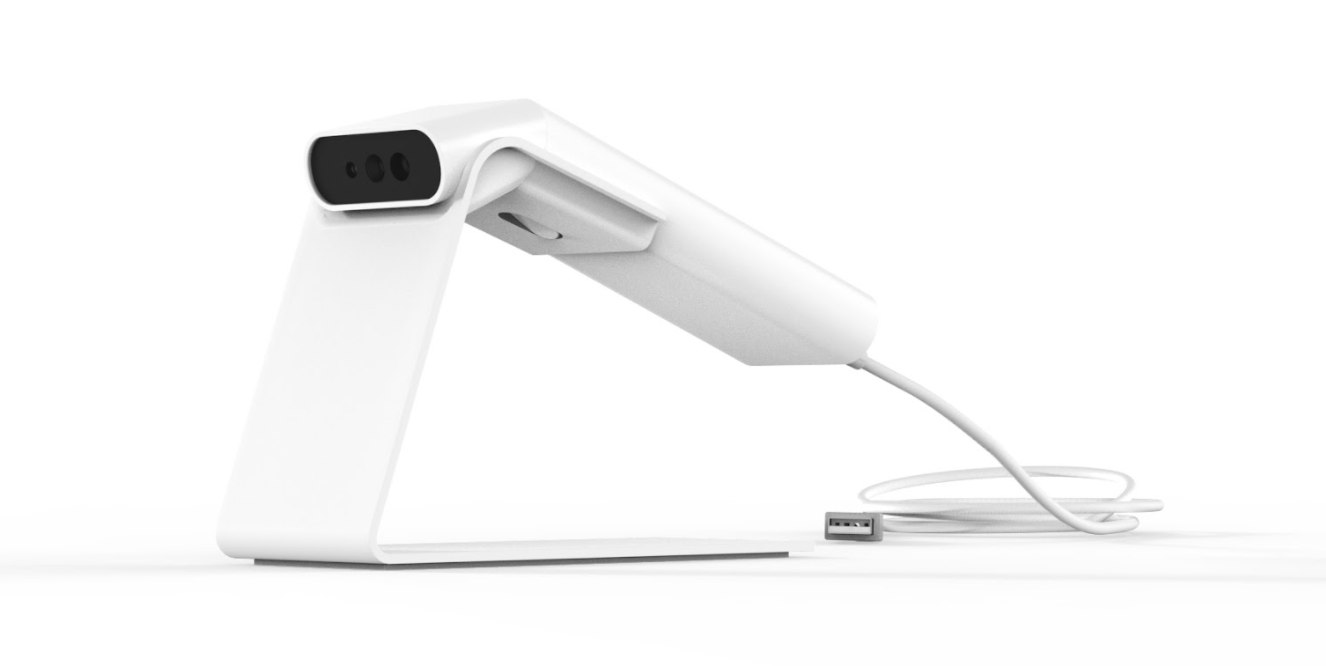
Wix Retail POS: About Your HP Barcode Scanner

Important:

  • This article is about Wix Retail POS tablet for brick & mortar businesses.

  • For info on using POS on a mobile device, click here.

Use the Barcode Scanner to scan your products when customers are checking out or when you are adding new products to your catalog.
Learn how to:

Setting Up the Scanner

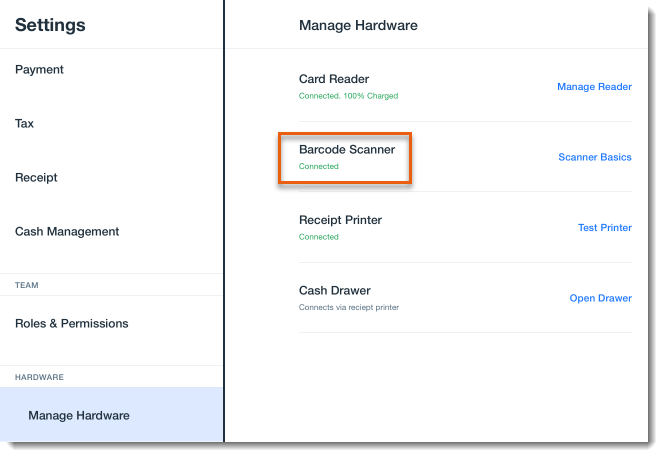
Start by connecting the scanner to the tablet, then go to your hardware settings to verify that it's connected correctly.

To set up the scanner:

  1. Connect the cable to the scanner and to the tablet.
    Note: This automatically turns the scanner on.

  2. Open the POS tablet.

  3. Tap the Menu icon  at the bottom left.

  4. Tap Settings.

  5. Tap Manage Hardware.

  6. Check the status under Barcode Scanner. If the scanner is connected properly, the status should read Connected.
Scanning Products with the Barcode Scanner

The barcode scanner's red light means ready to use. The scanner beeps and the light changes to green when it successfully scans a product.

To scan products:

  1. Pick up the barcode scanner.

  2. Hold the scanner's trigger button and, without letting go, aim the scanner's beam to the center of the product's barcode.

  3. Release the button after you hear the beep.

Tip:

You can also scan products without having to hold the button. Place the scanner on its stand and hold the product's barcode in front of the red beam.

Maintaining the Barcode Scanner

To keep the scanner functioning properly, follow the guidelines below.

To maintain the barcode scanner:

  • Keep the scan window clean and without scratches.

  • If there is a stain on the scan window, clean it using a soft cloth (e.g. an eyeglass cleaning cloth).

  • Do not spray any liquid on the scan window.

  • Do not use any detergent to clean other parts of the device except for water.

Troubleshooting Your Barcode Scanner

If your barcode scanner stops responding or doesn't act normally, disconnect it from the tablet and then reconnecting it.

Need A Professional Website?
Contact Us 
Today!

Google Workspace Error Message: "Your subscription has been suspended by your reseller"

Google Workspace Error Message: Service Is Temporarily Suspended until Your Customer Accepts the New Terms of Service

Google Workspace Error Message: "You already have a Google Workspace business email account. You can manage it from the Google Admin Console"

Google Workspace: Data Migration from an External Email to Your Google Workspace

Google Workspace: Revoking Admin Status to Delete a Workspace Account

Google Workspace: Connecting Your Business Email to a Mail Client Using IMAP and SMTP

Google Workspace: Changing the Language of Your Business Email

Google Workspace: Emails Missing from Your Business Email

Google Workspace: Allowing Access for ‘Less Secure Apps’ in Your Business Email

Google Workspace: Adding Google Workspace MX Records to Your Wix Account

Google Workspace: Setting Up a Domain Alias

Google Workspace: Manually Verifying Your Domain with Google

Google Workspace: Connecting a Business Email for a Domain Pointing to Wix

Google Workspace: Setting Up an Email Alias for an Existing Workspace User Email Address

Google Workspace: Resetting a Workspace User's Password

Google Workspace: Renaming a Workspace User

Google Workspace: Accessing Your Additional Workspace Users

Google Workspace: Purchasing Additional Business Emails from Wix

Google Workspace: Setting Up Business Email Users

Gemini for Google Workspace: An Overview

Google Workspace: Upgrading a Workspace Plan

Google Workspace: Choosing a Plan

Google Workspace: Business Email Sending Limits

Google Workspace: Forwarding Emails From Your Business Email to Another Email Address

Google Workspace: Resetting Your Admin Password

Google Workspace: Accessing Your Admin Console

Google Workspace: Identifying Your Admin Workspace User

Google Workspace: Setting Up Your Business Email on Mobile Devices

Google Workspace: Username and Password Guidelines

Google Workspace: Accessing your Business Email Through Your Wix Account

wix experts
Graphic2Traffic web design
©
bottom of page