top of page

Table reservations

Wix Restaurants: Setting Up Prepayment for Table Reservations

Set up prepayment rules for reservations for larger groups or individual guests. Accept credit card payments when guests book online. With automatic approval, customers are charged immediately.

With manual approval, customers aren’t charged right away. After approval, charge them by sharing a payment link, sending an invoice, or handling the payment directly. Plus, you can access detailed analytics for all your table reservation payments.
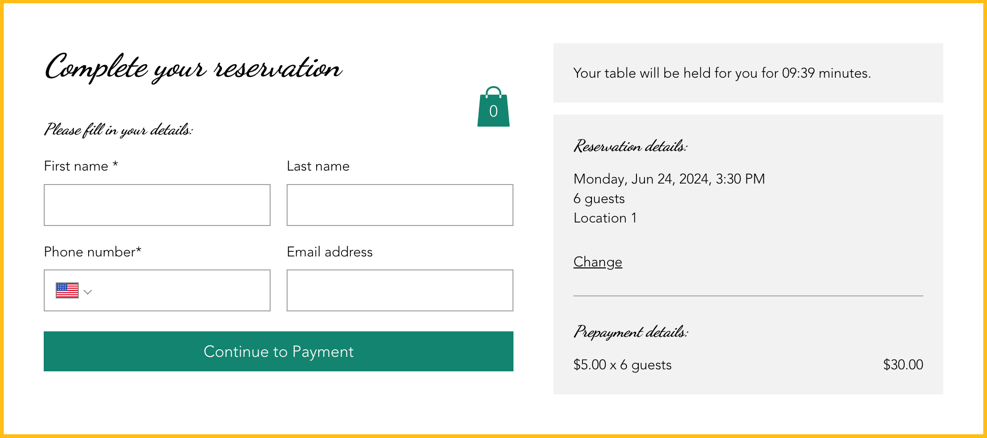
A screenshot of how prepayment appears when a customer reserves a table.

Adding a payment rule

Reduce last minute cancellations by collecting payment upfront. This helps reduce no shows and minimize last minute cancellations.

You can do this from your site's dashboard or straight from the Wix app on your mobile device.

To add a payment rule:

Dashboard

Wix app

  1. Go to Table Reservations in your site's dashboard.

  2. Click Settings at the top right.

  3. Click Prepayment.

  4. Click + Add Prepayment and define your prepayment rules:Party Size: Enter the minimum number of guests the fee applies to.
    Charge Fee: Enter the fee to charge each guest for this reservation.

  5. Click Save.

A screenshot of defining your prepayment rules for table reservations.

FAQs

Click a question below to learn more.

Can I customize the table reservation form?

Customize your table reservation form to include information about your table reservation fees for your guests.

How do I change the currency on my site?

To change the currency on your site, go to language & region in your site's dashboard.

How do I set up tax?

To set up tax for your site, go to tax in your site's dashboard.

Need A Professional Website?
Contact Us 
Today!

Google Workspace Error Message: "Your subscription has been suspended by your reseller"

Google Workspace Error Message: Service Is Temporarily Suspended until Your Customer Accepts the New Terms of Service

Google Workspace Error Message: "You already have a Google Workspace business email account. You can manage it from the Google Admin Console"

Google Workspace: Data Migration from an External Email to Your Google Workspace

Google Workspace: Revoking Admin Status to Delete a Workspace Account

Google Workspace: Connecting Your Business Email to a Mail Client Using IMAP and SMTP

Google Workspace: Changing the Language of Your Business Email

Google Workspace: Emails Missing from Your Business Email

Google Workspace: Allowing Access for ‘Less Secure Apps’ in Your Business Email

Google Workspace: Adding Google Workspace MX Records to Your Wix Account

Google Workspace: Setting Up a Domain Alias

Google Workspace: Manually Verifying Your Domain with Google

Google Workspace: Connecting a Business Email for a Domain Pointing to Wix

Google Workspace: Setting Up an Email Alias for an Existing Workspace User Email Address

Google Workspace: Resetting a Workspace User's Password

Google Workspace: Renaming a Workspace User

Google Workspace: Accessing Your Additional Workspace Users

Google Workspace: Purchasing Additional Business Emails from Wix

Google Workspace: Setting Up Business Email Users

Gemini for Google Workspace: An Overview

Google Workspace: Upgrading a Workspace Plan

Google Workspace: Choosing a Plan

Google Workspace: Business Email Sending Limits

Google Workspace: Forwarding Emails From Your Business Email to Another Email Address

Google Workspace: Resetting Your Admin Password

Google Workspace: Accessing Your Admin Console

Google Workspace: Identifying Your Admin Workspace User

Google Workspace: Setting Up Your Business Email on Mobile Devices

Google Workspace: Username and Password Guidelines

Google Workspace: Accessing your Business Email Through Your Wix Account

wix experts
Graphic2Traffic web design
©
bottom of page