


Taking online orders (NEW)
Wix Restaurants: Setting Up DoorDash Drive for Your Restaurant
Important:
DoorDash Drive is only available in the United States.
This article is about integrating the new Wix Restaurants Orders app with DoorDash Drive. Learn more about delivering orders with DoorDash in the original Restaurants Orders app.
Optimize your restaurant's delivery process with the pre-installed DoorDash Drive app on your site. Allow customers to order directly from your site while seamlessly managing all your deliveries. You can choose to handle some deliveries yourself, or let DoorDash Drive manage them for a straightforward flat fee per delivery.
Before you begin:
Make sure that your business info is up to date.
Step 1 | Register with DoorDash Drive
To add DoorDash Drive as a delivery partner, register through your site's dashboard and follow the steps on screen.
To register with DoorDash Drive:
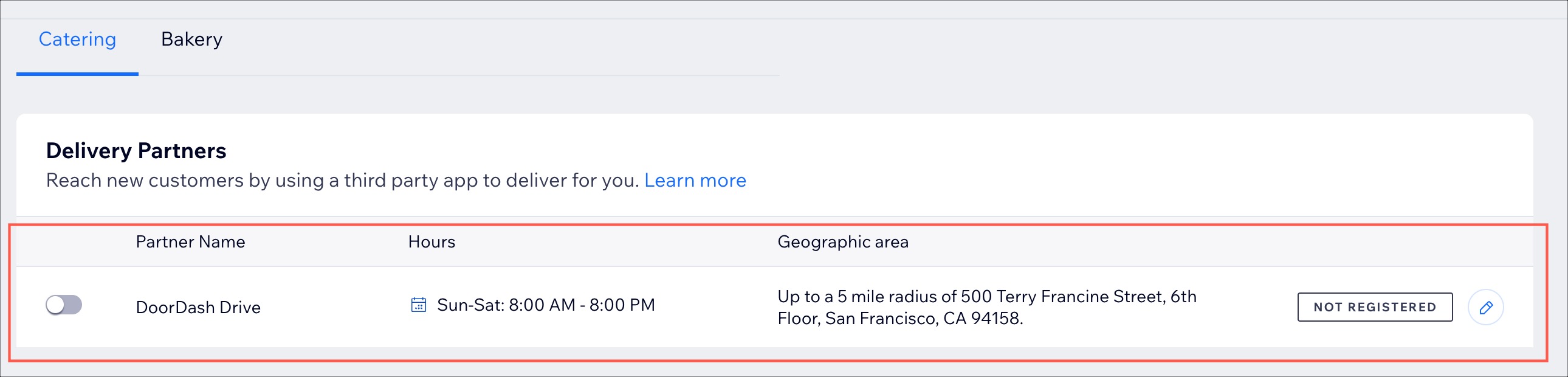
Go to Pickup and Delivery in your site's dashboard.
Click the Edit icon
 next to DoorDash Drive under Delivery Partners.
Click Register to begin the registration with DoorDash Drive:Click Agree & Continue to allow DoorDash Drive to manage restaurant orders and read basic site and business info.
Enter your credentials and click Sign in.
Enter your business information to sign the Wix integration contract and click Submit.
Step 2 | Enable online payments for your site
Accept payments directly through your site. Choose from various payment methods and providers, and select the options you want to display on your checkout page.
Important:
Upgrade your site to accept payments.
Disable manual payments to deliver with DoorDash Drive. DoorDash only accepts online payments and doesn't accept cash.
To enable online payments on your site:
Go to Pickup and Delivery in your site's dashboard.
Click the Edit icon
next to DoorDash Drive under Delivery Partners.Click Go to Payments to set up online payments and disable manual payments.
Step 3 | Enable tips for restaurant orders
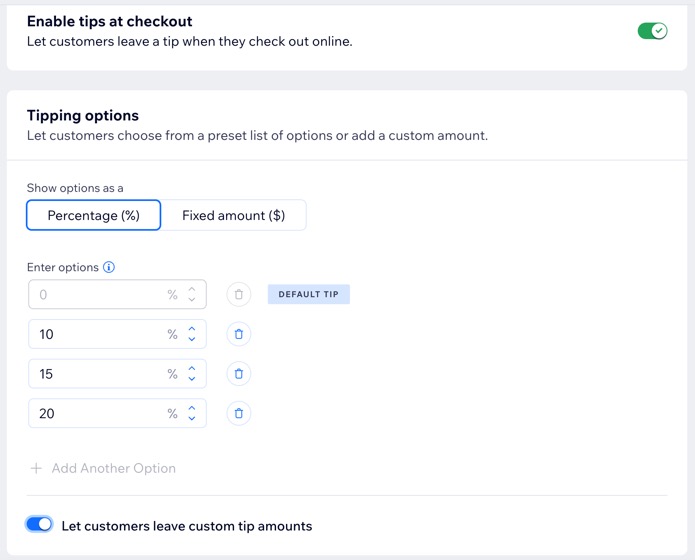
Enable tips for DoorDash Dashers. DoorDash receives the tips customers leave at checkout when you fulfill deliveries with DoorDash Drive.
To enable tips:
Go to Pickup and Delivery in your site's dashboard.
Click the Edit icon
next to DoorDash Drive under Delivery Partners.Click Go to Tips to start collecting tips at checkout.
Step 4 | Customize your delivery settings
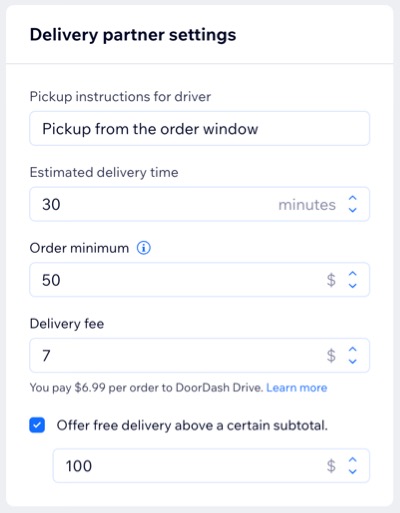
Customize delivery options such as pickup instructions, estimated delivery time, order minimum, and fees. Orders within a 5-mile radius of your business address are automatically assigned to DoorDash Drive.
To customize delivery settings:
Go to Pickup and Delivery in your site's dashboard.
Click the Edit icon
next to DoorDash Drive under Delivery Partners.Enter your Delivery hours.
Enter the Delivery partner settings:Pickup instructions for driver: Guidelines for drivers on how to collect the order.
Estimated delivery time: The projected timeframe for the order to arrive at the destination.
Order minimum: The minimum amount required for an order to be placed.
Delivery fee: The charge applied for delivering the order.
(Optional) Select if you want to Offer free delivery above a certain subtotal. Then, enter the subtotal.
Click Save.
Step 5 | Enable DoorDash Drive
To complete the setup, enable the toggle to start delivering orders with DoorDash Drive.
To enable DoorDash Drive:
Go to Pickup and Delivery in your site's dashboard.
Enable the toggle next to DoorDash Drive under Delivery Partners.

FAQs
Click a question below to learn more.
How is DoorDash Drive different from DoorDash Marketplace?
DoorDash Drive allows customers to place orders on your site and get delivery via a DoorDash delivery driver. For DoorDash Drive you pay a flat-rate fee. With DoorDash Marketplace, customers place orders on doordash.com or through the DoorDash app.
What are the fees associated with using DoorDash Drive for my restaurant?
DoorDash Drive charges a flat fee of 6.99 per order. There are additional fees if your restaurant is located in California ($2.00), New York City ($2.99), or Seattle ($4.99).
How does DoorDash Drive collect payment?
The fees are outlined in your application with DoorDash Drive. You will receive a monthly digital invoice by DoorDash Drive that you can pay via ACH, wire, or check.
Can customers pay cash for DoorDash Drive deliveries?
No. DoorDash only accepts online payment options. Customers cannot pay for an order with cash.
Can I set up DoorDash Drive alongside my own delivery?
Yes. You can choose to deliver orders yourself within a specific radius or area. If a customer places an order within your delivery area, it will be assigned to you. Orders outside your coverage area will be sent to DoorDash Drive for delivery.